
How to clear your browser cache safely
Clear cached files in Chrome, Safari or Firefox when a site looks stuck, while leaving saved passwords alone unless you mean to remove them.
Your browser cache is a folder of temporary files a site already sent you: images, scripts and layout pieces saved so the next visit loads faster. When those files go stale, a page can look broken, show an old logo or keep an error that a hard refresh will not fix. Clearing the cache forces the browser to download fresh copies.
Cache is not the same as cookies. Cookies are small bits of data sites use to keep you signed in, remember preferences or track activity. You can clear cached images and files without wiping every login. Password managers and browser-saved passwords are another layer again. Do not clear “passwords” or “all site data” unless you intend to sign in everywhere from scratch.
Use this when a single site misbehaves after an update, when support asks you to clear cache or when a design change never appears on your machine. Skip it as a weekly habit if nothing is wrong. You will only slow down your next visits and may sign yourself out if you clear too broadly.
The clicks differ slightly in Chrome, Safari and Firefox, but the idea is the same: open clearing or privacy settings, choose a time range, keep passwords unless you mean to remove them and clear cached files. Then reload the problem site.
Step-by-step guide
Time: 5 to 15 minutes including a reload test
What you need
- Computer or laptop with Chrome, Safari or Firefox
- A minute to reload the problem site afterward
- Optional: notes for any site passwords you might need if you clear too much
Before you start
- Clearing cookies or “all site data” can sign you out of email, banking and shopping sites.
- Do not select saved passwords unless you mean to delete stored logins from this browser.
- Work or school devices may restrict clearing. Follow your IT policy.
Step 01
Decide what to clear and what to keep
Separate cache from cookies and passwords before you click anything destructive.
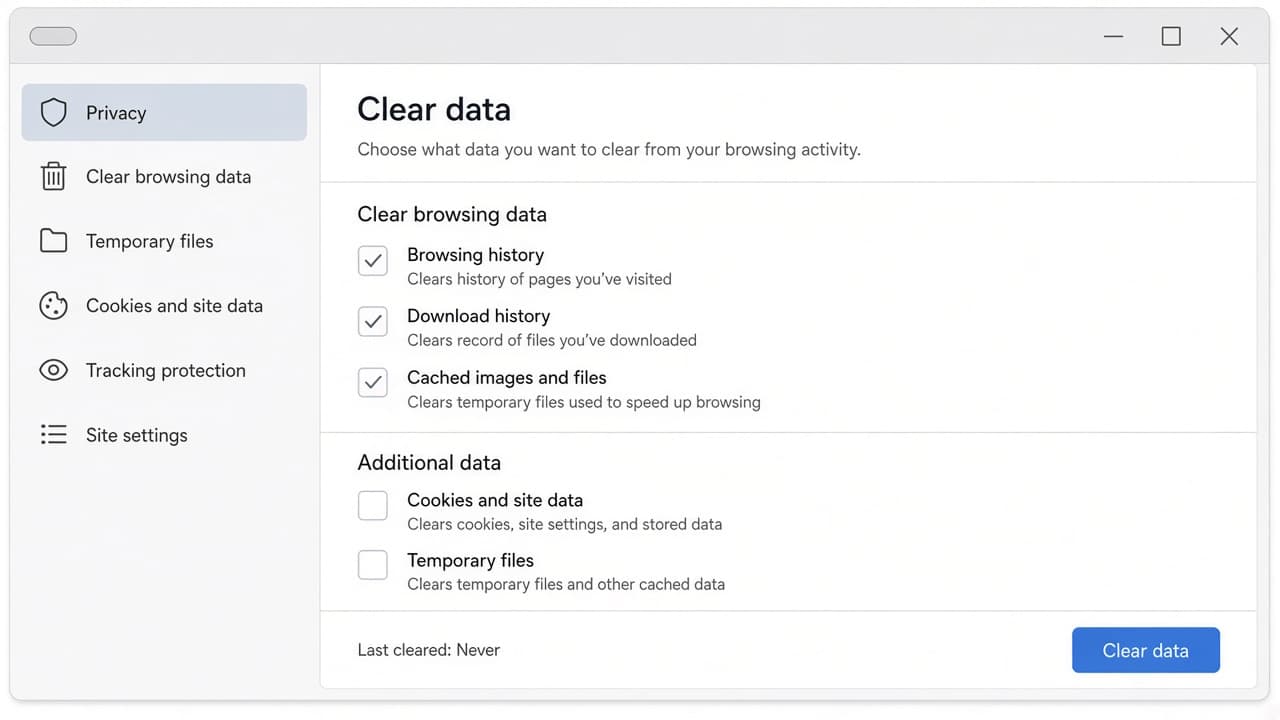
Cache is temporary files. Cookies and passwords are separate. Clear with intent. Do this step in order
1a
Clear cache when pages look outdated or broken
Good reasons: a site shows an old design, a script error repeats after refresh or support told you to clear cache. Bad reason: clearing everything every morning “just in case.”
1b
Know what cookies do before you remove them
Cookies often keep you signed in. If you only need fresh images and files, prefer the cache option and leave cookies checked off or untouched. Clearing both is a bigger reset.
1c
Leave saved passwords alone unless you mean it
Browser password lists and “passwords and other sign-in data” are not the cache. Uncheck them. If you clear them by mistake, you will need your password manager or memory for every site.
1d
Pick a time range when the browser offers one
Last hour or last 24 hours is enough for many glitches. “All time” is the heavy option when a long-running stale file is the suspect. Start smaller when you can.
Step 02
Clear cached files in Chrome or a Chromium browser
Chrome’s clearing panel lets you choose time range and data types. Aim at cached images and files.
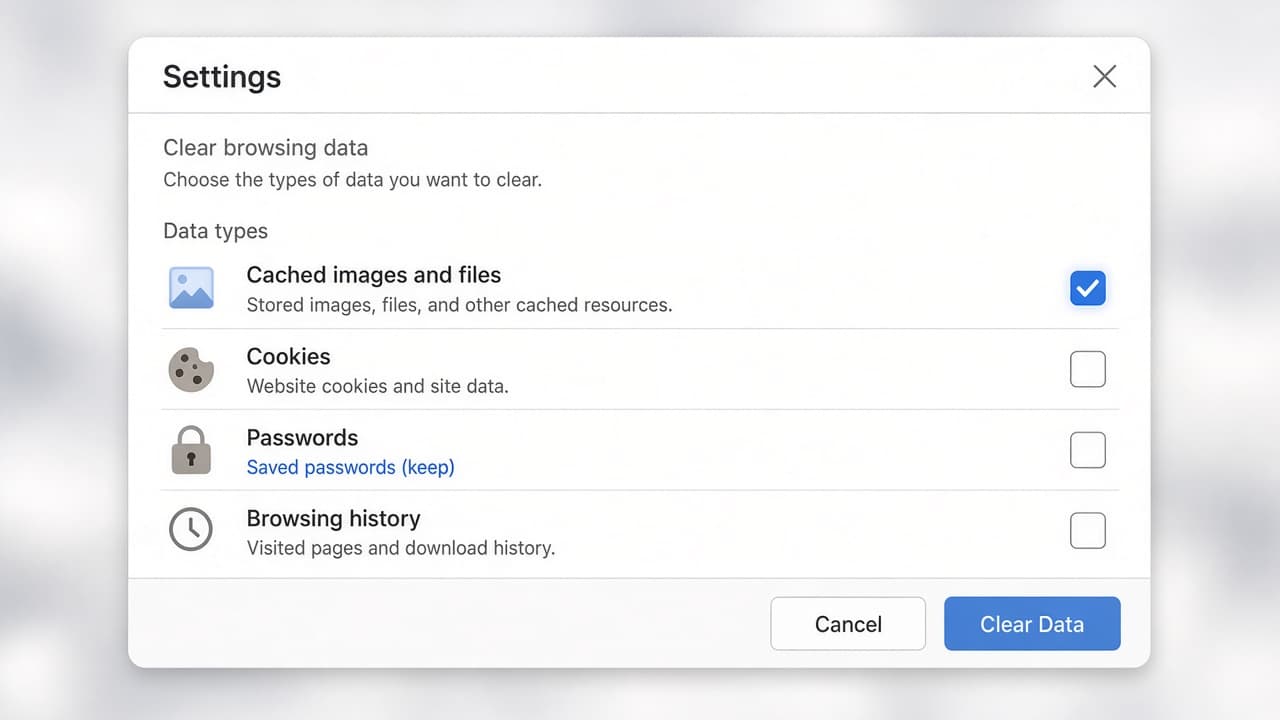
In Chrome-style settings, choose cached images and files, not passwords. Do this step in order
2a
Open Clear browsing data
Open Chrome settings and find privacy and security controls or use the Clear browsing data entry from the menu. Illustrative menus vary slightly by version, but you want the panel that lists data types to remove.
2b
Select cached images and files
Check “Cached images and files” (wording may vary slightly). Uncheck passwords. Uncheck cookies if you only want cache. Choose a time range, then confirm clear data.
2c
Reload the problem site and test
Go back to the site and reload. If it still fails, try a hard reload or repeat with a longer time range. Common mistake: clearing cache, then judging the result before the page fully reloads.
Step 03
Clear cache in Safari on Mac
Safari hides some developer tools, but you can empty caches from settings or the Develop menu once it is enabled.
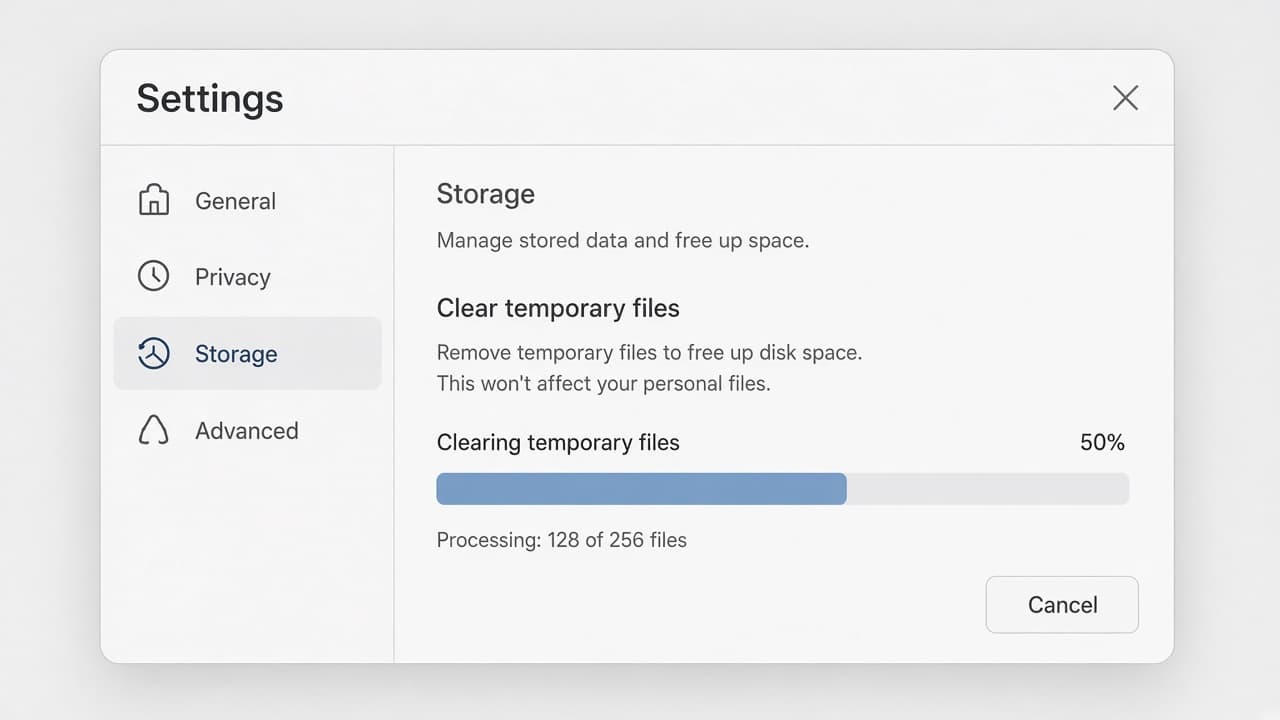
Safari users can clear history and website data or empty caches from Develop. Do this step in order
3a
Use Settings to clear history and website data carefully
Open Safari settings and look for History or Privacy controls that clear website data. Read the prompt. Some choices remove more than cache, including cookies for the selected period.
3b
Optional: enable Develop and Empty Caches
In Safari advanced settings, enable the Develop menu if it is off. Then choose Empty Caches from Develop. That targets cached files without the same full history wipe as clearing all website data.
3c
Reload and avoid clearing passwords in iCloud Keychain panic
Reload the site in Safari. Do not open password settings and delete saved logins while you are only trying to fix a stale page. Keychain and browser cache are different tools.
Step 04
Clear cache in Firefox and finish with a safe check
Firefox also separates cache from cookies and logins. Clear, reload and only go broader if needed.

In Firefox, clear cache on its own when logins should stay put. Do this step in order
4a
Open Privacy and Security clear controls
In Firefox settings, open Privacy and Security and find cookies and site data or clear data controls. Illustrative labels vary by version, but cache or temporary files should be listed separately from logins.
4b
Clear cache only, then confirm
Select cache and clear it. Leave cookies and site data if you want to stay signed in. Leave logins and passwords untouched. Confirm the action, then close the panel.
4c
Test the site and escalate only if needed
Reload the problem page. If it still fails after a cache clear, try another browser to see whether the issue is local. Only then consider cookies or a deeper site-data reset, knowing you may need to sign in again.
4d
When not to clear more data
Skip wiping passwords, autofill and all site data for a cosmetic glitch. Skip clearing on a shared family computer right before someone else needs a saved school or banking login. Common mistake: choosing “everything” because it sounds thorough, then spending an hour signing back into every account.
Done when
- Problem site noted before clearing
- Cache or cached images selected
- Passwords left unchecked
- Clear completed for the chosen time range
- Site reloaded and checked
Eagle Frame’s takeaway: clear cached images and files when a page looks stuck and leave cookies and saved passwords alone unless you have a reason to reset them. Use a limited time range when you can, reload the site and only escalate to a full data wipe when support or a stubborn bug truly needs it.