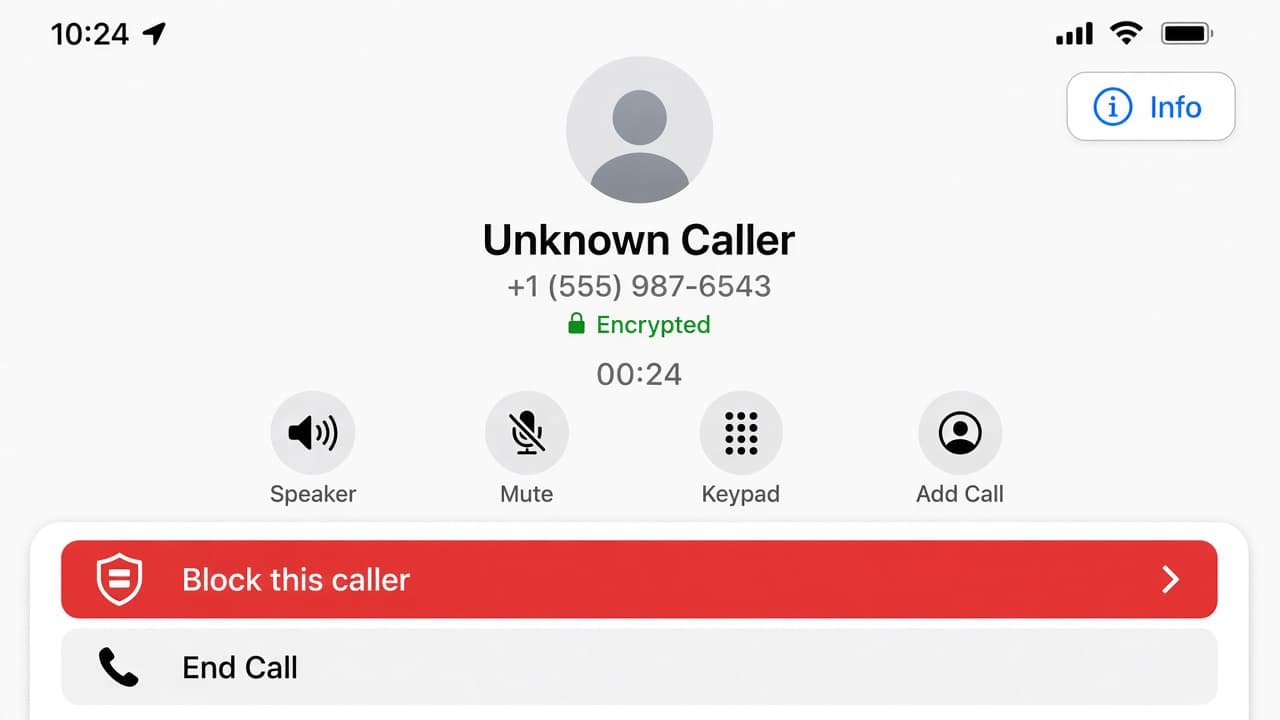
How to block a phone number
Block unwanted callers on iPhone or Android from Recents or system settings, confirm the number is on your blocked list and use carrier tools when device blocks are not enough.
Blocking a phone number tells your device to silence or decline calls and usually messages from that caller. The person is not notified. On iPhone they may still leave voicemail without ringing you. Exact behavior depends on the phone OS and messaging apps.
On iPhone you can block from Phone Recents or manage the list under Settings then Privacy and Security then Blocked Contacts (labels can move by iOS version). On Android with Google Phone open Call history, open the number and choose Block or report spam. Samsung and other skins may say Block numbers in Phone settings.
Blocking on the phone does not always stop SMS apps that keep a separate block list. Check Messages settings too. For relentless spam, carrier network tools or official scam-reporting routes can help beyond a single device.
Do not publish revenge block lists or harass people back. If you are being threatened, contact local authorities and preserve evidence. This guide covers ordinary unwanted calls and texts.
Step-by-step guide
Time: 5 to 15 minutes
What you need
- iPhone or Android phone
- Phone app with the unwanted call in Recents
- Optional: carrier account login for network-level blocking
Before you start
- Blocked callers may still leave voicemail on some setups.
- Spoofed numbers can change; one block will not stop every scam variant.
- Menu names differ by iOS version and Android brand.
- If you feel unsafe, seek local help rather than only blocking.
Step 01
Identify the number and decide to block
Confirm you have the right digits before you silence a contact you still need.
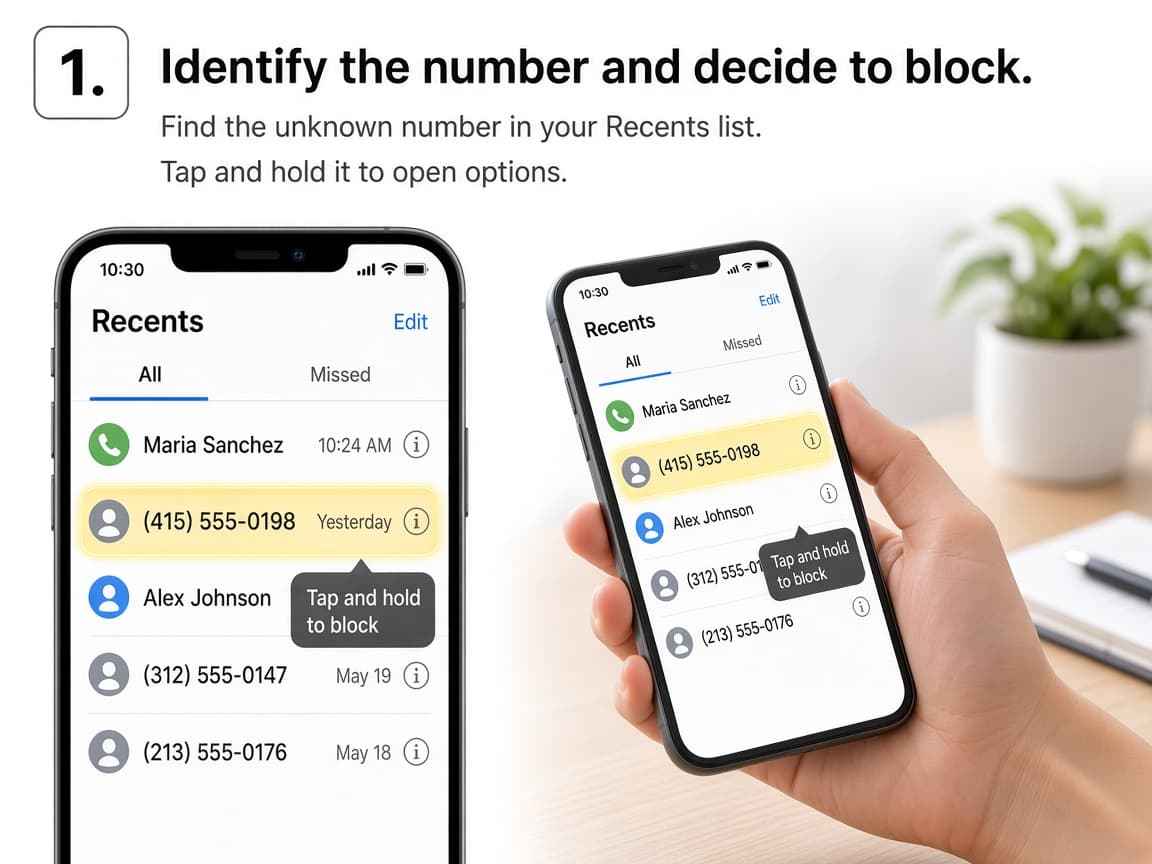
Match the timestamp so you block the correct caller. Do this step in order
1a
Open Recents or call history
In the Phone app open Recents, Calls or History. Find the call or voicemail tied to the nuisance number.
1b
Confirm it is not a number you need
Check whether a clinic, school or delivery service uses the line. When unsure, silence unknown callers instead of blocking a critical office.
1c
Note if texts arrived from the same line
If SMS continues after a call block, you will also adjust Messages in a later step.
Step 02
Block on iPhone
Use Recents info or Settings Blocked Contacts depending on which screen you prefer.
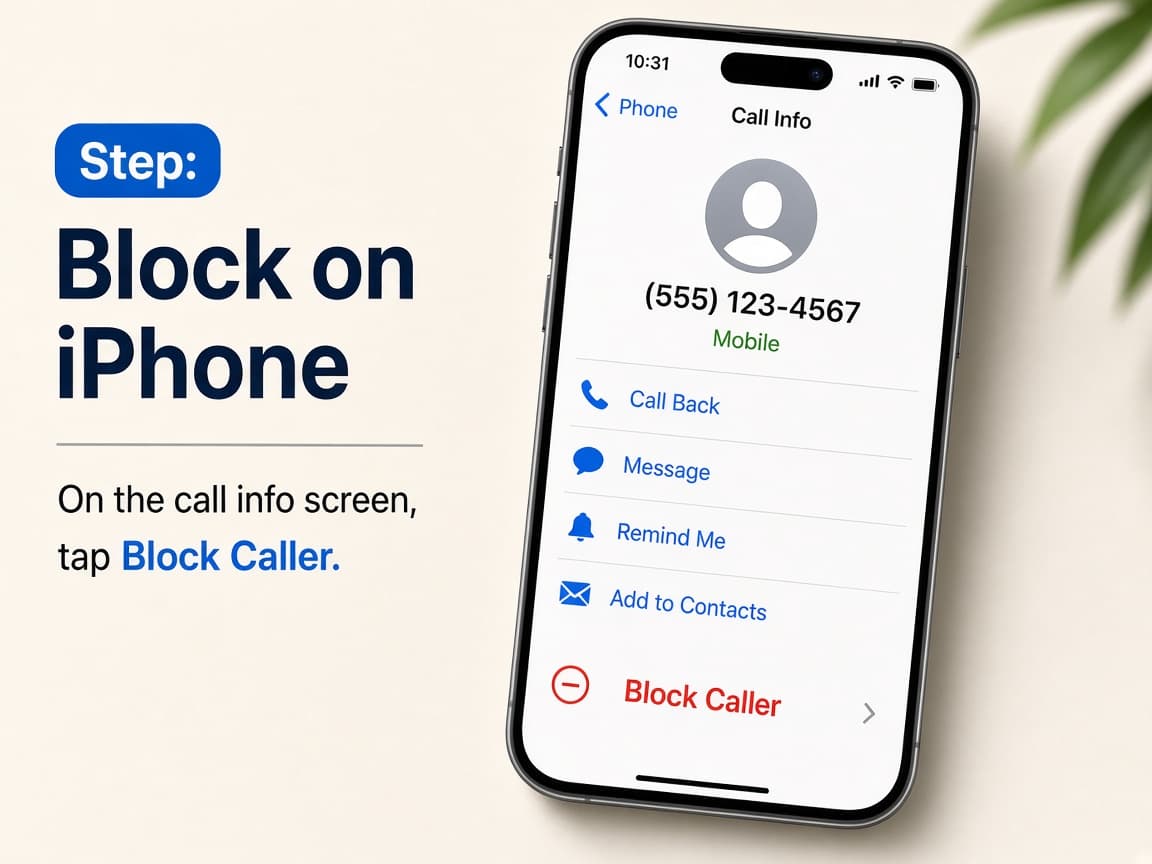
Block Caller is the quick path from a recent call. Do this step in order
2a
Block from Recents
In Phone tap Recents, open the info button for the number, scroll down and tap Block Caller. Confirm if asked.
2b
Or add from Settings Blocked Contacts
Open Settings, tap Privacy and Security, tap Blocked Contacts, then Add Blocked Contact and choose the person or number. On some iOS versions the path may sit under Apps then Phone.
2c
Understand voicemail behavior
Apple notes blocked callers can still leave voicemail without notifying you the usual way. Check Voicemail if you need the recording for records.
Step 03
Block on Android
Use Google Phone or your manufacturer's Phone app block tools.
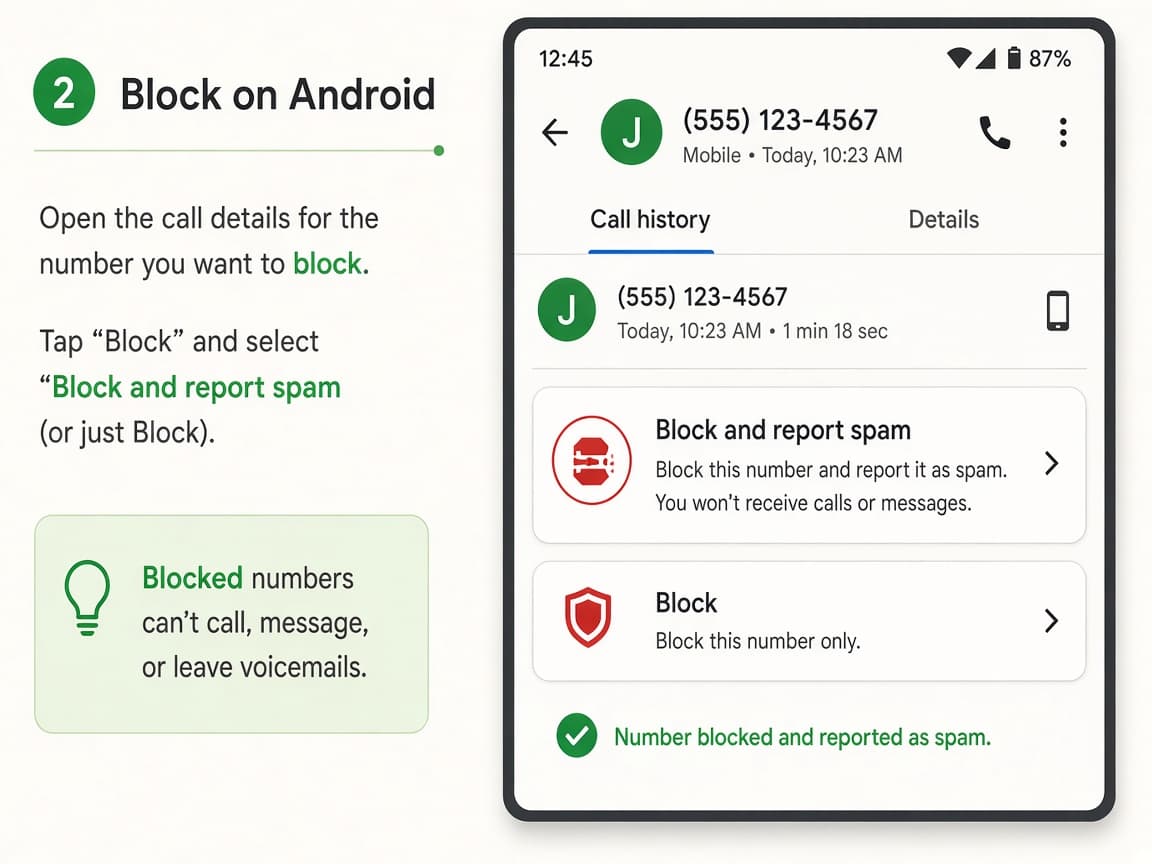
Google Phone uses Block/report spam from call details. Do this step in order
3a
Google Phone: block from call history
Open the Phone app, tap More then Call history (or open the number from Recents). Open the call and tap Block/report spam.
3b
Manage the blocked list in settings
In Google Phone open More, Settings, Blocked numbers to review or unblock later. Turn on Unknown if you want to block private numbers.
3c
Samsung and other skins
On many Galaxy phones open Phone, More options, Settings, Block numbers, then add the number or choose it from Recents. Labels vary by Android version.
Step 04
Cover texts, carriers and unblock paths
Finish in Messages if needed, escalate to carrier tools for stubborn spam and know how to reverse a mistake.
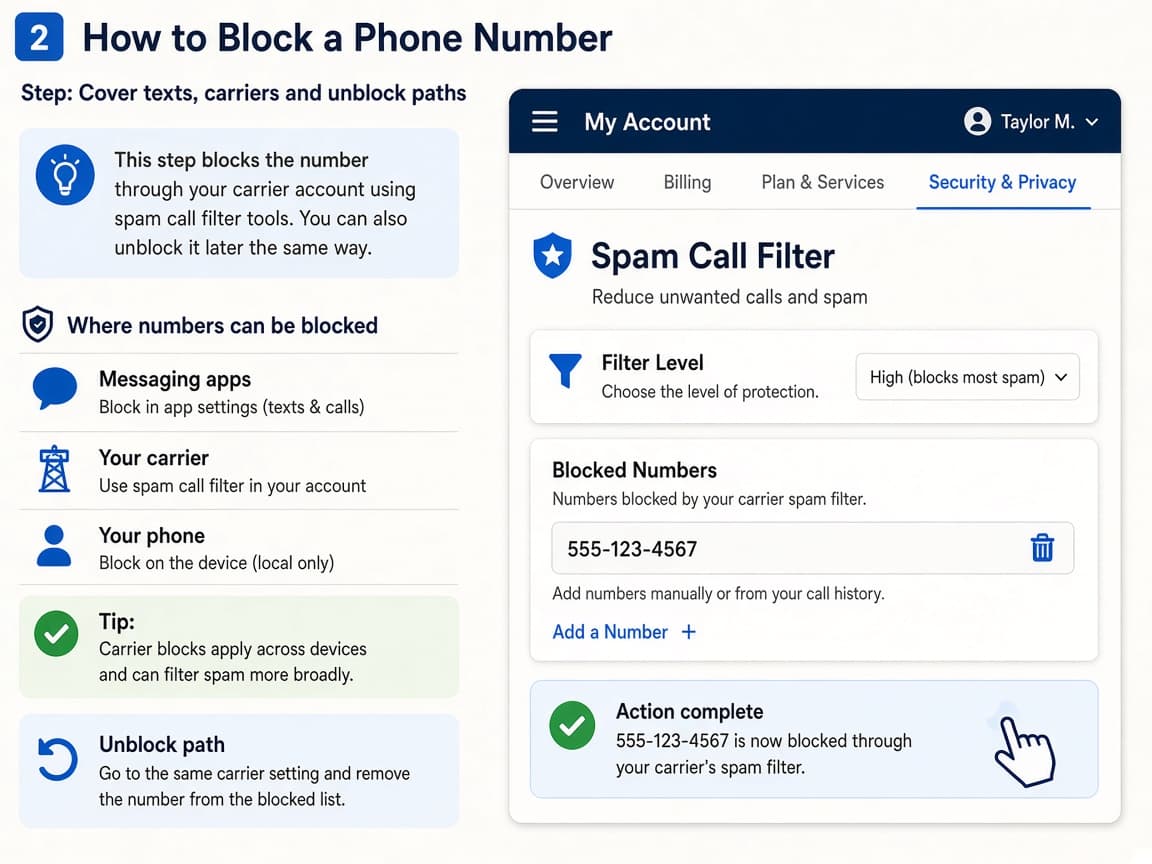
Network filters help when scammers rotate numbers. Do this step in order
4a
Block the number in Messages too
Open the text thread, use contact or details menus and choose Block / Report junk if texts continue after a call block.
4b
Use carrier spam tools for repeat abuse
Sign into your mobile carrier account and enable any official spam filtering or network block features they document. Prefer carrier help pages over third-party apps with unclear permissions.
4c
Unblock if you made a mistake
Return to Blocked Contacts (iPhone) or Blocked numbers (Android), select the entry and Unblock. Save the real contact afterward so it is easier to recognize.
Done when
- Find the number in Recents or Contacts
- Block from the call details screen
- Confirm it appears on the blocked list
- Block in Messages if texts continue
- Consider carrier spam tools for repeat offenders
Eagle Frame's takeaway: open the call in Recents, use Block Caller or Block/report spam, confirm the number appears under Blocked contacts or Blocked numbers and add carrier filtering if the same scams keep changing numbers.