How to block ads on YouTube
Cut YouTube ads with YouTube Premium or official settings first, then optional browser tools only if you accept breakage, policy risk and creator payout tradeoffs.
YouTube is funded by ads unless you pay for an ad-free tier or watch in limited contexts where Google shows fewer interruptions. The supported way to remove ads across phones, TVs and the main YouTube app is YouTube Premium (or Premium Lite in regions where Google offers it). Family and student plans can lower the per-person cost.
Inside the free app you still have smaller levers. You can skip many in-stream ads after a few seconds, mark ads irrelevant and tighten privacy ad settings in your Google account. You cannot ethically remove every ad in the official mobile app without paying or using methods Google may block.
Some people use ad-blocking browser extensions on desktop or modified clients. Those tools may violate YouTube terms, break playback after updates and reduce income for creators you watch. If you try a browser extension, use a well-known option from your browser's official store, understand it may stop working anytime and do not install random APK files from unknown sites.
Kids profiles, YouTube Music and TV apps each have their own settings. Premium bundles Music ad-free listening on the same subscription in many countries. Check the plan page for your region before you assume TV is included. Google says full Premium removes ads before and during millions of videos plus Shorts Feed, search and third-party banner ads on supported signed-in devices. It does not remove sponsorships placed inside a creator's video.
Premium Lite is not a complete ad blocker. Google describes it as fewer interruptions on most non-music videos, while ads may remain on music, Shorts and search or browse screens. Features, prices and availability change by country, so compare the exact checkout page rather than an old review.
Step-by-step guide
Time: 10 to 20 minutes to compare plans and adjust settings
What you need
- Google account with your YouTube profile
- YouTube app or youtube.com in a browser
- Payment method if you choose Premium
- Optional: desktop browser with a reputable extension store
- List of devices where you watch most often
- Family members' Google accounts if you need a family plan
Before you start
- Modified YouTube apps and unknown APKs are a security risk.
- Browser ad blockers may break YouTube without notice and can conflict with site terms.
- Premium pricing and Lite availability vary by country.
- Blocking ads on free YouTube reduces revenue for creators you follow.
Step 01
Map where you watch and what still shows ads
The official ad-free path depends on which devices and apps you use daily.
Do this step in order
1a
List your screens: phone, TV, tablet, desktop
Write down every place you regularly watch, including smart TVs, consoles, tablets and YouTube Kids. Full Premium follows the subscribed Google account across supported signed-in devices. A browser-only workaround will not change ads in the official phone or TV app.
1b
Note music, Shorts and live habits
Mark whether you lean on Shorts, YouTube Music, live streams or Primetime Channels. Some Lite and free-tier experiences still show ads in those places. Knowing your mix prevents buying the wrong plan for the wrong complaint.
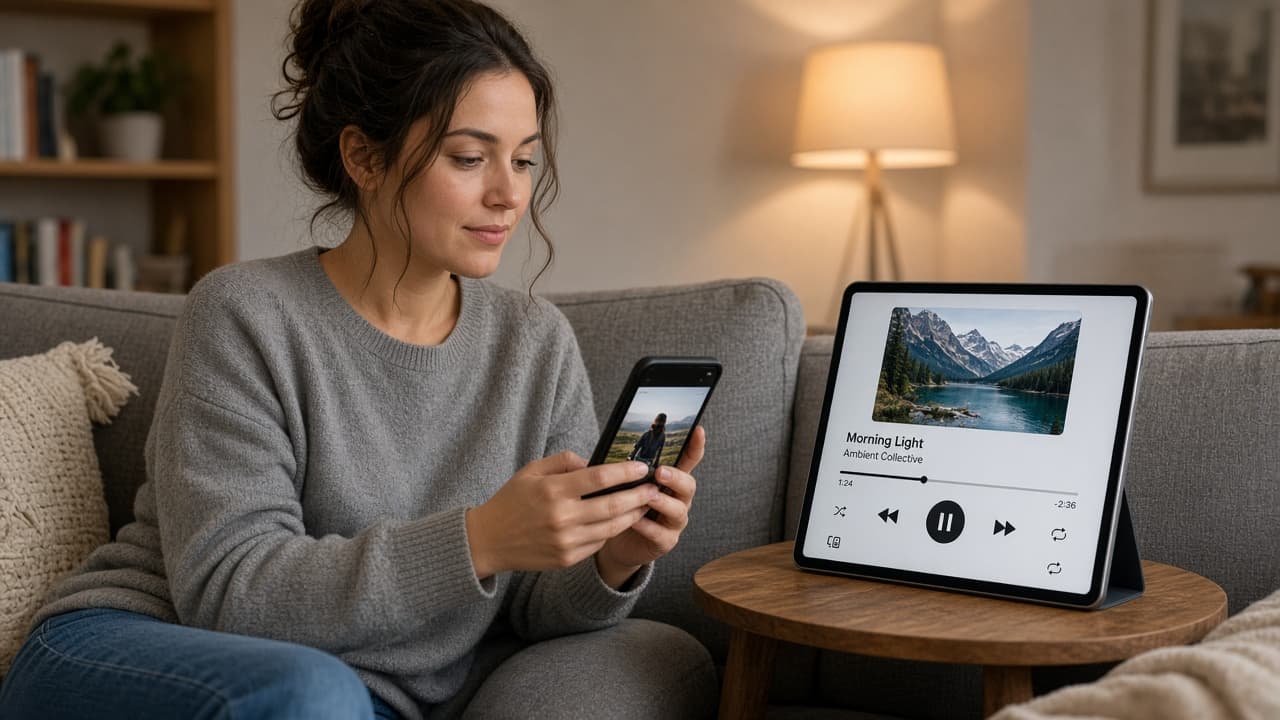
Shorts and music can still show ads on some Lite plans. 1c
Identify ads that no plan removes
Creator-read sponsorships and product placements are part of the video itself, so Premium cannot cut them out. Google also notes that promotions can remain on some Primetime Channels and live events. If those are your main complaint, a paid plan may not deliver the silence you expect.

In-video sponsorships are not the same as pre-roll ads. 1d
Common mistake: expecting a browser trick to fix the TV app
Common mistake: installing a desktop blocker and assuming the living-room TV will go quiet. TV and phone apps use different clients. Choose Premium for account-wide coverage or accept free-tier limits on those screens.
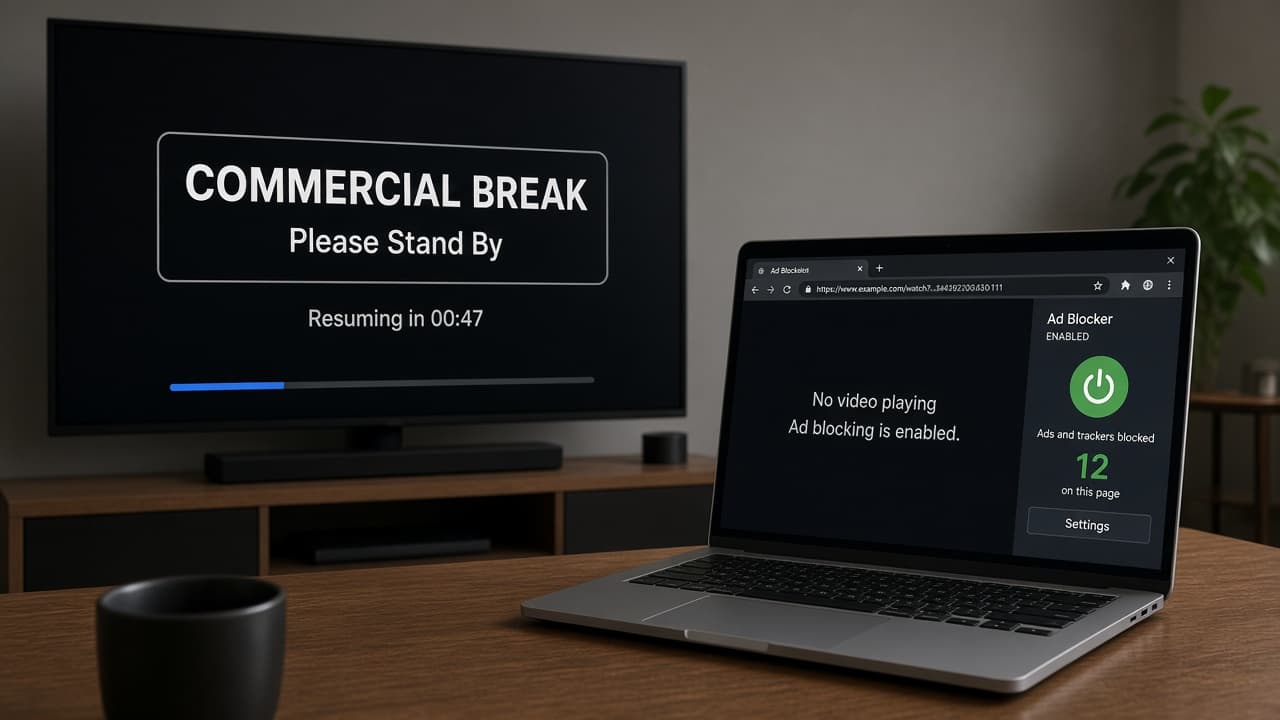
Desktop tools do not silence the TV client.
Step 02
Compare Premium, Lite, family and student options
Read the live offer page for your country instead of an old screenshot.
Do this step in order
2a
Open the official Premium page while signed in
Sign into the Google account you will use on every device, then open the Premium offer page in the app or on youtube.com/premium. Confirm the avatar before you compare prices so you do not buy on a secondary profile.
2b
Check Premium Lite if your region offers it
Open youtube.com/premiumlite while signed into the same account. Read the local feature list because Lite may still show ads on music, Shorts and while browsing or searching. Compare download and background-play coverage instead of assuming Lite matches full Premium.
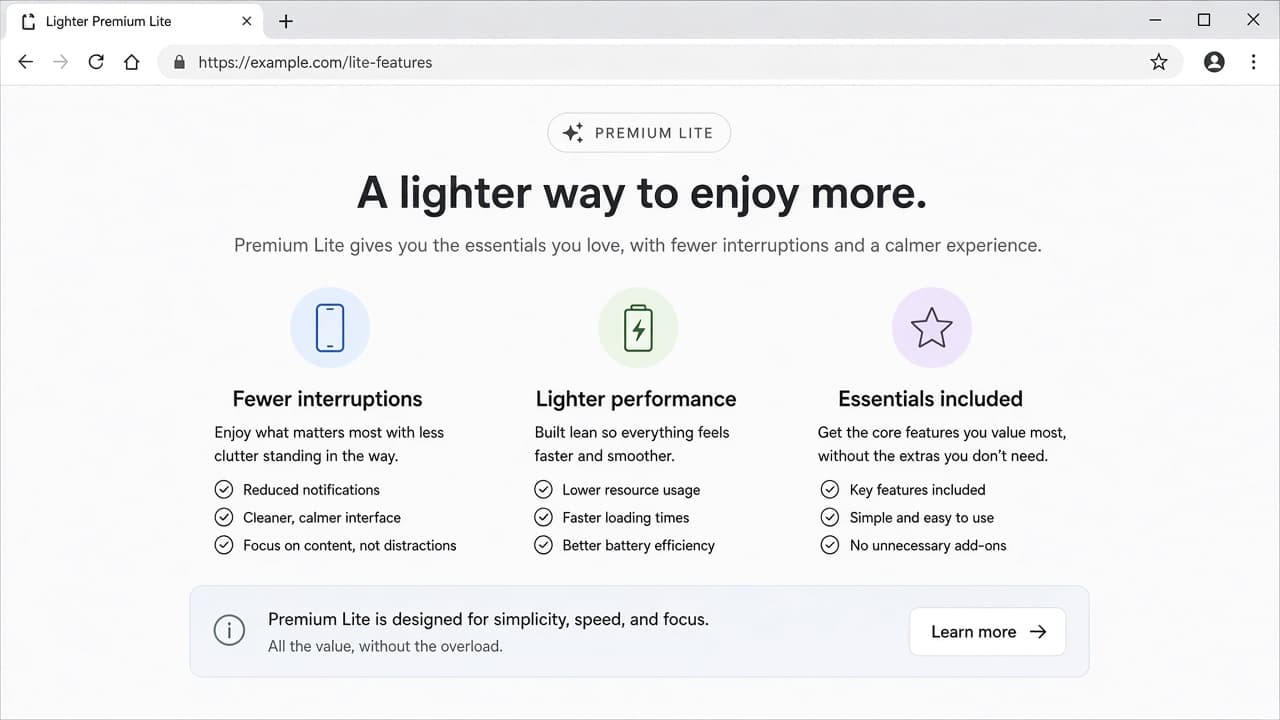
Lite is fewer interruptions, not always zero ads. 2c
Consider family or student pricing
Compare individual, family and student choices available in your country. Read household, age and verification rules before paying because eligibility is not based only on sharing a password. Check the exact renewal price after any trial.
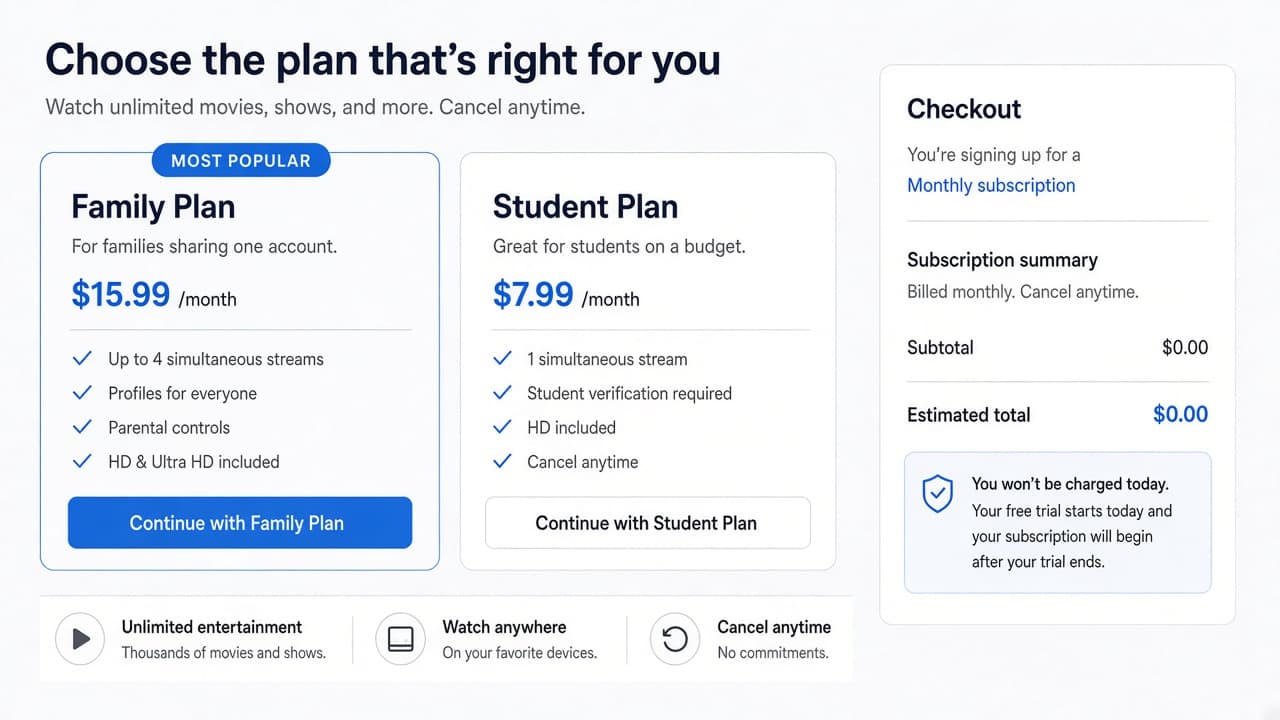
Eligibility rules matter more than the headline price. 2d
Common mistake: buying from a third-party "cheap Premium" seller
Common mistake: paying a stranger for a shared Premium login. Those accounts get revoked, can expose your viewing data and often violate Google's rules. Subscribe only through YouTube, Google Play or the official web checkout tied to your account.
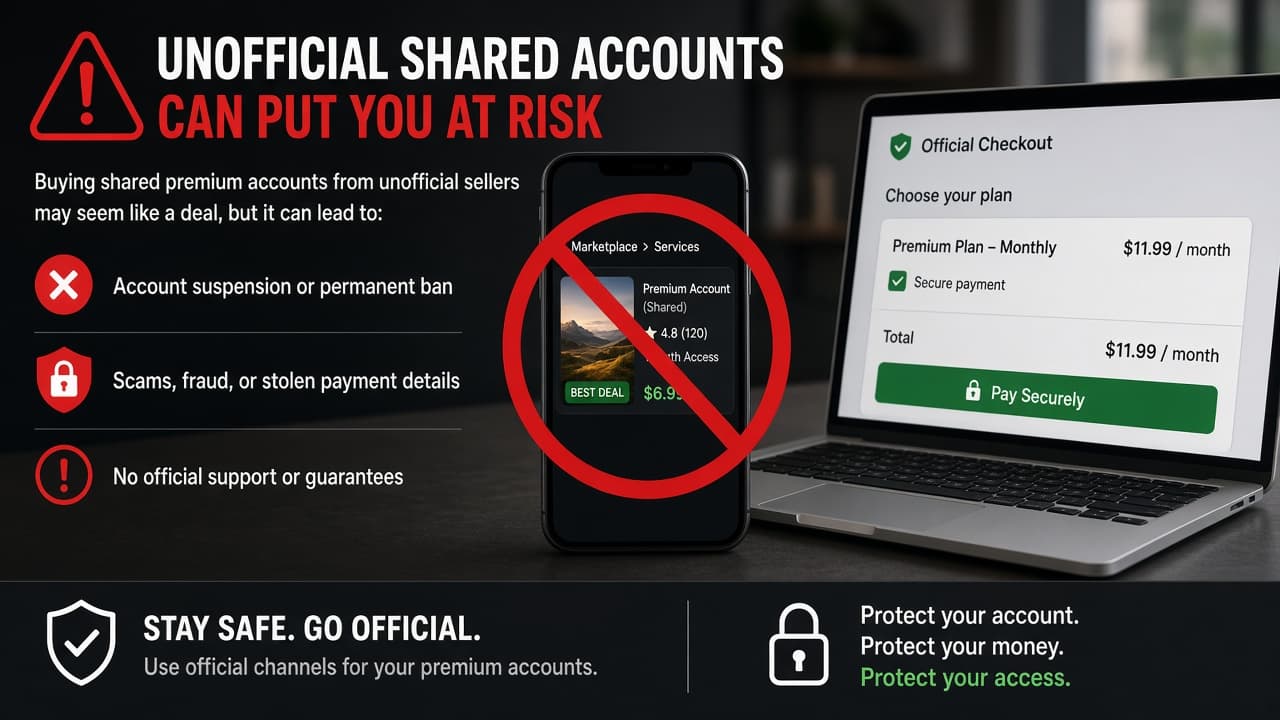
Unofficial shared logins are a security and billing risk.
Step 03
Subscribe through official YouTube billing
Pay inside the YouTube app or website so renewal and cancellation stay in one place.
Do this step in order
3a
Open your avatar, then Get YouTube Premium
Confirm the correct Google profile is active, especially if you have work and personal accounts. Tap your profile picture, then Purchases and memberships or Get YouTube Premium, depending on the app version. On a computer, use youtube.com/premium and check the avatar before continuing.
3b
Complete payment and save the renewal details
Read the plan name, local tax, trial end date and recurring price on the final screen. Note whether YouTube, Google Play or Apple handles billing because cancellation happens through that provider. Save the confirmation email and set a reminder before a trial renews.
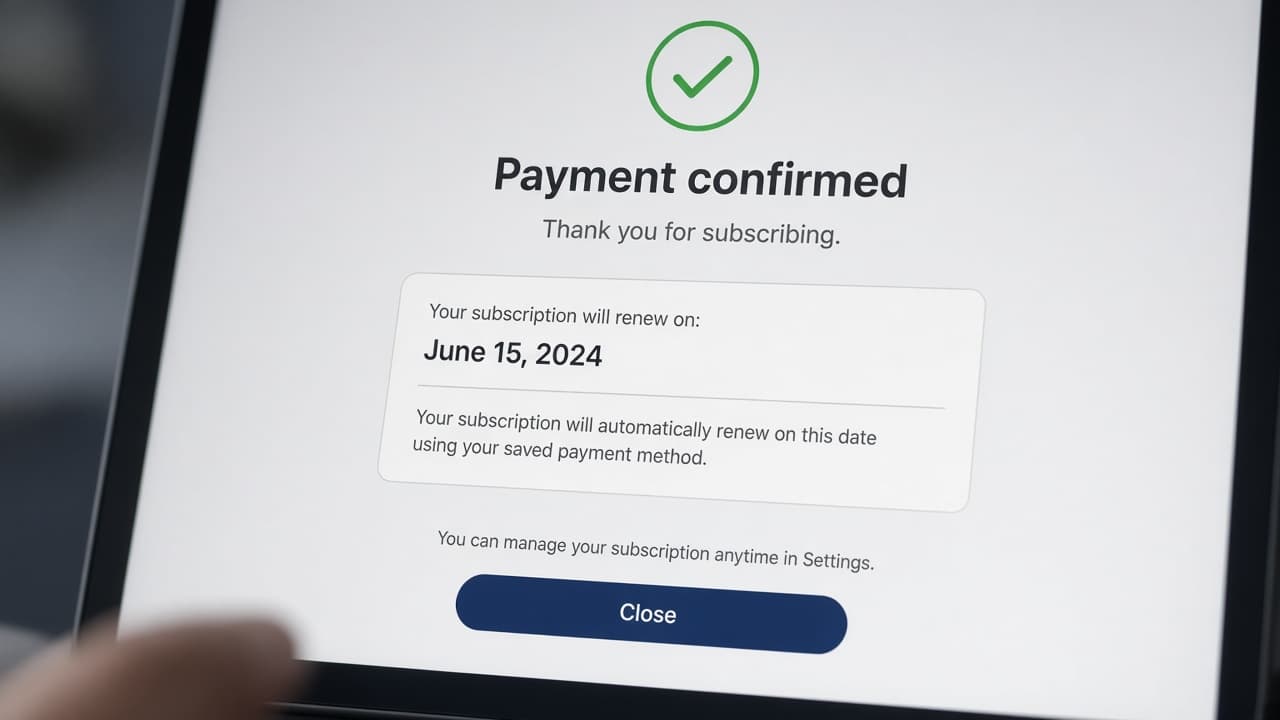
Know which store owns the subscription before you need to cancel. 3c
Verify membership status in the account menu
Reopen Purchases and memberships or the Premium page and confirm Active status on the same account. If the status is wrong, wait a few minutes, restart the app and avoid buying a second plan while you troubleshoot.
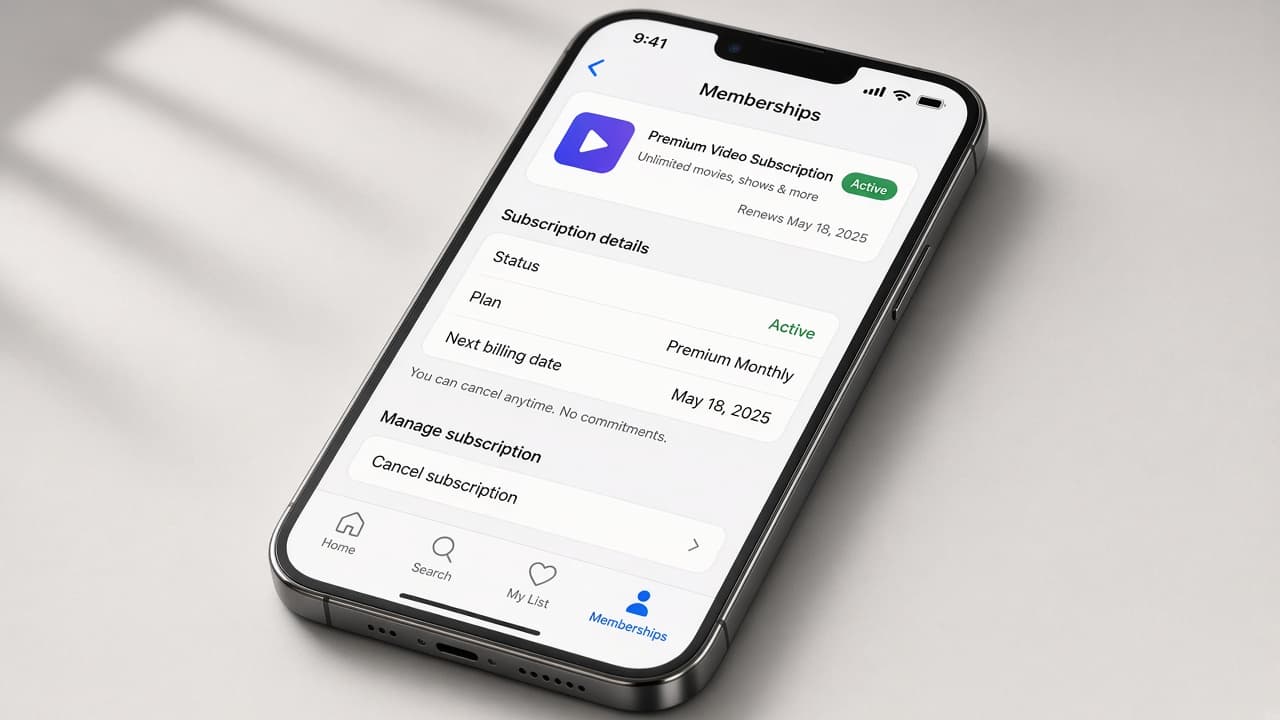
Confirm Active on the same profile you watch with. 3d
Common mistake: subscribing on the wrong Google profile
Common mistake: paying on a rarely used profile, then watching on another where ads remain. Switch the TV and phone apps to the subscribed account before you contact support. Moving a subscription between profiles is harder than choosing correctly the first time.
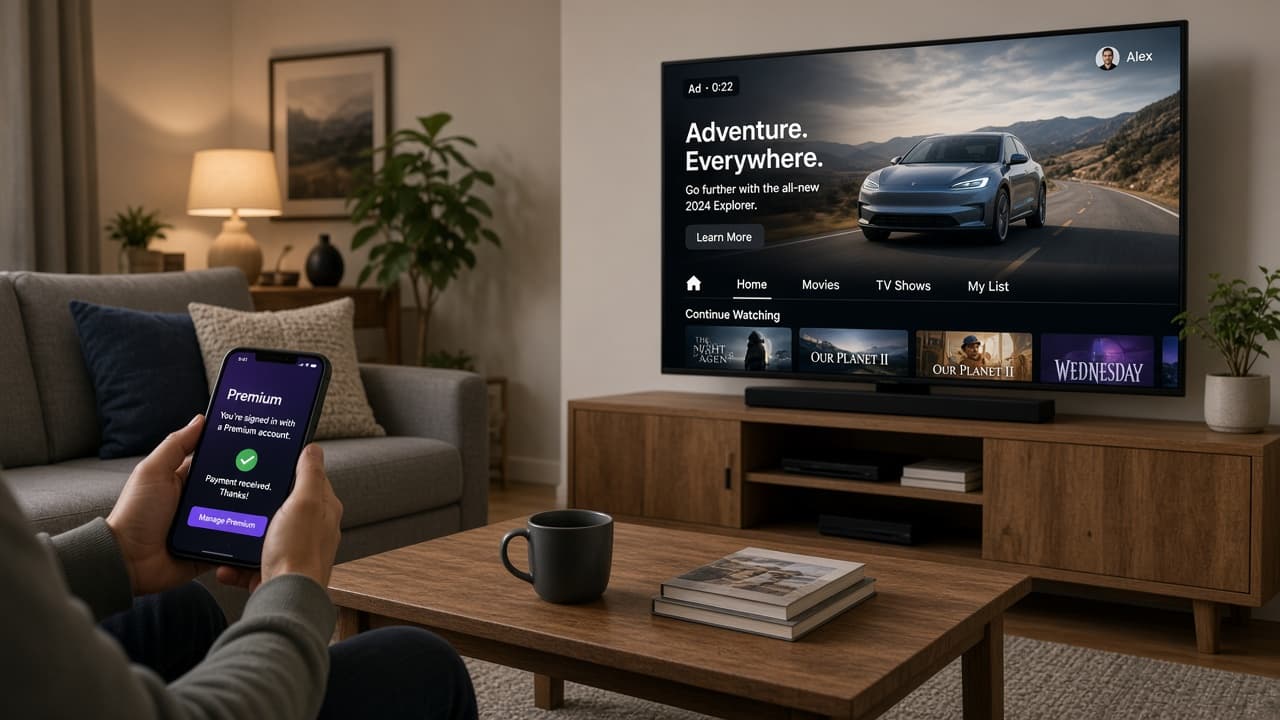
Ads remain when the watching profile is not the subscriber.
Step 04
Sign in on every device and test playback
Account-wide benefits only appear where that subscribed profile is active.
Do this step in order
4a
Switch each device to the subscribed profile
Open the official YouTube app on phone, tablet, TV and console and switch to the subscribed profile. Sign out of guest or kids profiles when you are testing adult Premium behavior.
4b
Play a regular video, a Short and music
Confirm the selected tier behaves as described on each format. If ads persist, restart the app and verify membership status before contacting YouTube support. Note any Lite exceptions you already accepted.
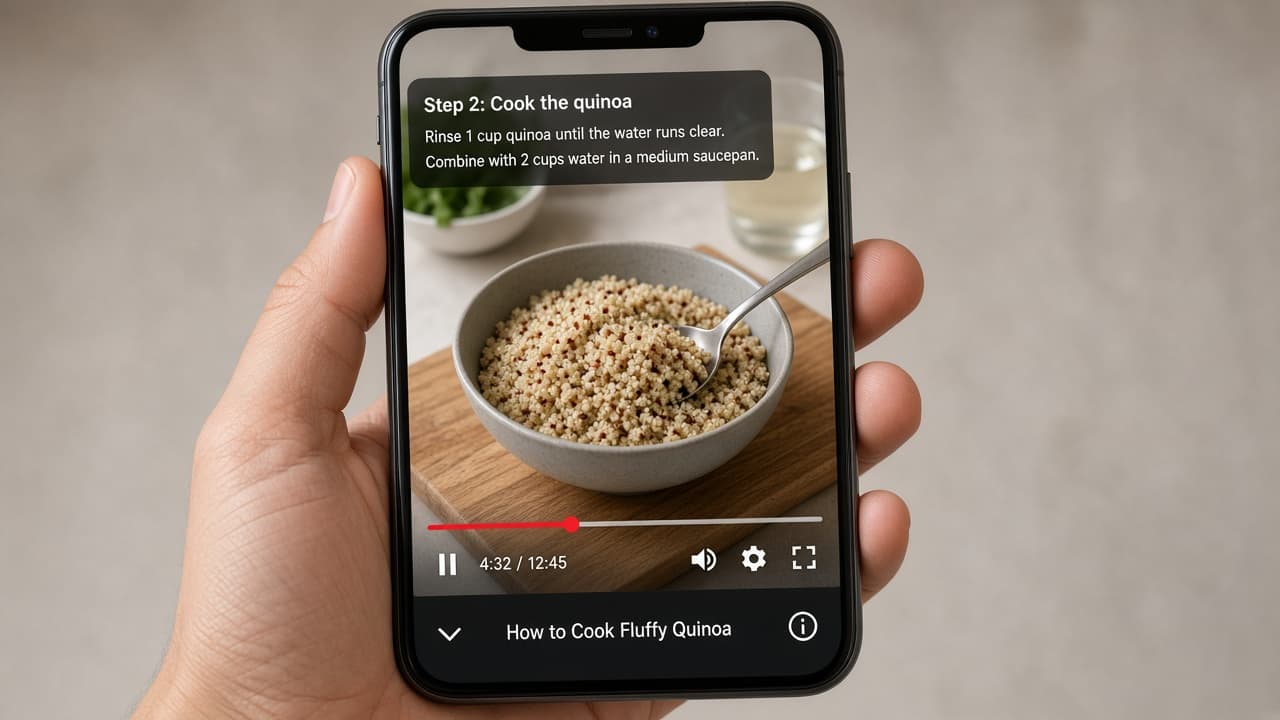
A normal long-form video is the first Premium check. 4c
Test downloads or background play when included
Full Premium should expose download controls on supported videos and background-play settings on mobile. Test one short download on Wi-Fi and lock the phone during playback. Lite coverage can differ, so rely on the controls your local plan displays.
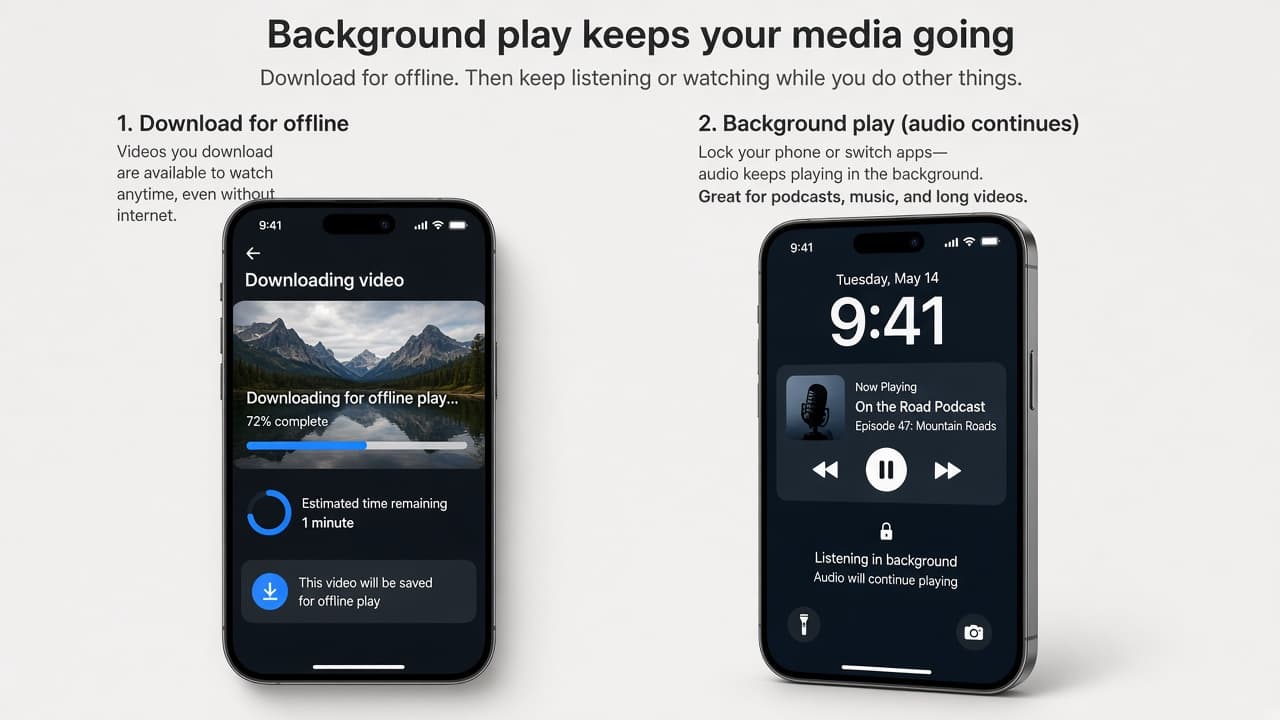
Downloads and background play are useful second checks. 4d
Common mistake: blaming Premium for a creator sponsorship
Common mistake: canceling Premium because a host still reads an ad mid-video. That segment is part of the content. Judge the subscription on platform pre-rolls, mid-rolls and banners, not on paid integrations the creator recorded.
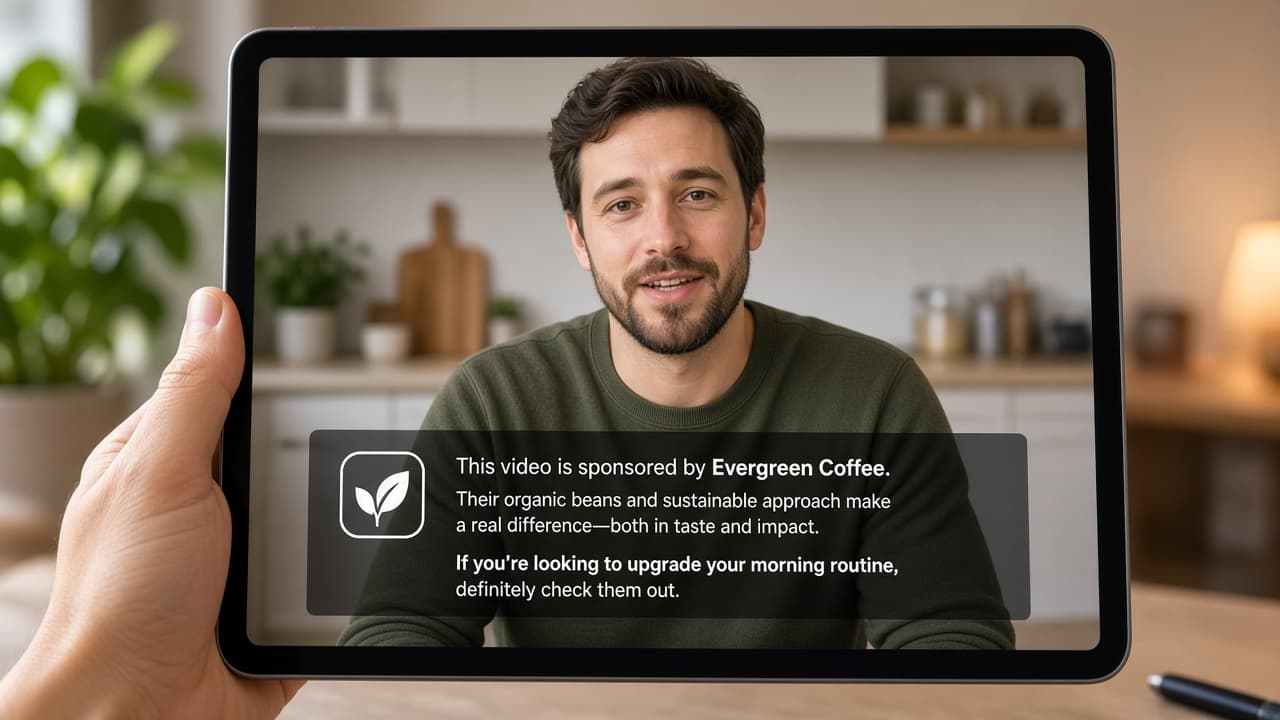
Premium does not edit sponsorships out of the video file.
Step 05
Tune free-tier settings when you are not paying
You cannot remove every ad for free, but you can trim some personalization noise.
Do this step in order
5a
Open Google Account ad personalization
Open My Ad Center from your Google Account and review whether personalized ads are on. You can limit selected topics or turn personalization off, but this changes ad targeting rather than removing commercial breaks. Allow time for changes to apply across signed-in devices.
5b
Use skip and mute on in-stream ads
Watch for a Skip button and use it only when YouTube makes it available. Muting the player can reduce noise but does not shorten the ad or prevent later mid-rolls. Repeatedly refreshing a video may simply serve another ad.
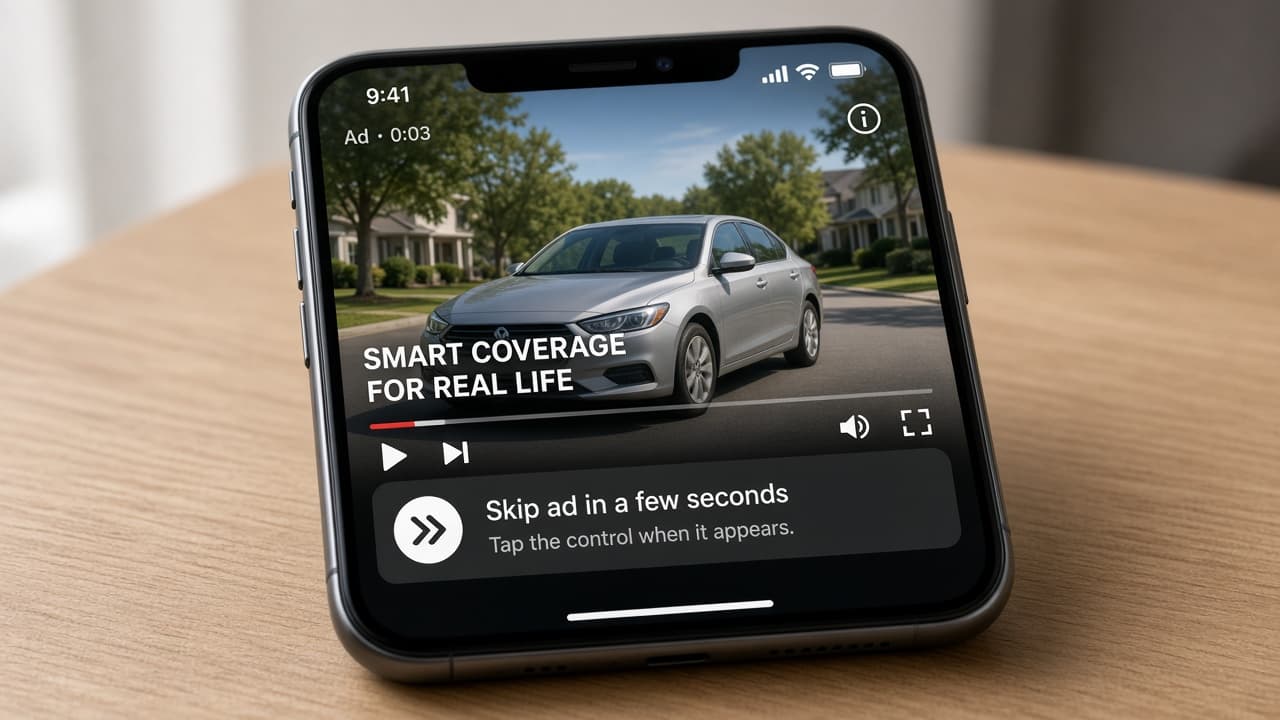
Skip when offered; refreshing rarely removes the break. 5c
Report repetitive or inappropriate ads
Use the information icon or ad menu when YouTube offers controls such as Stop seeing this ad or Report ad. Choose the accurate reason and follow the confirmation screen. This may improve relevance but does not guarantee that the advertiser or all ads disappear.
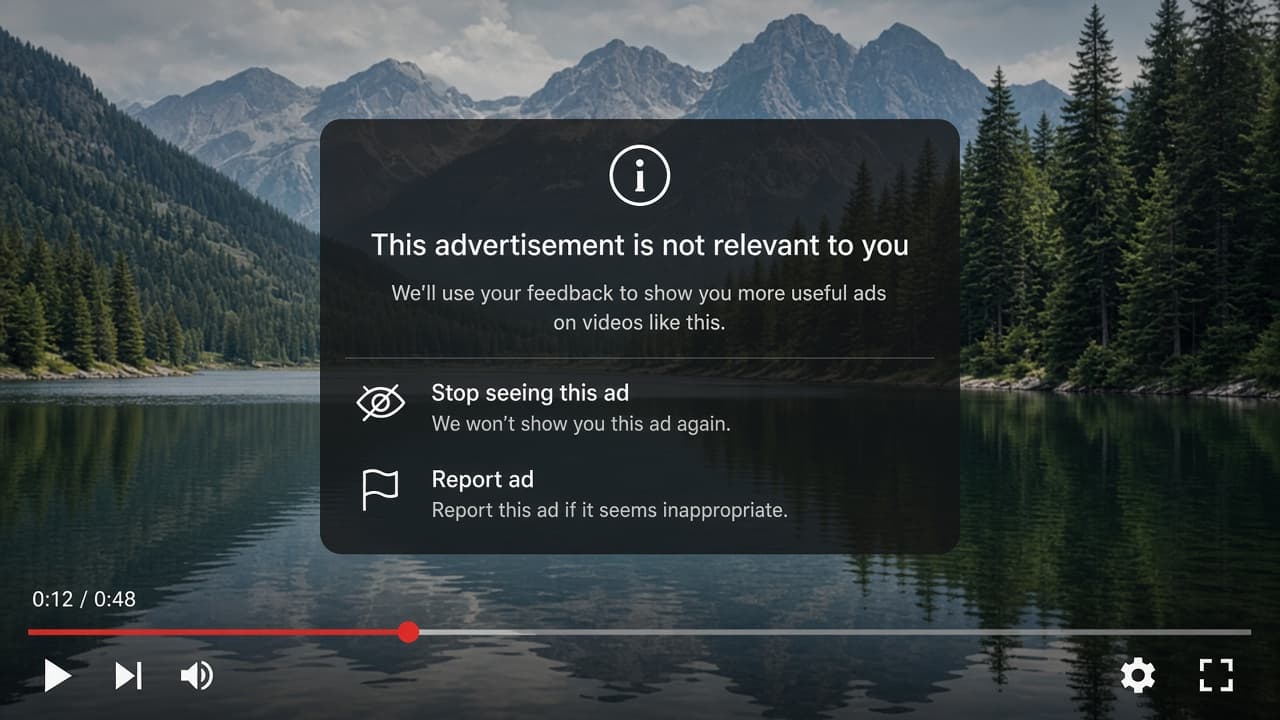
Reporting can improve relevance without removing ads entirely. 5d
Common mistake: treating ad settings as an ad blocker
Common mistake: turning off personalization and expecting silence. Free YouTube still funds itself with ads. If interruptions are the real problem, compare Premium rather than chasing more settings toggles.
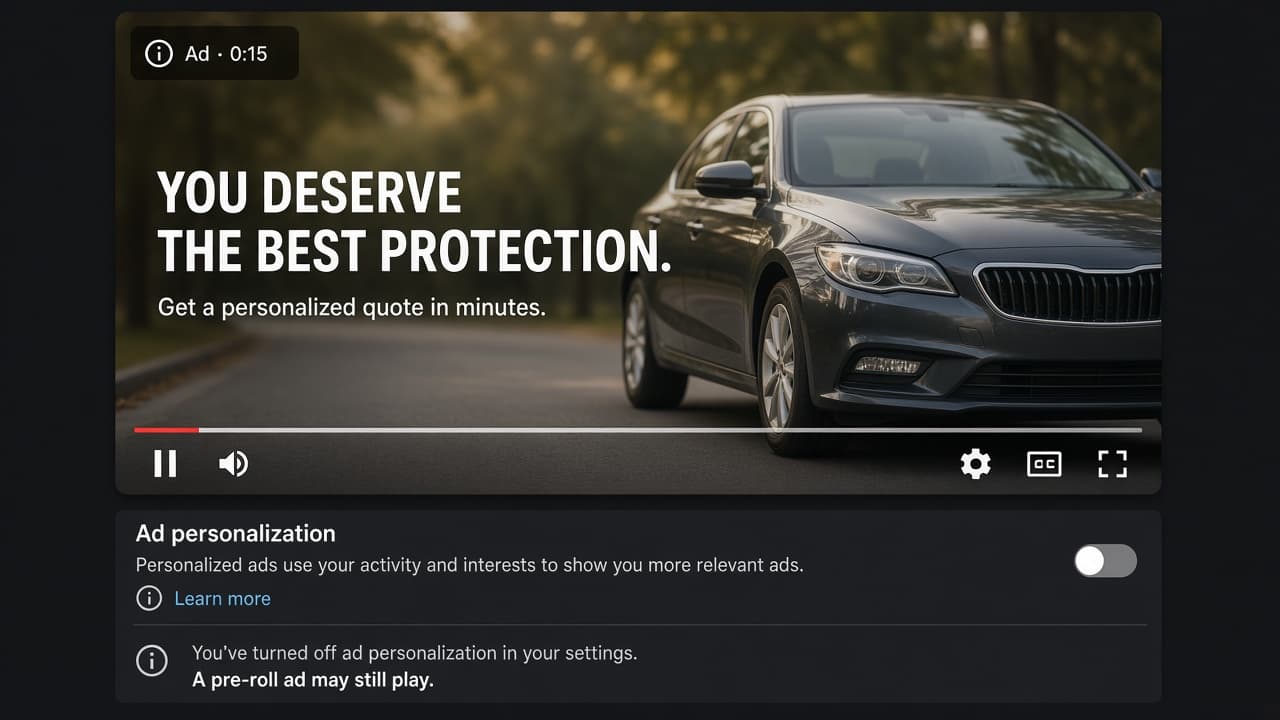
Personalization changes the ads, not the fact of ads.
Step 06
Set kids and family viewing on purpose
Children's profiles filter content categories; they are not a free Premium substitute.
Do this step in order
6a
Choose YouTube Kids or a supervised profile
Set up YouTube Kids or a supervised child profile through Google's family controls when age-appropriate. These tools filter content and ad categories but are not a free ad-removal service.
6b
Confirm whether the child is on a family Premium plan
If ad-free viewing is required, verify that the child's profile is included in the paid family plan. Sign the child device into the correct supervised account rather than a random adult profile.
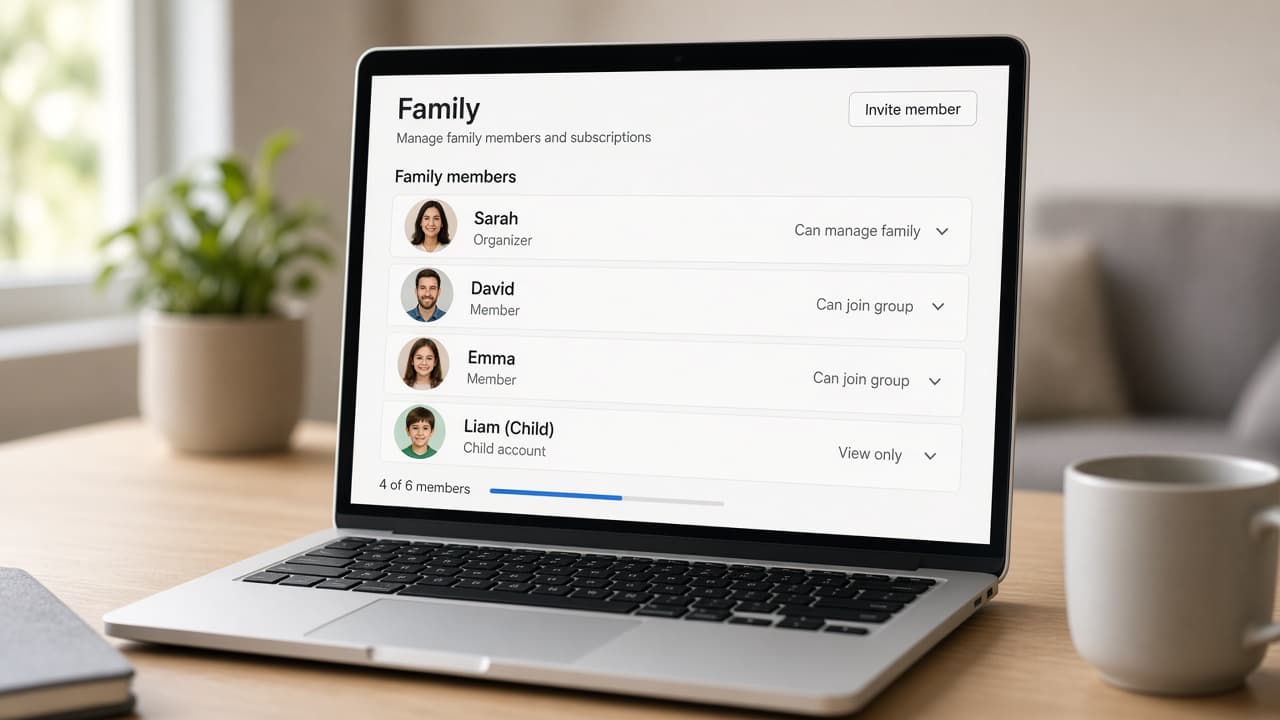
Family plan coverage must include the profile that watches. 6c
Review restricted mode and watch history settings
Use Restricted Mode and history controls on shared living-room accounts when appropriate. They change recommendations and filters more than ad count. Revisit them when guests or younger viewers share the TV.
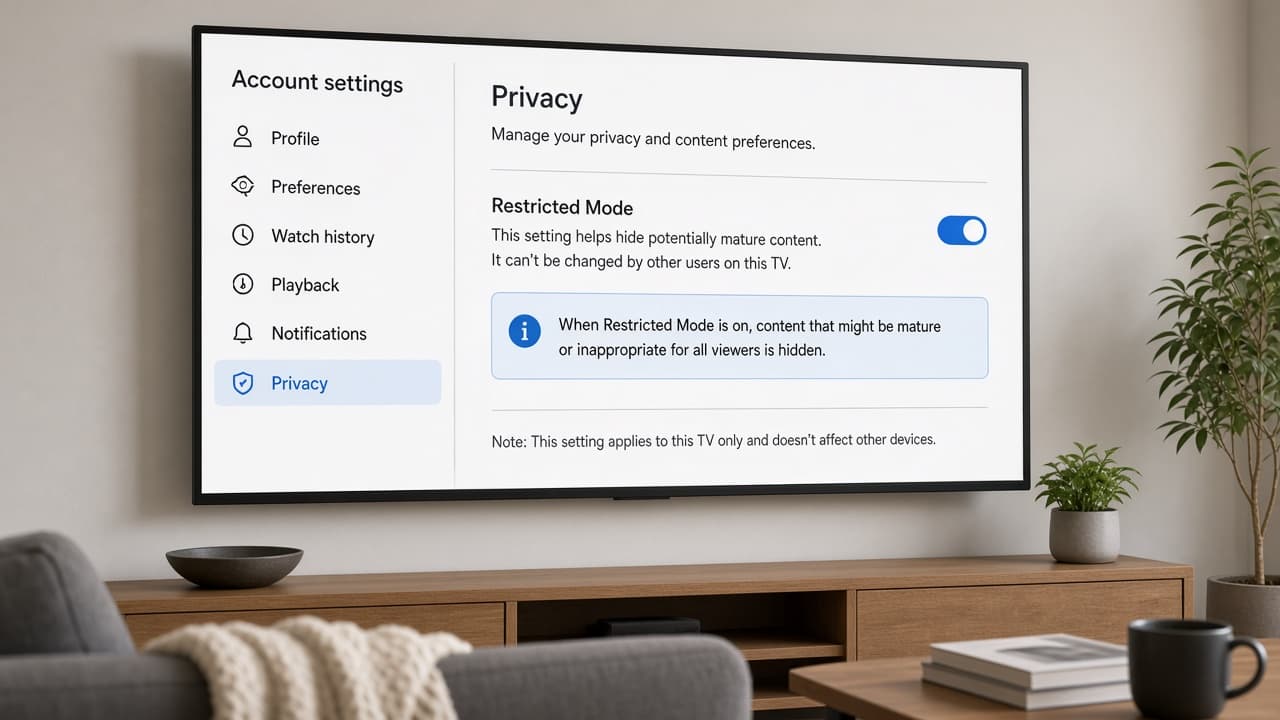
Restricted Mode is a filter, not an ad blocker. 6d
Common mistake: handing a child an unsupervised adult account
Common mistake: letting a child watch on an adult profile with Premium while recommendations stay adult-oriented. Use the supervised tools for content fit even when the household already pays for fewer ads.
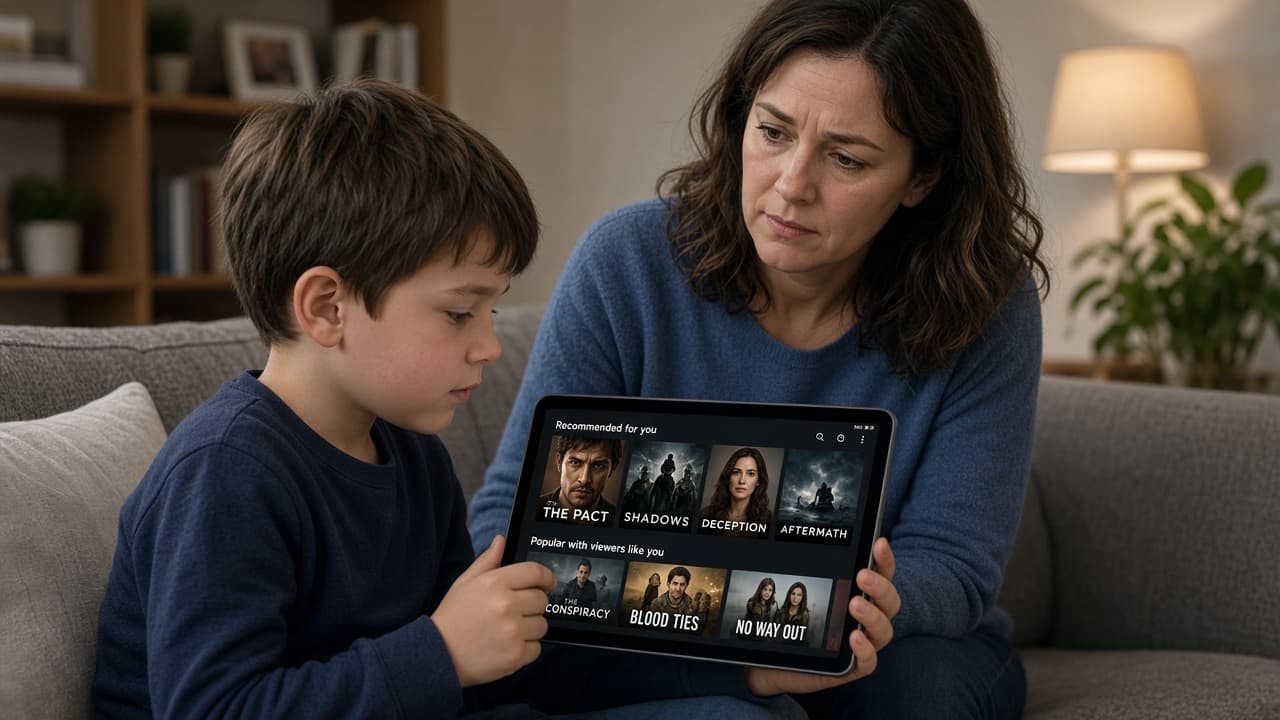
Premium does not replace supervised viewing controls.
Step 07
Treat browser extensions as optional and fragile
Desktop extensions are not a phone solution and may fail after YouTube updates.
Do this step in order
7a
Prefer reputable extensions if you use them at all
Install only from the browser's official extension store and verify the developer, update history and recent independent reviews. Read the permission list before approval because access to all website data is broad. Stop if an extension asks for payment outside the store, a separate executable or your Google password.
7b
Accept that playback can break without warning
YouTube can detect blocking tools or change its player, causing warnings, blank screens or failed playback. Disable the extension for YouTube first if videos stop loading. Remove it completely if problems continue rather than weakening browser security settings.
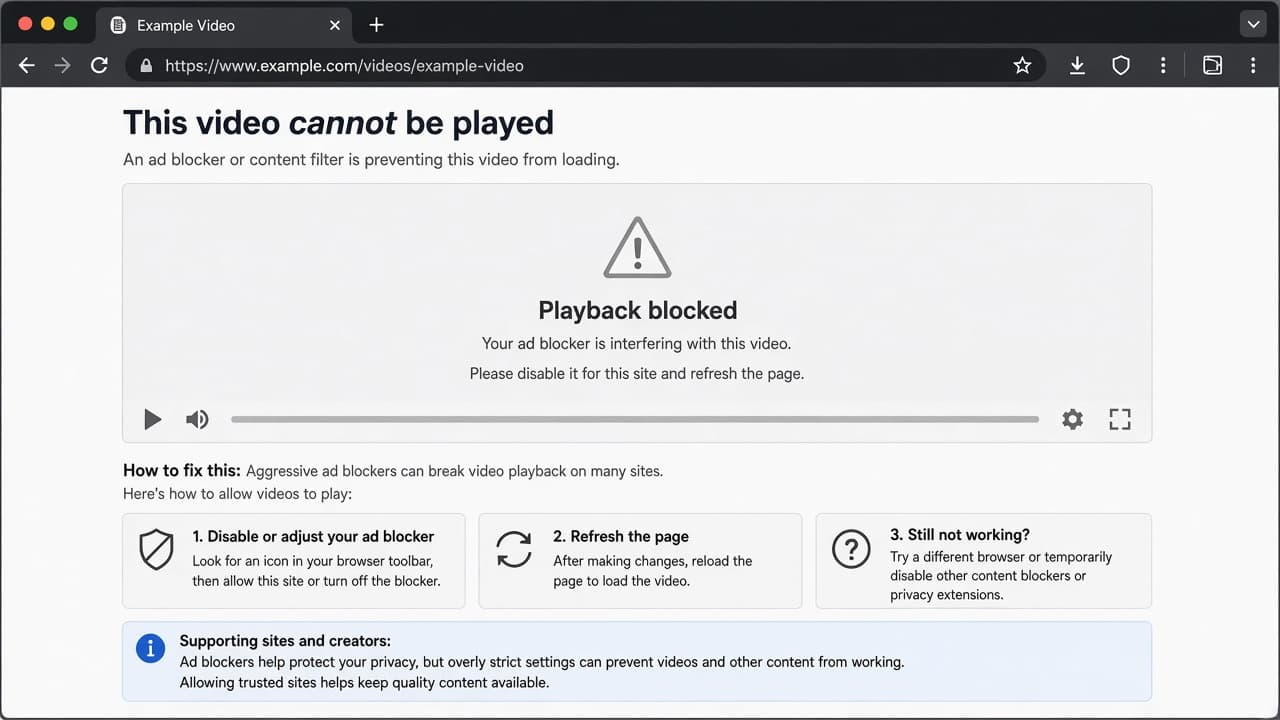
Breakage after a site update is a known risk. 7c
Do not sideload unknown YouTube APK mods on Android
Modified APK files bypass normal store review and may capture logins, inject malware or expose private viewing data. Do not disable Android protections to install one. If you already did, uninstall it, scan the phone and change the Google password from a trusted device.
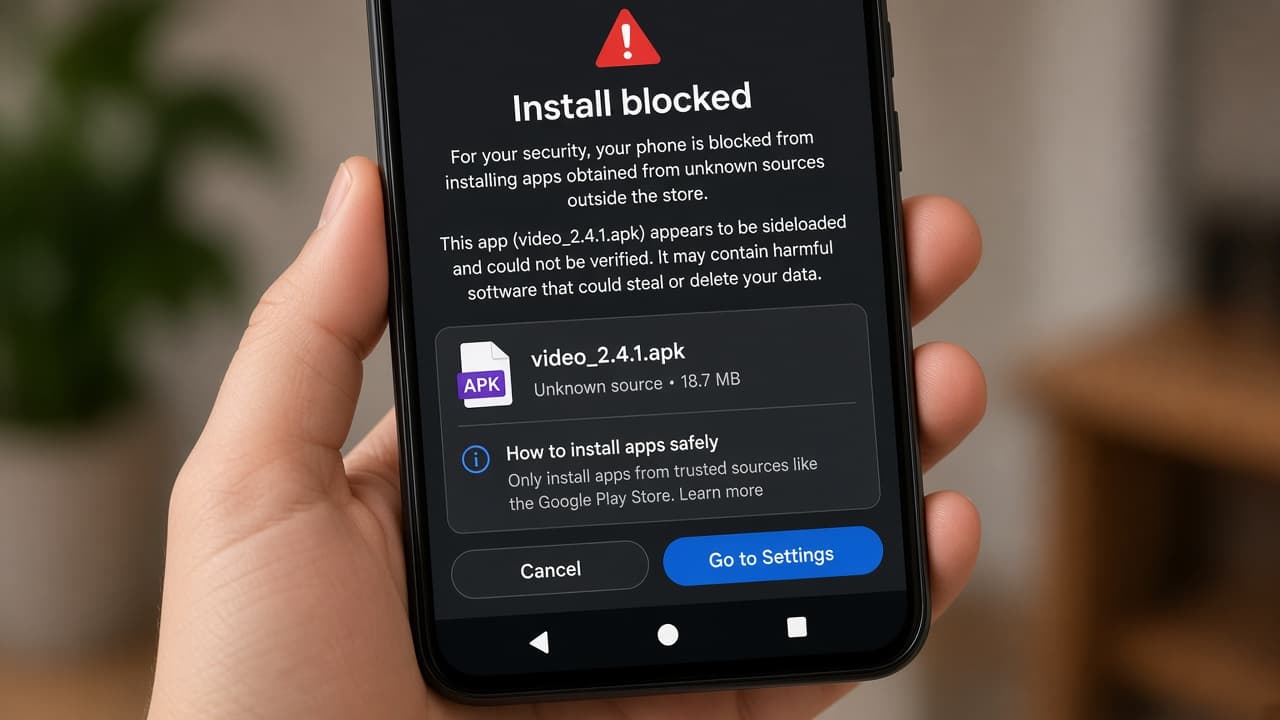
Unknown YouTube mods are a security problem first. 7d
Common mistake: blocking ads and never supporting creators
Common mistake: running a blocker for years on free-tier viewing without memberships, donations or merchandise for channels you watch weekly. If you keep a desktop tool, allowlist creators you value or choose Premium so platform and creator economics stay intact.
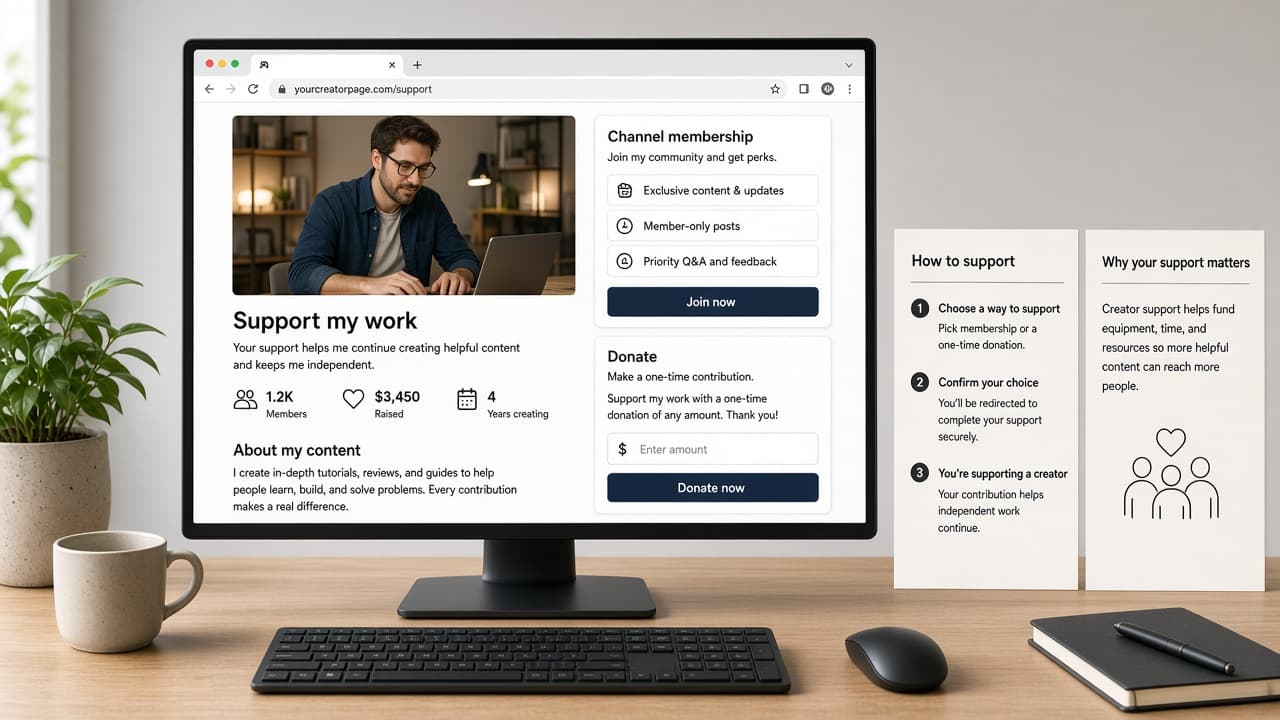
Support the channels you watch if you remove their ads.
Done when
- Decide between paying for Premium or staying on the free tier
- Review Premium, Premium Lite or family pricing in your region
- Subscribe through official YouTube billing if you choose Premium
- Sign in on phone, TV and other devices with the same account
- Tune Google ad personalization settings if you stay free
- Skip sketchy third-party YouTube clients
- Support creators you watch often when you block ads
Eagle Frame's takeaway: start with YouTube Premium if you want reliable ad-free playback everywhere. Use Google account ad controls for modest tuning on the free tier. Treat desktop extensions as optional, fragile and unfair to creators if you use them long term.