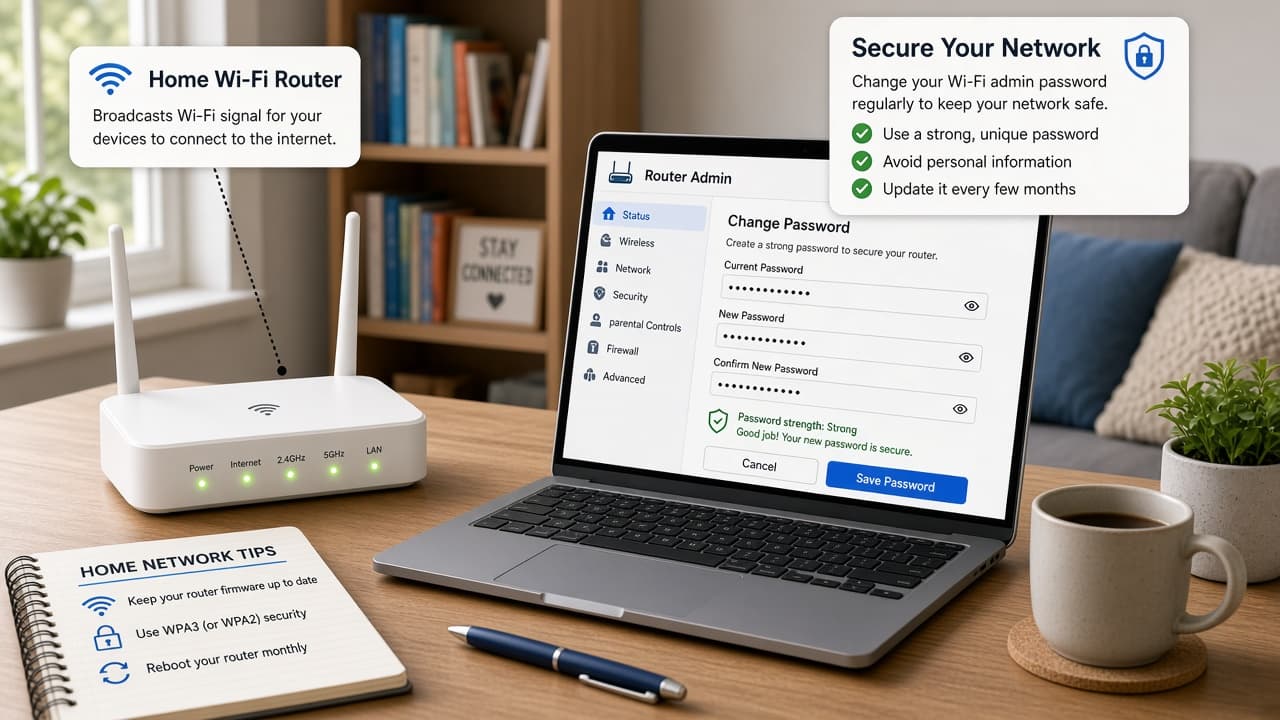
How to change a Wi‑Fi password
Change your home Wi-Fi password from the router admin page or ISP app, pick a strong WPA2 or WPA3 passphrase and reconnect every device on purpose.
Your Wi-Fi password is the key to the wireless network your phones, laptops and smart devices join. Changing it kicks off anyone who had the old passphrase, which is useful after a move, a roommate change or a suspected unwanted guest.
Most home networks are managed in the router's admin page (often at addresses like 192.168.1.1 or 192.168.0.1) or in your internet provider's app. The sticker on the router usually shows a default Wi-Fi name, default Wi-Fi password and sometimes a separate admin login.
Prefer WPA2-Personal or WPA3-Personal security. Avoid open networks and outdated WEP. After you save a new wireless password, every device must join again with the new passphrase. Smart plugs and printers are easy to forget.
If you cannot log into the router, you may need the ISP app, a customer-support reset or a careful factory reset of the router (which wipes custom settings). Do not follow random videos that ask you to install unknown remote-access tools.
Step-by-step guide
Time: 20 to 45 minutes including reconnecting household devices
What you need
- Router admin URL or ISP mobile app
- Router admin username and password
- Laptop or phone already on the network or on Ethernet
- List of devices that will need the new password
Before you start
- Changing the Wi-Fi password disconnects every wireless device.
- Do not confuse the Wi-Fi passphrase with the router admin password.
- Factory-resetting the router wipes custom settings.
- Admin addresses and menu labels vary by brand and ISP.
Step 01
Gather router access details
Find how you administer the network before you change anything live.
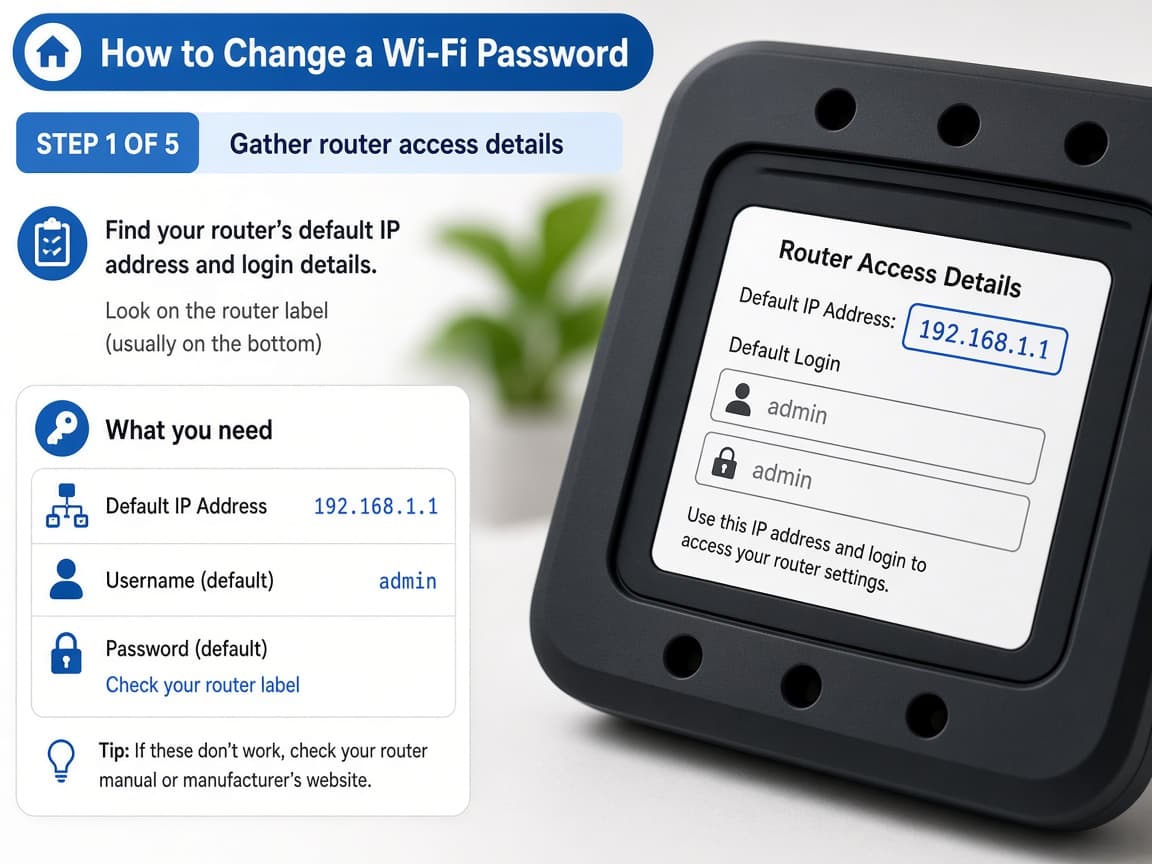
The sticker often holds the admin URL hints and default credentials. Do this step in order
1a
Check the router sticker and ISP paperwork
Look for Gateway, Admin URL, Username and Password. Also note the current Wi-Fi network name (SSID).
1b
Prefer the ISP app when you have one
Many modern gateways are easier in the provider app than in a raw IP page. Sign in with your ISP account if that is how your home was set up.
1c
Stay on the home network while editing
Use a phone or laptop already online or plug Ethernet into the router if wireless will drop mid-change.
Step 02
Sign into the router admin page
Open the gateway address in a browser, log in and find wireless settings.
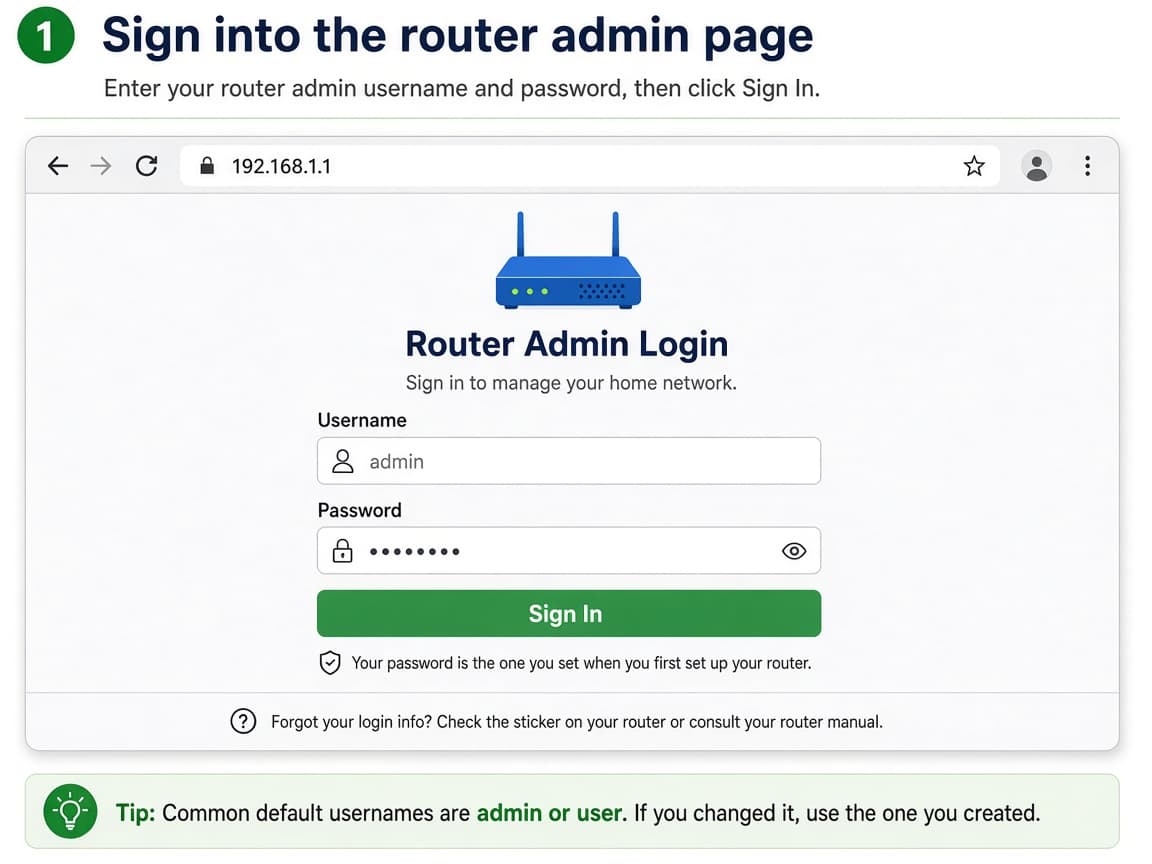
Use the address printed for your model, not a guessed public website. Do this step in order
2a
Try common LAN addresses only as labeled
If the sticker lists 192.168.1.1 or 192.168.0.1, type that into the browser address bar on a device connected to the router. Do not invent cloud URLs.
2b
Log in with admin credentials
Enter the admin username and password (often different from the Wi-Fi password). If defaults fail, use the ISP app or support reset path.
2c
Open Wireless, Wi-Fi or WLAN settings
Look for Wireless, Wi-Fi, WLAN or Network. Some routers split 2.4 GHz and 5 GHz into separate pages.
Step 03
Set a strong new Wi-Fi password and save
Replace the passphrase, keep sensible security mode settings and apply the change.
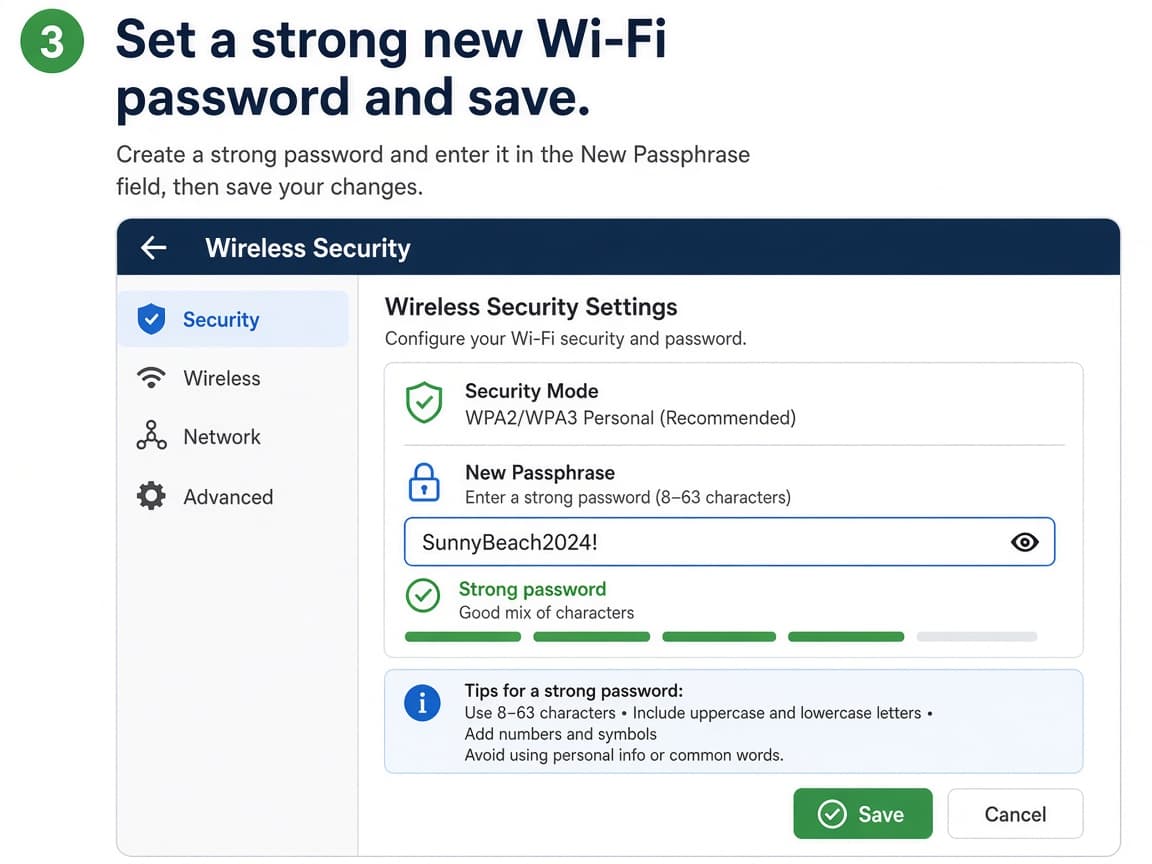
WPA2 or WPA3 with a long unique passphrase is the everyday target. Do this step in order
3a
Choose WPA2-Personal or WPA3-Personal
Select a modern security mode. Avoid Open and WEP. If older devices cannot join WPA3, WPA2 remains widely compatible.
3b
Create a long unique passphrase
Use a long mix of words or a password-manager generated string. Do not reuse your email password.
3c
Save or Apply and wait for the radio restart
Click Save or Apply. The Wi-Fi radios may reboot for a minute. Stay patient before you assume something failed.
3d
Update the household password record
Write the new passphrase in your password manager or a private household note. Replace fridge sticky notes that still show the old one.
Step 04
Reconnect every device on purpose
Join phones, laptops, TVs and smart home gear with the new password and forget the old network where needed.
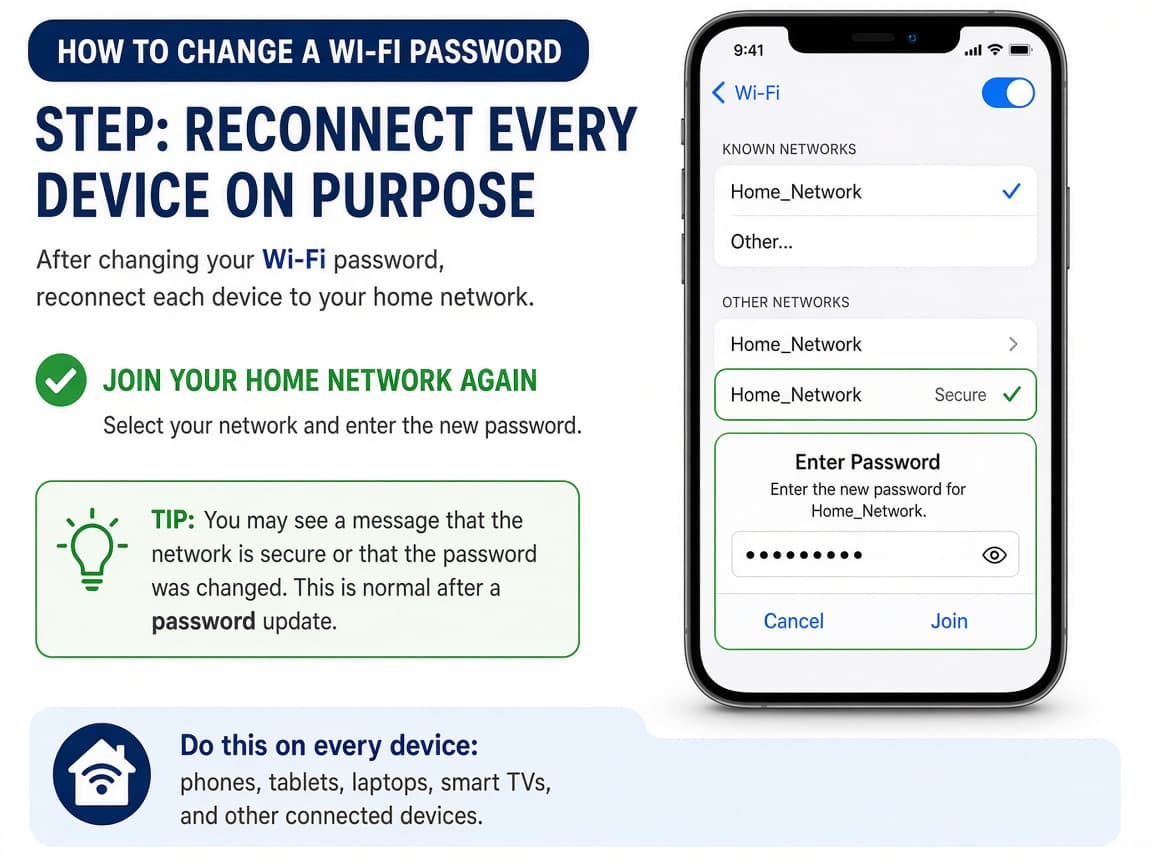
Each device needs the new passphrase once. Do this step in order
4a
Forget the old network on phones and laptops
On each device, forget the SSID or choose Join again, then enter the new password.
4b
Rejoin smart TVs and speakers
Use each device's network menu. Keep the router's 2.4 GHz network available if a gadget cannot see 5 GHz.
4c
Recheck printers and smart plugs
Re-enter Wi-Fi in manufacturer apps for plugs, bulbs and printers. Test a print or app control afterward.
Done when
- Find admin login details on the router sticker or ISP packet
- Sign into the router or ISP app
- Open wireless / Wi-Fi / WLAN settings
- Set a strong new password and save
- Reconnect phones, laptops and smart devices
- Update any shared household password note
Eagle Frame's takeaway: sign into the router admin page or ISP app, open wireless or Wi-Fi settings, set a long unique passphrase with WPA2 or WPA3, save and reboot if prompted, then reconnect each device and update any written password card at home.