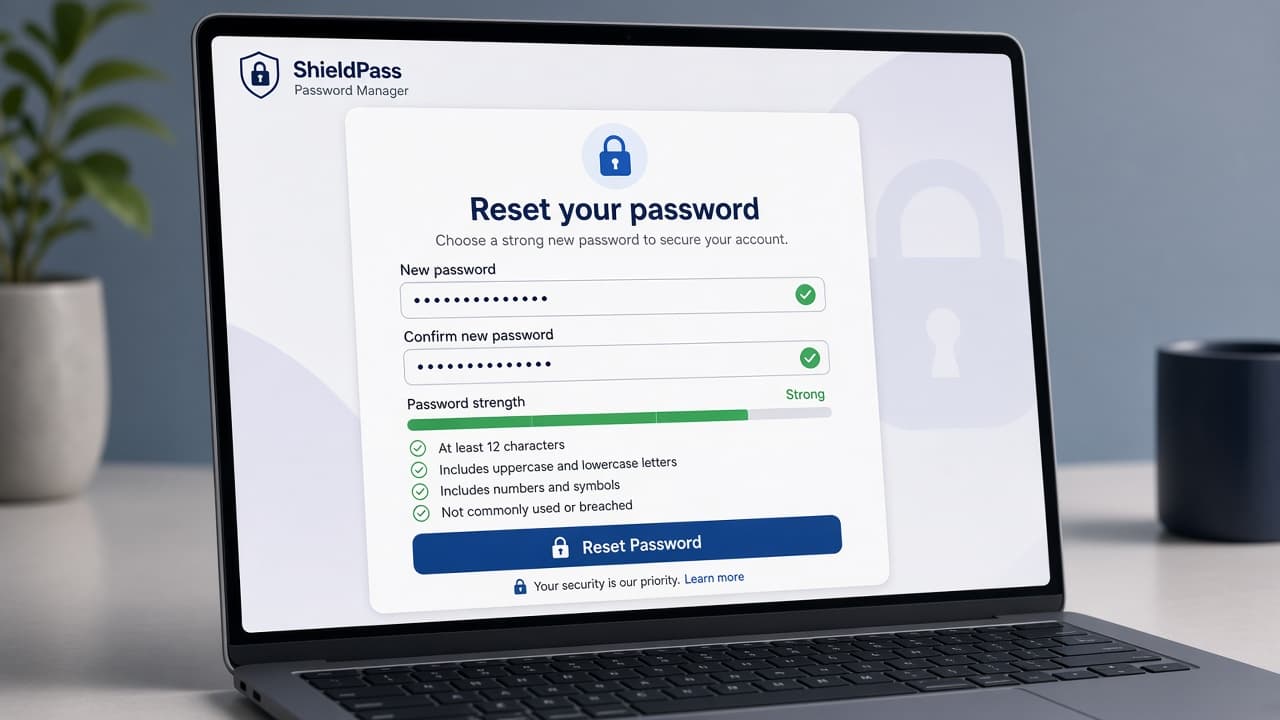
How to reset a password (safely)
Reset a forgotten password using only the service's official Forgot password flow, verify with email SMS or authenticator codes you control and turn on two-factor authentication afterward.
A password reset proves you control an email inbox, phone number or authenticator already tied to the account. The safe path is always the official Forgot password or Reset password link on the real website or app. Fake reset pages are a top phishing trick.
Type the site address yourself or use a bookmark. Do not tap reset links in unexpected emails until you confirm the sender and domain. Support agents and random callers should never need your one-time code.
After you regain access, create a unique strong password and store it in a password manager. Reusing the same phrase across banks, email and shopping sites turns one breach into many.
Turn on two-factor authentication (2FA) wherever it is offered. Prefer an authenticator app or security keys over SMS when you can. Then update the password everywhere it was saved: browsers, phones and shared family notes.
Step-by-step guide
Time: 10 to 25 minutes per account
What you need
- Official website or app for the service
- Access to the recovery email or phone
- Password manager (recommended)
- Optional: authenticator app for 2FA
Before you start
- Never share one-time codes with callers, chat contacts or social DMs.
- Avoid reset links from unexpected emails until you verify the domain.
- Do not reuse the old password or a password from another site.
- Public Wi-Fi is a poor place to type new credentials.
Step 01
Start from the official login page
Reach Forgot password without trusting surprise links.
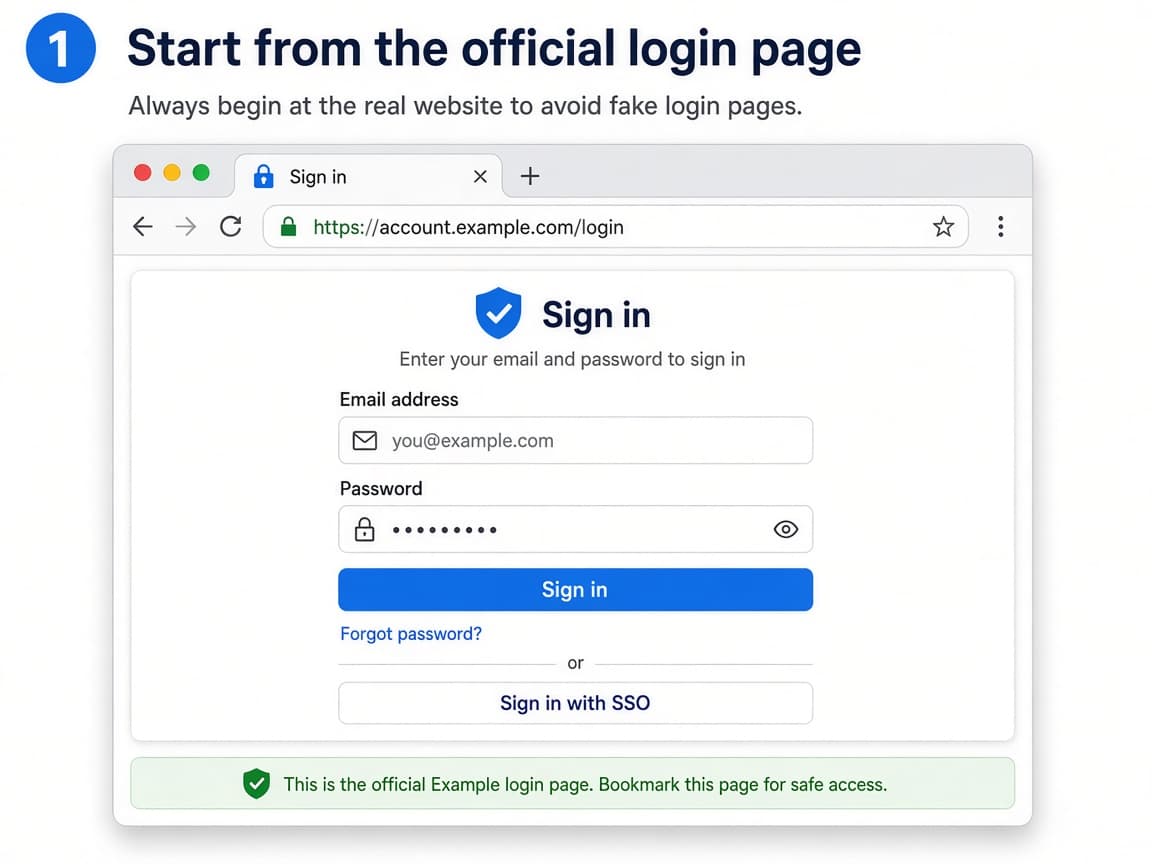
Type the address or use a bookmark you already trust. Do this step in order
1a
Navigate to the real site or app
Open the app from your phone home screen or type the company domain carefully. Compare the lock icon and spelling before you continue.
1b
Tap Forgot password or Reset password
Use the link on that official screen. If the service only supports in-app reset, stay inside the app store-installed app.
1c
Ignore pressure from unexpected messages
If someone messaged you claiming your account is locked, verify independently. Scammers create urgency so you skip domain checks.
Step 02
Prove account ownership
Complete the recovery challenge with email, SMS or authenticator codes you control.
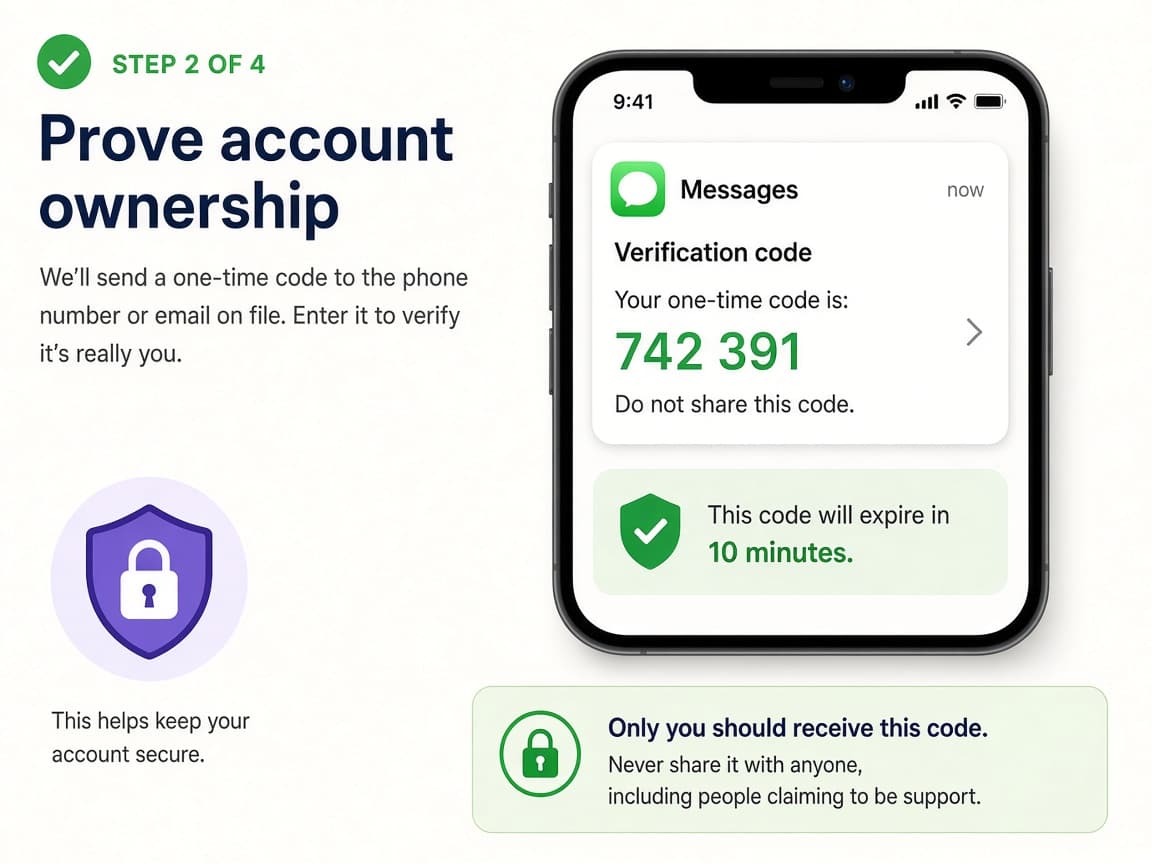
Codes confirm you still control a recovery channel. Do this step in order
2a
Choose a recovery channel you can access now
Pick the email or phone number you still read daily. If both are gone, follow the service's account recovery form instead of guessing.
2b
Enter the one-time code privately
Read the code from your inbox or Messages app and type it into the official page. Do not forward it.
2c
Complete extra checks if asked
Some services ask for old passwords, saved contacts or photo ID. Answer only on the official flow.
Step 03
Create and store a strong new password
Set a unique passphrase and save it where you will find it later.
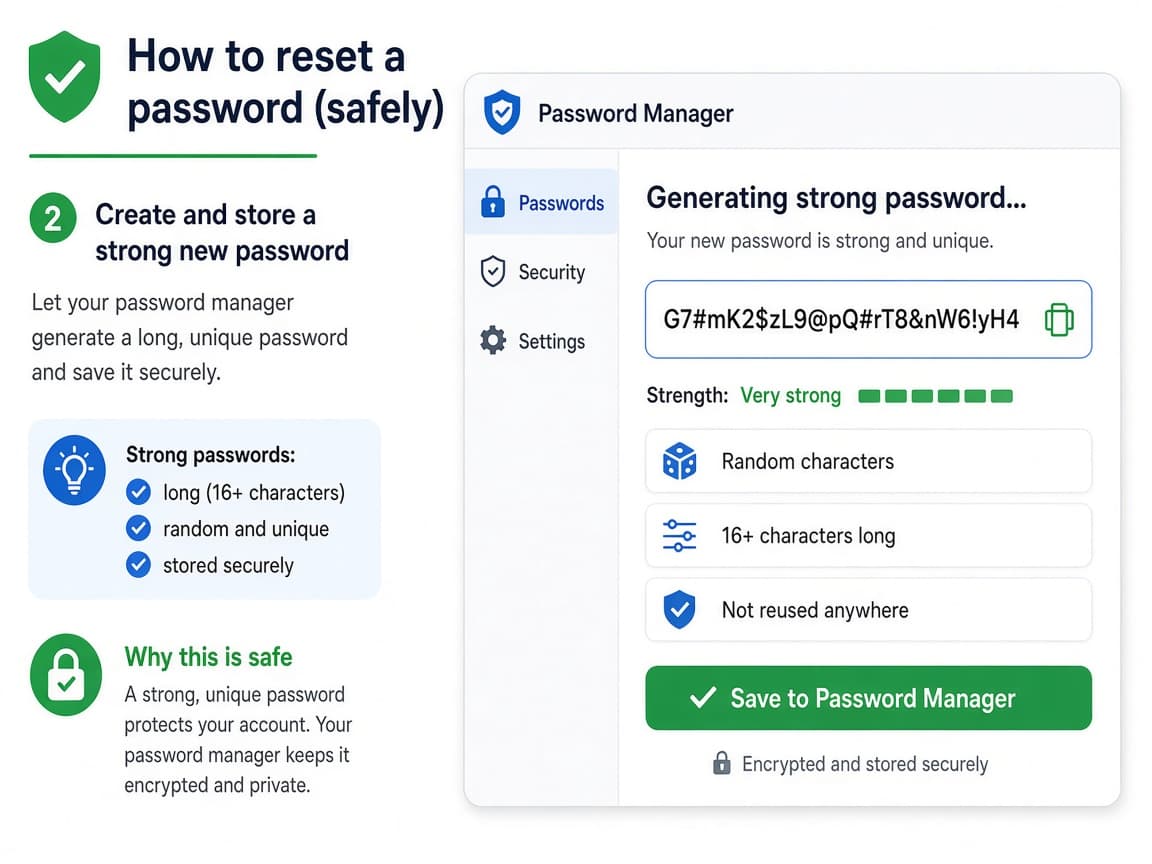
Unique passwords stop one breach from opening every door. Do this step in order
3a
Generate a long unique password
Prefer a password-manager generator or a long random passphrase. Avoid birthdays, pet names and reused phrases.
3b
Confirm and save in your manager
Type or autofill the new password twice as required, then save the updated entry in your password manager.
3c
Update other devices that still store the old password
Refresh saved passwords in browsers and phone autofill so they stop offering the old secret.
Step 04
Lock the account down after recovery
Enable 2FA, review active sessions and watch for stranger password-change emails.
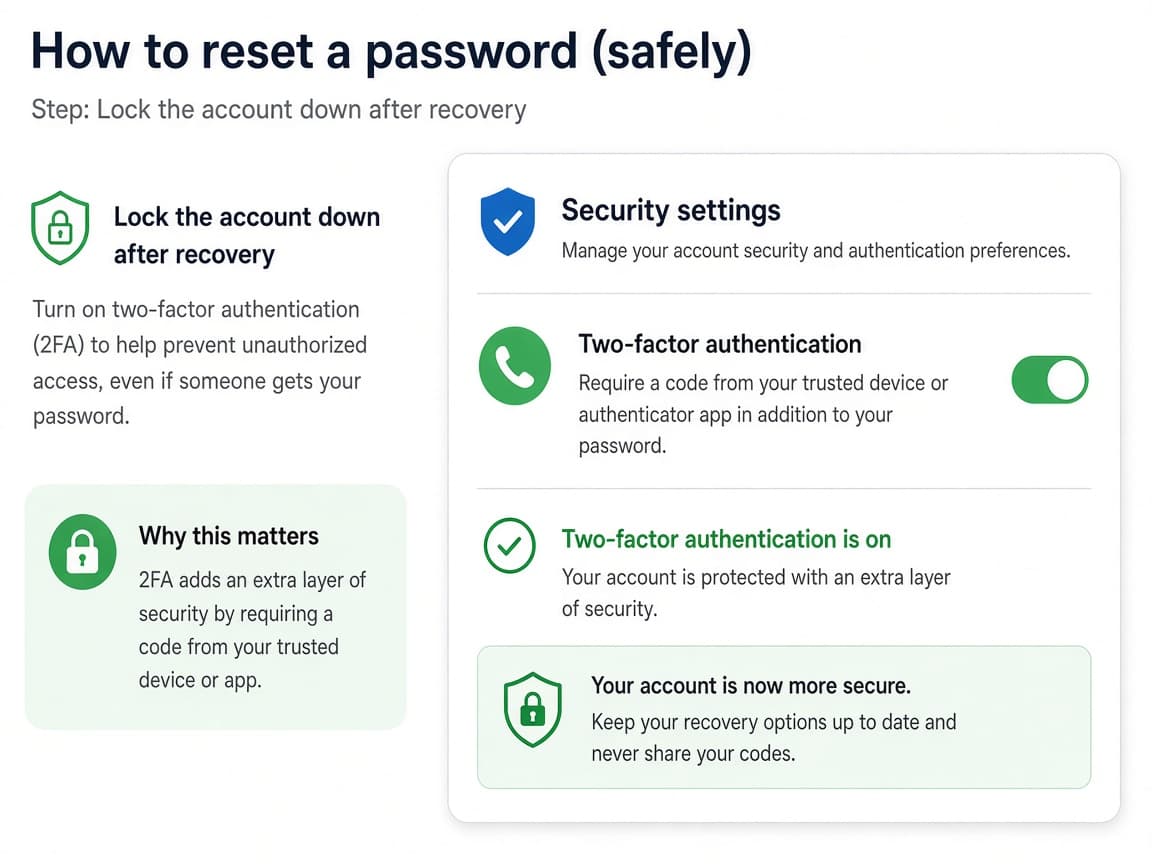
2FA is the best follow-up to any reset. Do this step in order
4a
Turn on two-factor authentication
In security settings enable 2FA. Prefer an authenticator app or security key when offered.
4b
Sign out unknown sessions
Open devices or active sessions and sign out anything you do not recognize.
4c
Treat surprise reset emails as alerts
If you receive password-change mail you did not start, use a bookmark to sign in and secure the account immediately.
Done when
- Open the official login page yourself
- Start Forgot password / Reset password
- Complete email, SMS or app verification
- Create a unique strong password
- Save it in a password manager
- Enable 2FA and sign out unknown sessions
Eagle Frame's takeaway: open the real service, use Forgot password, complete verification with codes only you can see, set a unique new passphrase and enable 2FA. Never share reset codes with anyone who messages or calls you.