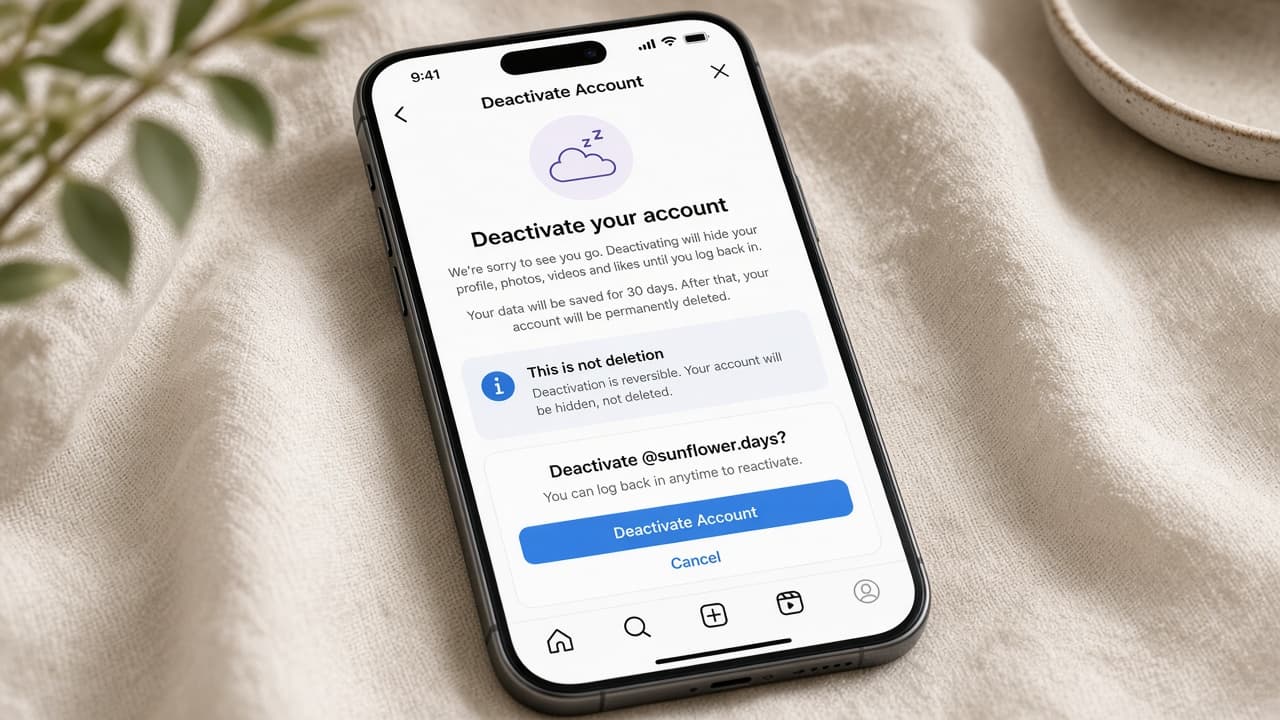
How to deactivate Instagram (without deleting)
Temporarily deactivate Instagram through Meta Accounts Center so your profile is hidden while you keep the option to return by logging in again.
Deactivating Instagram hides your profile, photos and followers list from other people while you take a break. It is the reversible option next to Delete in Meta Accounts Center. Logging back in typically reactivates the account.
Deletion is different. Delete starts a cancellation window and then permanent removal. If you might return, choose Deactivate. If you are sure you are finished forever, use the delete guide instead and export first.
You still need a working login. Shared devices may auto-sign you back in and bring the profile back before you intend. After deactivation, tell close contacts another way to reach you if Instagram was your main channel.
Menu labels can read Accounts Center or Meta Account depending on Meta's rollout. Paths may say Personal details then Account ownership and control then Deactivation or deletion. Follow the nearest labels on your screen.
Step-by-step guide
Time: 5 to 15 minutes
What you need
- Instagram app or Instagram.com
- Working Instagram login
- Optional: note of an alternate contact method for friends
Before you start
- Deactivate is reversible; Delete is aimed at permanent removal.
- Logging in again usually turns the profile back on.
- Export first if you might later decide to delete.
- Labels can move after Instagram updates.
Step 01
Confirm you want a pause, not a permanent wipe
Make sure Deactivate matches your goal before you open the ownership controls.
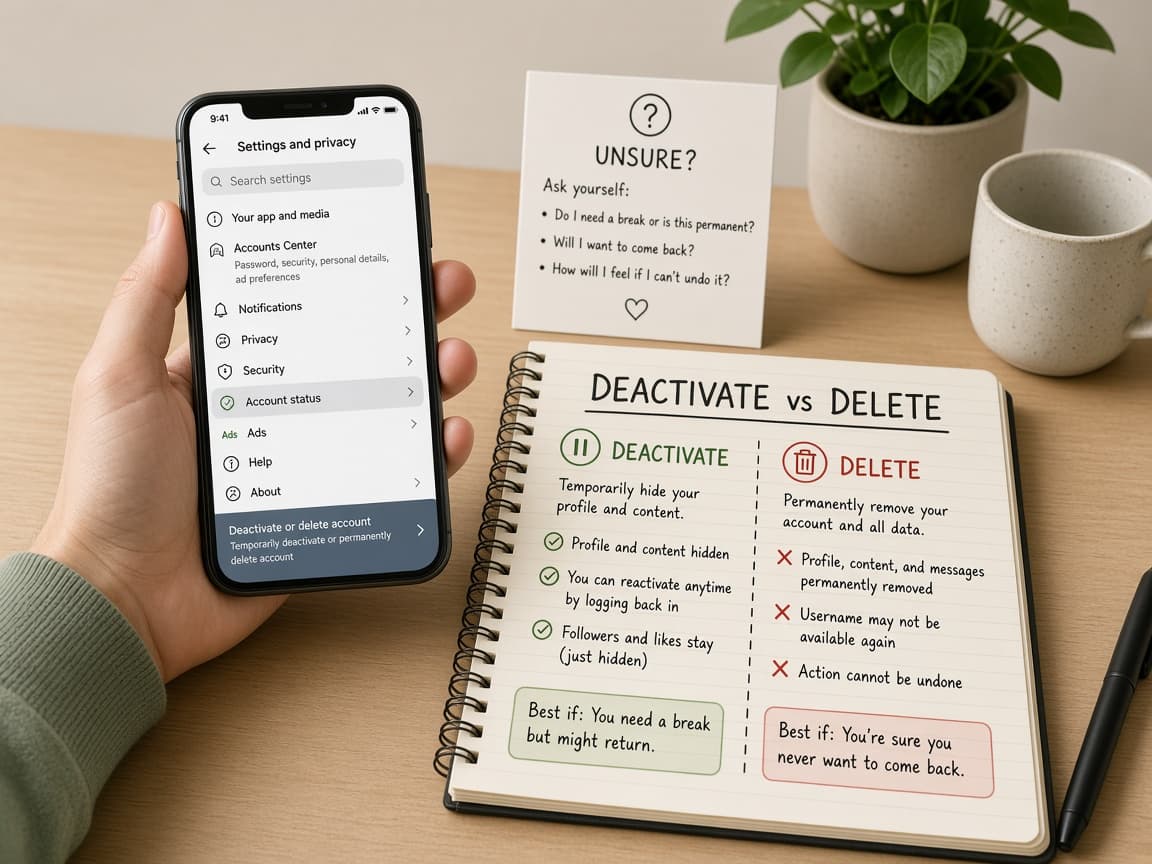
Deactivate hides; Delete schedules permanent removal. Do this step in order
1a
Choose Deactivate for a reversible break
Use this path when you want the profile hidden but recoverable. Stories and posts remain tied to the account for when you return.
1b
Export if deletion might come later
If you are unsure, export your information now while tools are easy to reach. You can still deactivate afterward.
1c
Tell key people how else to reach you
Send an email or number to family or teammates who only knew your Instagram handle.
Step 02
Open Accounts Center ownership controls
Walk from Instagram Settings into Accounts Center and the deactivation menu.
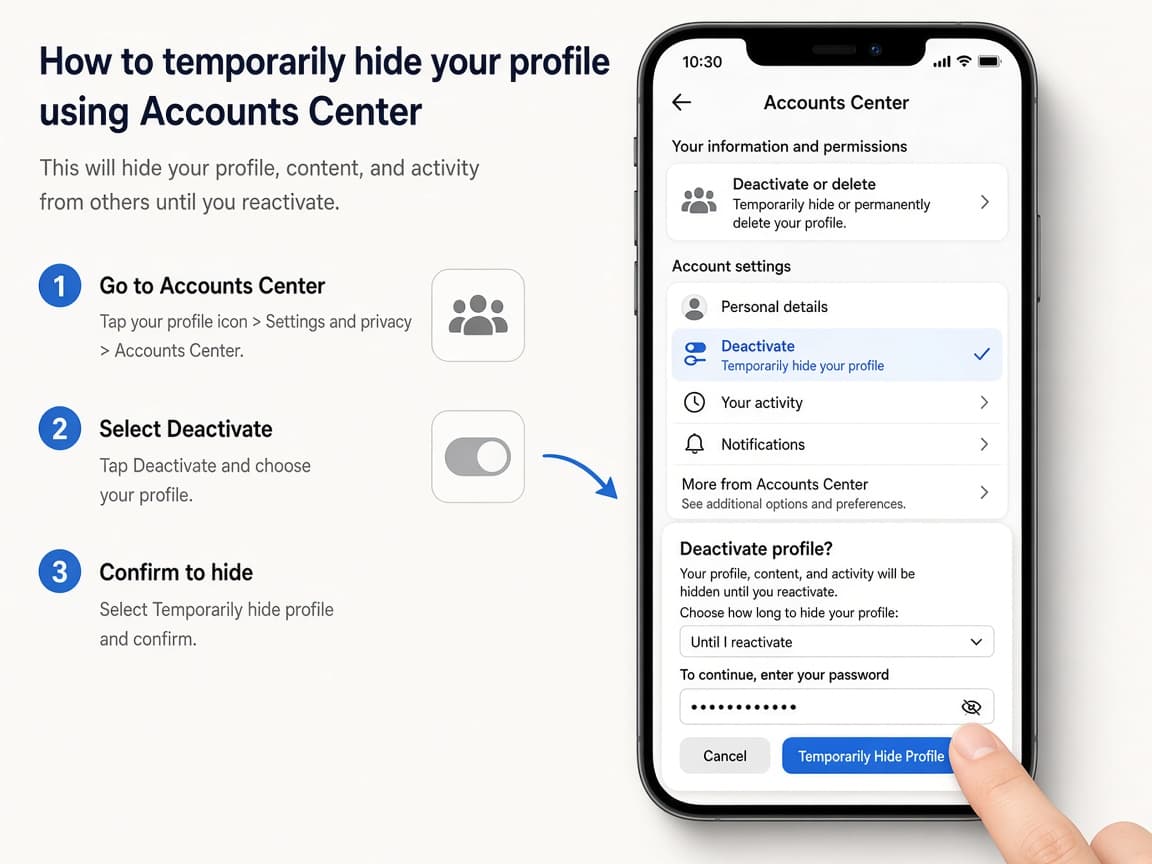
Accounts Center holds deactivation for Instagram profiles. Do this step in order
2a
Open Settings and privacy
Go to your profile, open the menu and choose Settings and privacy (wording may vary slightly).
2b
Enter Accounts Center
Tap Accounts Center or Meta Account. Open Personal details or Manage accounts depending on what you see.
2c
Open Deactivation or deletion
Choose Account ownership and control, then Deactivation or deletion, then select the Instagram profile.
Step 03
Select Deactivate account and confirm
Pick Deactivate, complete reason prompts if shown and finish confirmation without choosing Delete.
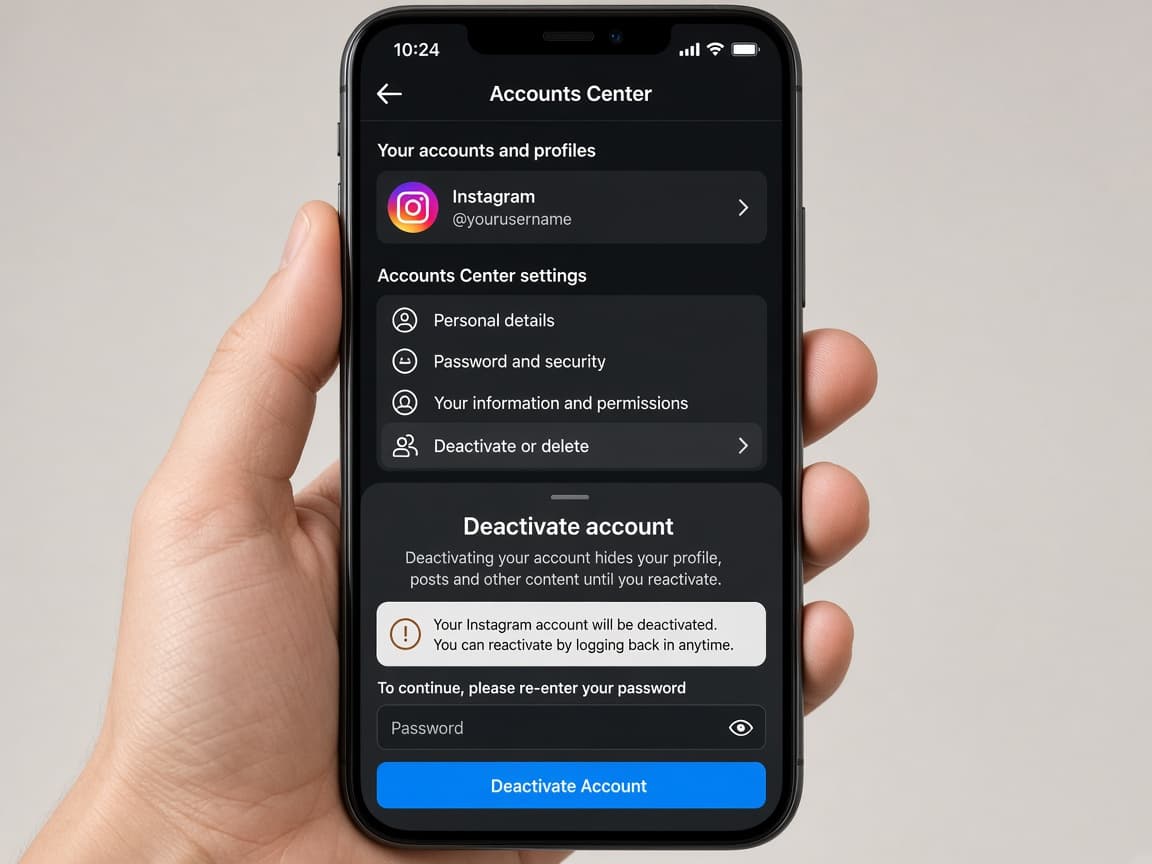
Stay on Deactivate through every confirm screen. Do this step in order
3a
Choose Deactivate account
Select Deactivate account rather than Delete account. Continue to the next screen.
3b
Complete optional reason prompts
Instagram may ask why you are leaving. Answer or skip if allowed, then continue.
3c
Enter your password if asked
Authenticate, then confirm. Wait for a message that the account is deactivated.
Step 04
Stay deactivated until you choose to return
Avoid accidental logins. When you are ready, sign in with the same credentials to bring the profile back.
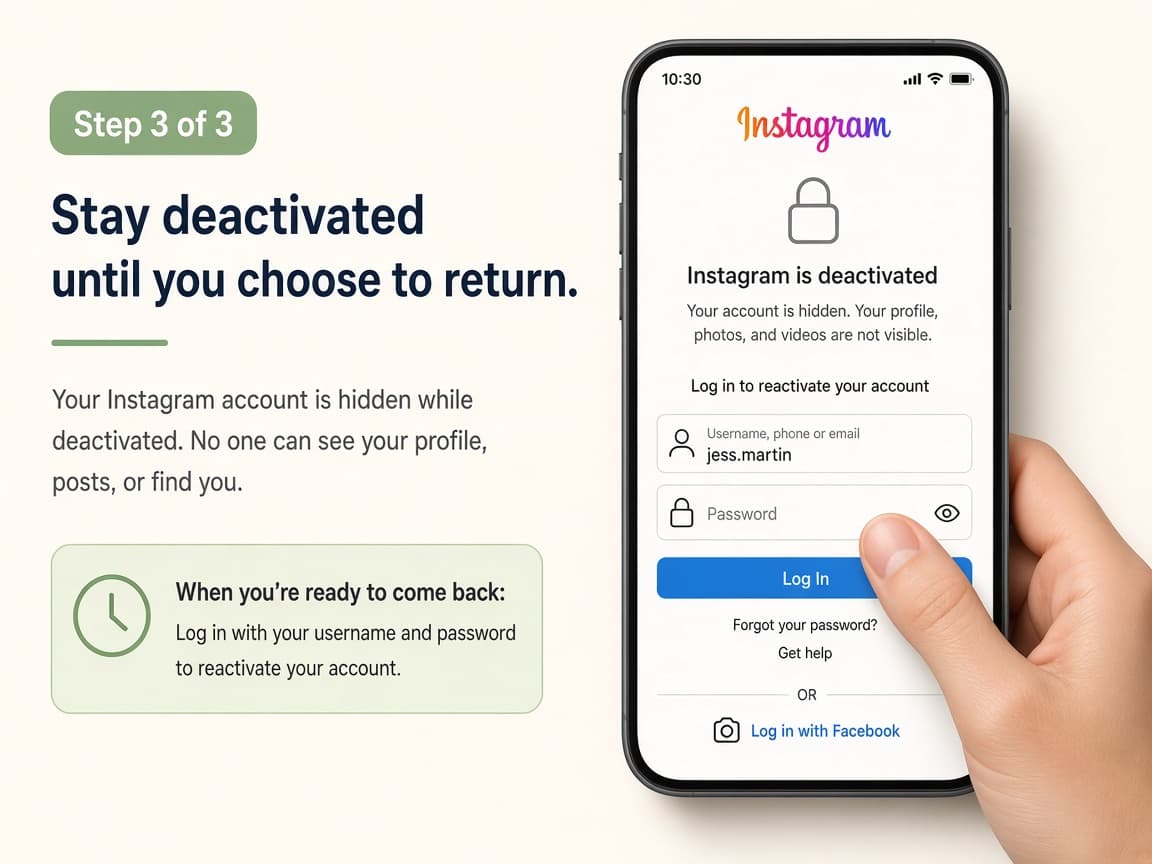
Signing in again is usually how reactivation works. Do this step in order
4a
Remove saved logins on shared devices
Sign out of Instagram on tablets and browsers other people use so they do not reactivate you by accident.
4b
Reactivate later by logging in
When you want the profile back, open Instagram and sign in with the same username and password or saved account.
4c
Review privacy settings after you return
Once active again, check private account status, tagged content and notification settings before you post.
Done when
- Confirm you want a pause, not permanent deletion
- Open Accounts Center ownership controls
- Select your Instagram profile
- Choose Deactivate account
- Confirm and verify the profile is hidden
- Avoid accidental logins on shared devices
Eagle Frame's takeaway: open Instagram Settings then Accounts Center, go to Personal details and Account ownership and control, choose Deactivation or deletion, select Deactivate account (not Delete) and confirm. Sign in later when you want the profile back.