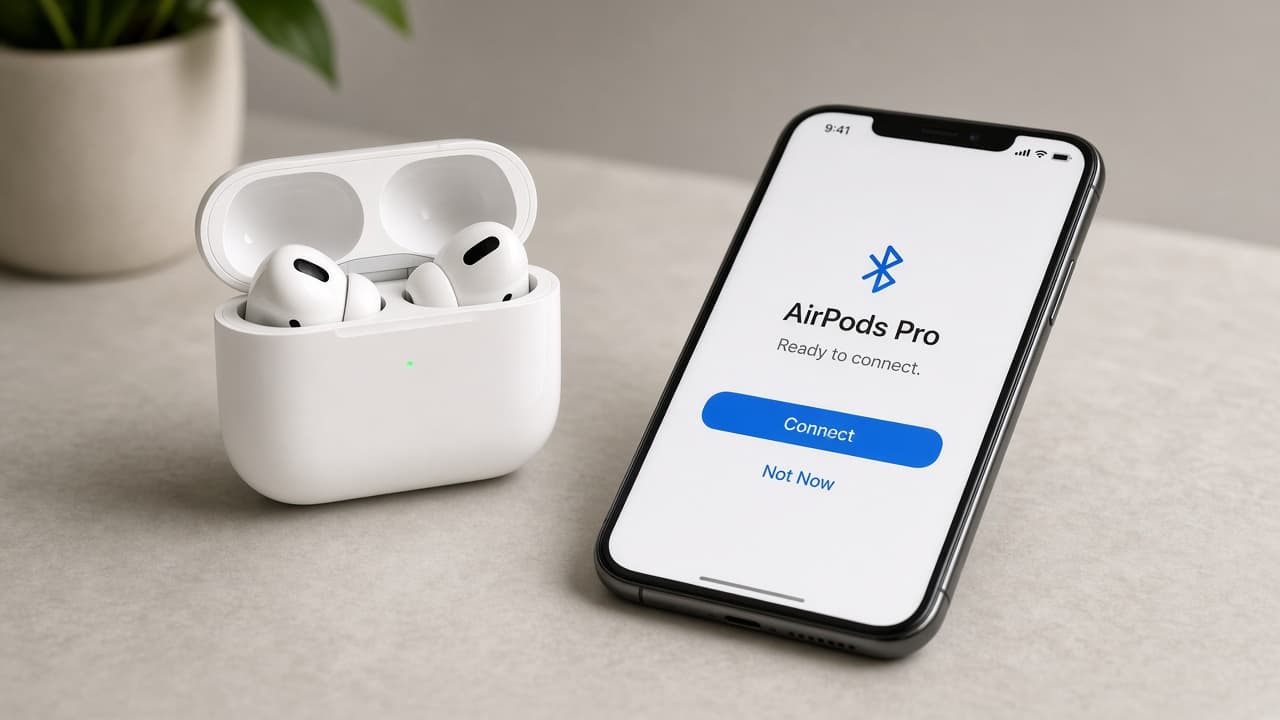
How to connect AirPods
Pair AirPods to iPhone with the nearby setup banner. Put them in pairing mode for Android and Windows Bluetooth. Reset the case light when a device will not reconnect.
AirPods are wireless earbuds that use Bluetooth. On iPhone they also use Apple’s nearby setup so a Connect banner appears when you open the case. On Android, Windows and other phones they behave like any Bluetooth headset: you put them in pairing mode, then select them in Bluetooth settings.
For a first setup with iPhone, unlock the phone, open the AirPods case with the buds inside and hold the case near the phone. Tap Connect, follow any on-screen tips, then tap Done. If your iPhone is signed in to iCloud, the AirPods can appear automatically on your other Apple devices that use the same Apple Account.
When the banner never appears or you are pairing to Android or Windows, open the case and enter pairing mode until the status light flashes white. On AirPods 4 and AirPods Pro 3, double-tap the front of the case. On earlier AirPods and AirPods Pro 1 or 2, press and hold the setup button on the back of the case for a few seconds. Then choose the AirPods in the device Bluetooth list.
AirPods usually connect to one active audio device at a time. If they keep jumping back to your iPhone while you try a PC, turn off Bluetooth on the phone briefly or disconnect the AirPods there first. Low battery, a dirty case sensor and an already-paired device in the next room cause most “they will not connect” reports.
Step-by-step guide
Time: 5 to 15 minutes including a stubborn reconnect
What you need
- AirPods or AirPods Pro with charging case
- iPhone, Android phone, Mac or Windows PC with Bluetooth
- Enough charge in the case and buds
- Optional: Bluetooth USB adapter for desktop PCs without built-in Bluetooth
Before you start
- Keep AirPods away from water and pockets full of lint. Moisture and debris cause flaky connections that look like software bugs.
- On non-Apple devices you get basic audio and calls. Features like seamless automatic switching and full Siri integration need Apple devices.
- Forget or reset only when needed. You will have to pair again on every device you use.
Step 01
Pair with iPhone using the setup banner
This is the fastest path when the AirPods are new or freshly reset and your iPhone is nearby.
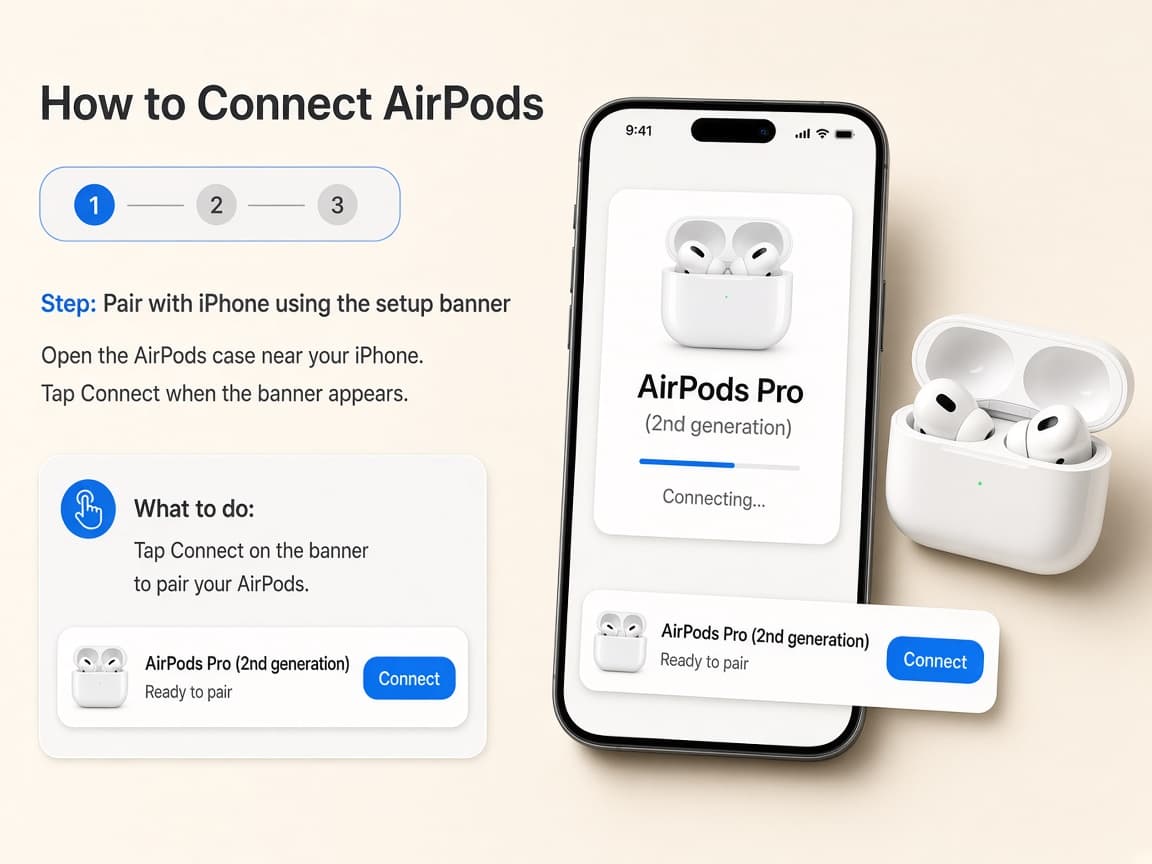
Hold the open case near an unlocked iPhone until Connect appears. Do this step in order
1a
Unlock the iPhone and go to the Home Screen
Bluetooth should be on. You do not need to open Settings yet for the automatic banner.
1b
Open the case with AirPods inside, near the phone
Keep the buds in the case, open the lid and hold the case a few centimeters from the iPhone. Wait for the animated setup card.
1c
Tap Connect, follow prompts, then tap Done
Tap Connect. Complete any on-screen steps for your model (ear tip fit on some Pro models, for example). Tap Done when finished.
1d
Play audio and confirm the AirPods are the output
Start a song or video. Open Control Center and check the audio destination shows your AirPods. Wear both buds if you want stereo confirmation.
Step 02
Pair manually or to Android and Windows
Use pairing mode whenever the iPhone banner is missing or the device is not Apple hardware.
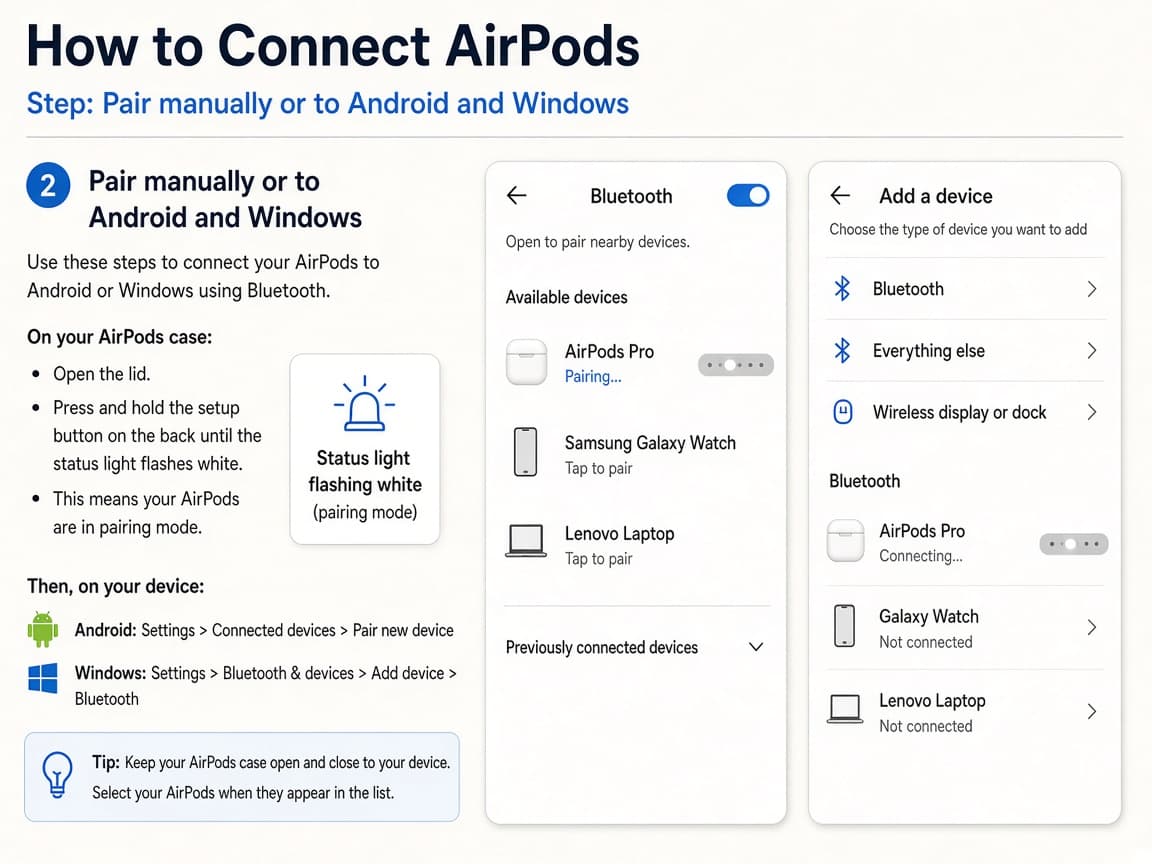
A flashing white status light means the AirPods are discoverable. Do this step in order
2a
Turn on Bluetooth on the target device
On Android open Settings > Connections (or Connected devices) > Bluetooth. On Windows open Settings > Bluetooth & devices and turn Bluetooth on. On Mac open System Settings > Bluetooth.
2b
Put the AirPods in pairing mode until the light flashes white
Open the case with buds inside. For AirPods 4 or AirPods Pro 3, double-tap the front of the case. For earlier models, press and hold the back setup button about 5 seconds until the light flashes white. For AirPods Max, hold the listening mode button until the light flashes white.
2c
Select the AirPods in the Bluetooth device list
On Windows choose Add device > Bluetooth, then select your AirPods. On Android or Mac, tap or click the AirPods name when it appears. Wait until the status shows Connected.
2d
Set them as the sound output on a PC
On Windows, open the taskbar volume control and choose your AirPods as the output device. Choose them as the input too if you need the microphones for calls.
Step 03
Switch devices without fighting automatic reconnect
AirPods remember more than one device. The nearest Apple device often wins unless you steer them.
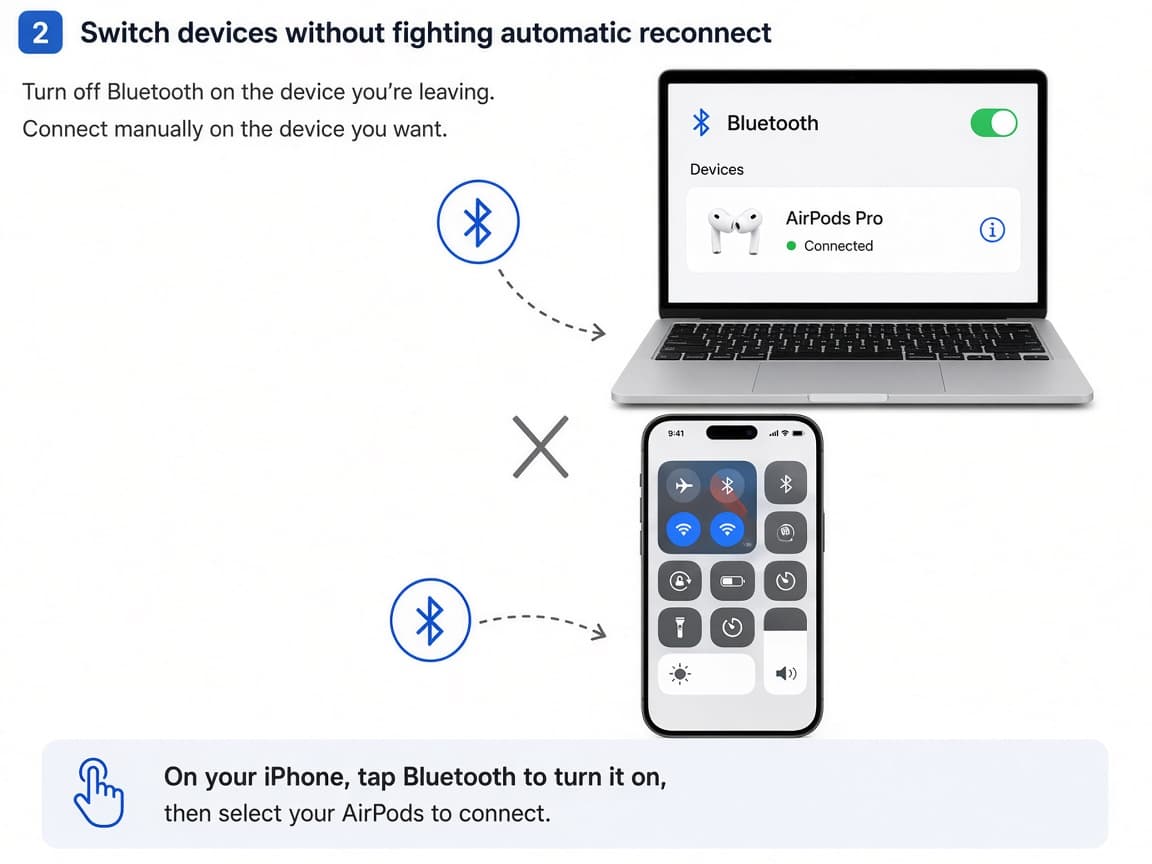
Quiet the phone briefly when a PC needs a clean reconnect. Do this step in order
3a
Disconnect or power off Bluetooth on the device you are leaving
On iPhone, open Control Center, touch and hold the audio card, then disconnect the AirPods or turn Bluetooth off briefly. Then connect from the new device’s Bluetooth list.
3b
Wear the buds and select AirPods on the new device
Put both AirPods in your ears, then choose them under Bluetooth or the sound menu on the device you want. Playing audio helps lock the route.
3c
Charge if either bud drops out
Uneven battery is a classic cause of one-sided audio. Seat both buds in the case for several minutes, then reconnect.
Step 04
Reset when pairing is stuck
A reset clears confused pairings after OS updates or when the case light never goes white.
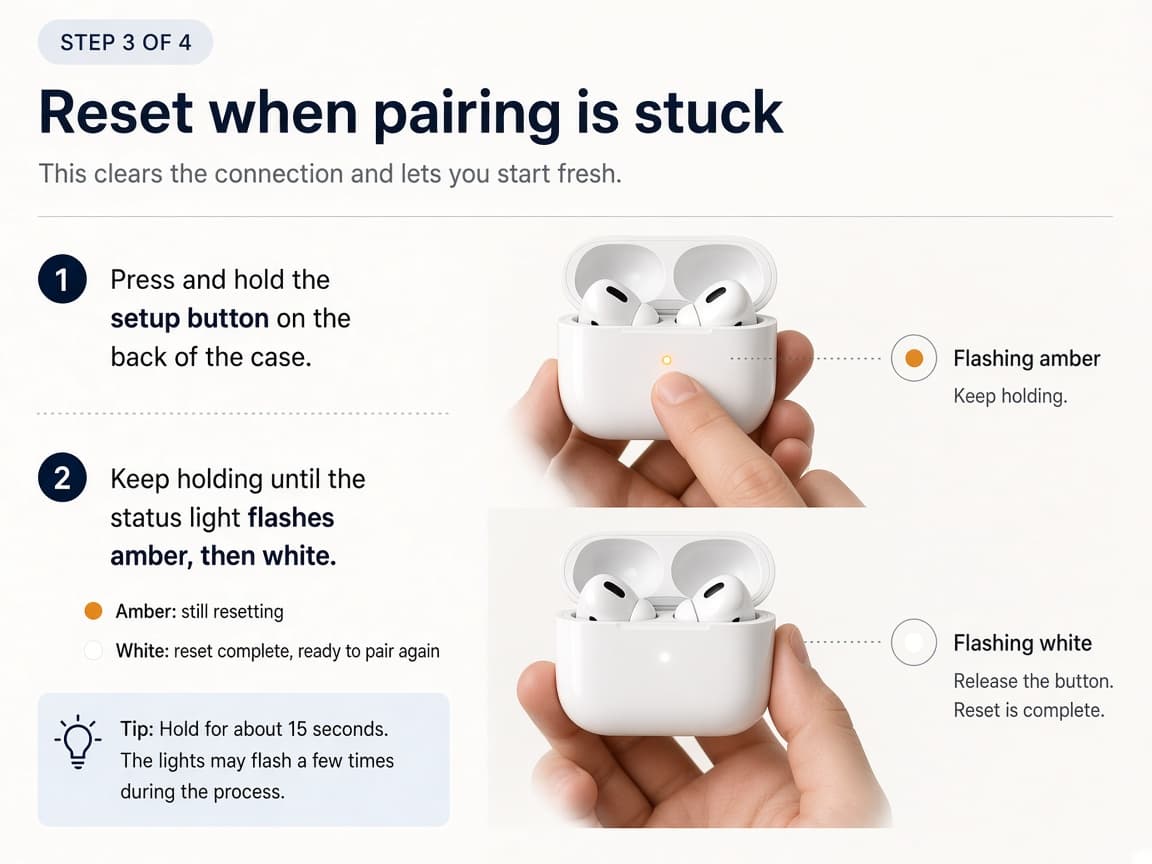
Reset only after you have forgotten the AirPods on devices that keep grabbing them. Do this step in order
4a
Forget the AirPods on the devices that keep auto-joining
In Bluetooth settings, forget or remove the AirPods entry on iPhone, Mac or PC. That prevents an old pairing from blocking a clean reset.
4b
Reset the case using Apple’s light sequence for your model
Place the buds in the case and open the lid. On many models, press and hold the back button about 15 seconds until the light flashes amber, then white. AirPods 4 and AirPods Pro 3 use a front double-tap reset sequence instead. Follow the light cues for your model.
4c
Pair again from the start
Repeat the iPhone banner steps or the manual Bluetooth pairing steps. Test audio once. If it still fails, try another device to see whether the problem is the phone radio or the AirPods.
Done when
- Case charged and buds seated
- Bluetooth on for the target device
- Connect banner used on iPhone or white pairing light for other devices
- AirPods selected as audio output
- Competing device disconnected if switching
Eagle Frame’s takeaway: open the case near an unlocked iPhone for the Connect banner or flash the white pairing light and pick AirPods under Bluetooth on Android and Windows. Disconnect competing devices when switching and reset pairing when the list will not stay connected.