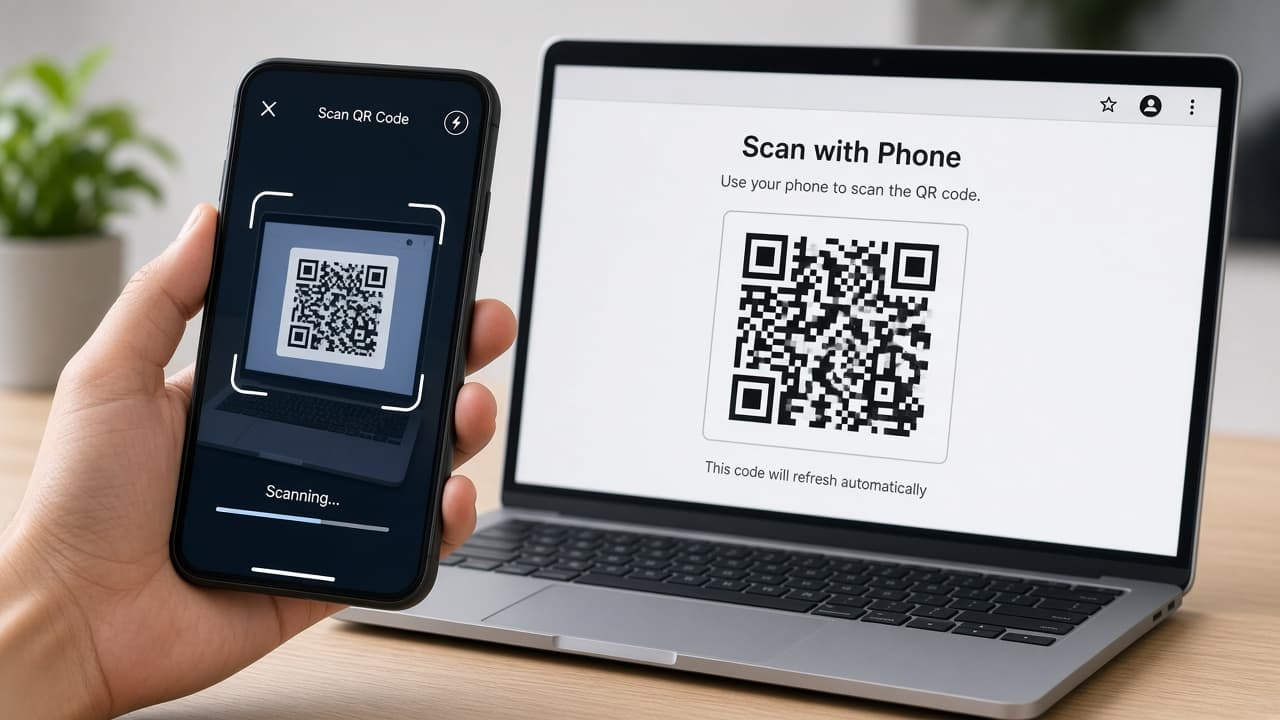
How to scan a QR code
Open your phone Camera, point at the code and tap the banner link. Confirm Scan QR Codes is on, use care with unknown links and try Windows Camera when you only have a laptop.
A QR code is a square pattern that stores a short piece of data, most often a web link. Your phone camera reads the pattern and offers to open whatever sits behind it: a menu, a Wi-Fi join screen, a ticket or an app page. You do not need a separate scanner app on a modern iPhone or Android phone.
On iPhone, open Camera in Photo mode, frame the code and tap the banner that appears. If nothing happens, check Settings > Camera and turn on Scan QR Codes. On many Android phones, the stock Camera app behaves the same way. If your camera ignores codes, open Google Lens from the Google app or Camera shortcuts and scan from there.
Lighting and distance matter more than people expect. Hold steady, avoid heavy glare and tap the code in the viewfinder to focus if the image is soft. You do not need to take a photo for the live scan to work. Saving a photo helps only when you want to open the code again later with Live Text (iPhone) or Lens (Google Photos).
Treat unknown QR codes like unknown links. A sticker on a parking meter or a flyer can be replaced by scammers. Read the URL preview before you sign in or pay. Prefer official apps for banking and tickets when you have a choice. On Windows 11, the Camera app can scan a physical code held up to a webcam on many builds; a phone is still usually easier.
Step-by-step guide
Time: 2 to 5 minutes once Camera is ready
What you need
- iPhone or Android phone with a working rear camera
- Built-in Camera app (or Google Lens as backup)
- Optional: Windows 11 PC with a webcam and Camera app
- Enough light to see the printed or on-screen code clearly
Before you start
- Unknown QR codes can open phishing sites. Read the URL before you sign in or enter payment details.
- Do not install random third-party QR scanner apps from ads. Built-in Camera is enough for most links.
- Some codes open Wi-Fi networks or share contacts. Confirm what you are joining before you accept.
Step 01
Scan with iPhone Camera
Apple builds QR reading into Camera. You only need Photo mode and a steady frame.
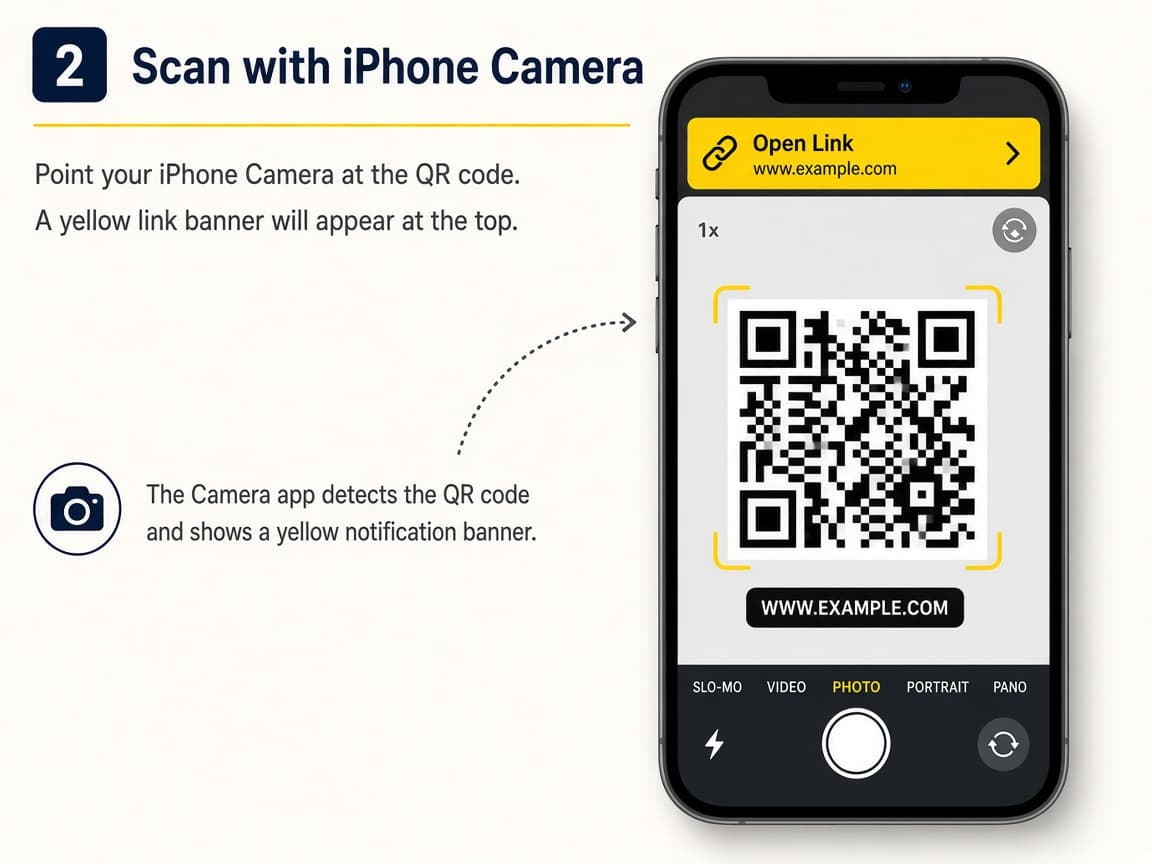
Point Camera at the code and tap the banner when it appears. Do this step in order
1a
Open Camera in Photo mode
Unlock the iPhone and open Camera. Stay in Photo mode. You do not need Portrait or Video for a basic scan.
1b
Frame the code until a banner appears
Hold the phone so the full QR square is visible. Keep a little margin around it. When iOS recognizes the code, a notification or banner shows the link or action.
1c
Tap the banner to open the destination
Tap the banner once. Safari or the relevant app opens. If you only wanted to preview, read the URL text on the banner before you tap.
1d
Turn Scan QR Codes on if nothing appears
Go to Settings > Camera and enable Scan QR Codes. Try again in good light. You can also add a Scan Code control in Control Center on supported iOS versions.
Step 02
Scan with Android Camera or Lens
Most recent Android phones detect codes in the stock Camera. Lens is the reliable backup.
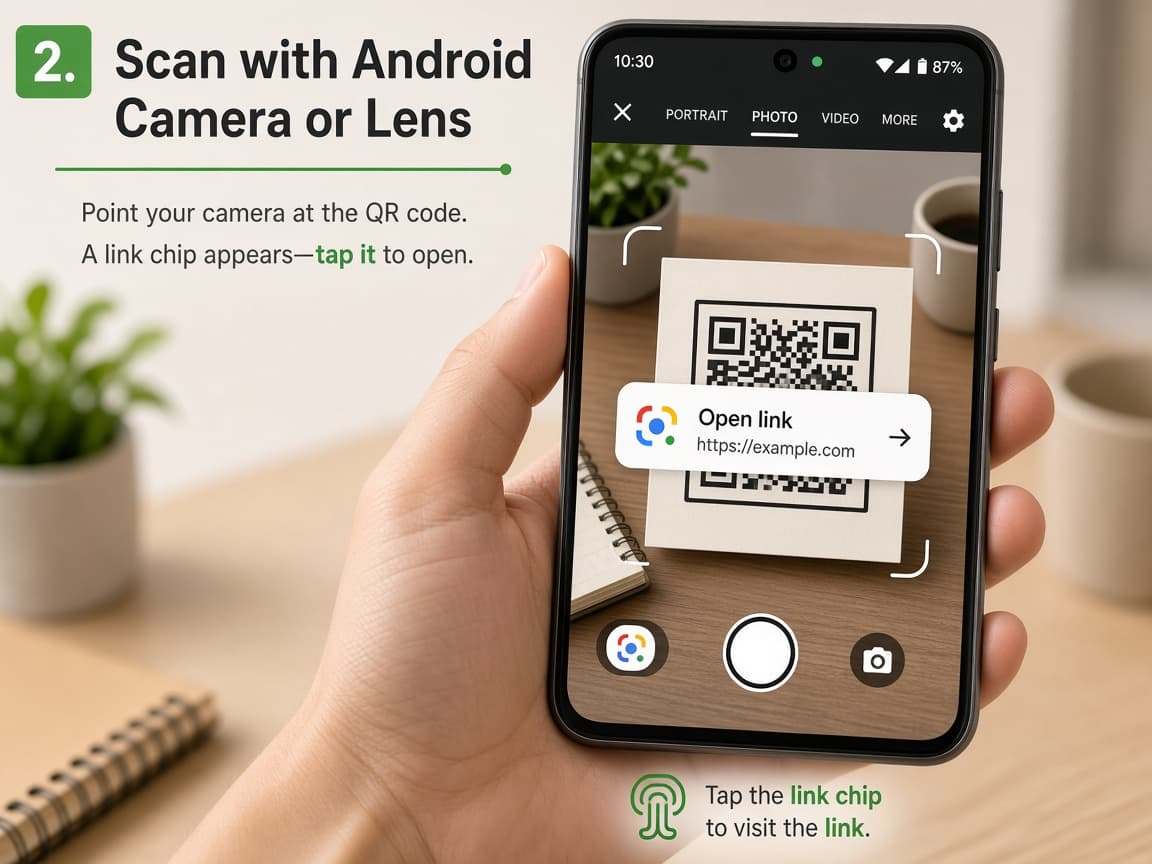
Android Camera usually shows a tappable chip or banner on the code. Do this step in order
2a
Open the stock Camera app and point at the code
Use the manufacturer Camera app rather than a random download. Hold steady until a link chip, banner or highlight appears, then tap it.
2b
Check Camera settings for a QR or Lens toggle
If nothing appears, open Camera settings and look for Scan QR codes, Google Lens suggestions or similar. Turn the option on and retry.
2c
Use Google Lens when Camera still fails
Open the Google app or Photos, start Lens and point at the code. Lens also works on a photo of a code you already saved.
2d
Prefer official apps for payments and tickets
Restaurant menus are usually fine in the browser. For banking or boarding passes, open the official app and follow its scan flow when one exists instead of trusting a random poster code.
Step 03
Improve focus, light and saved-image scans
Most failed scans are blur, glare or a code that is too small in the frame.
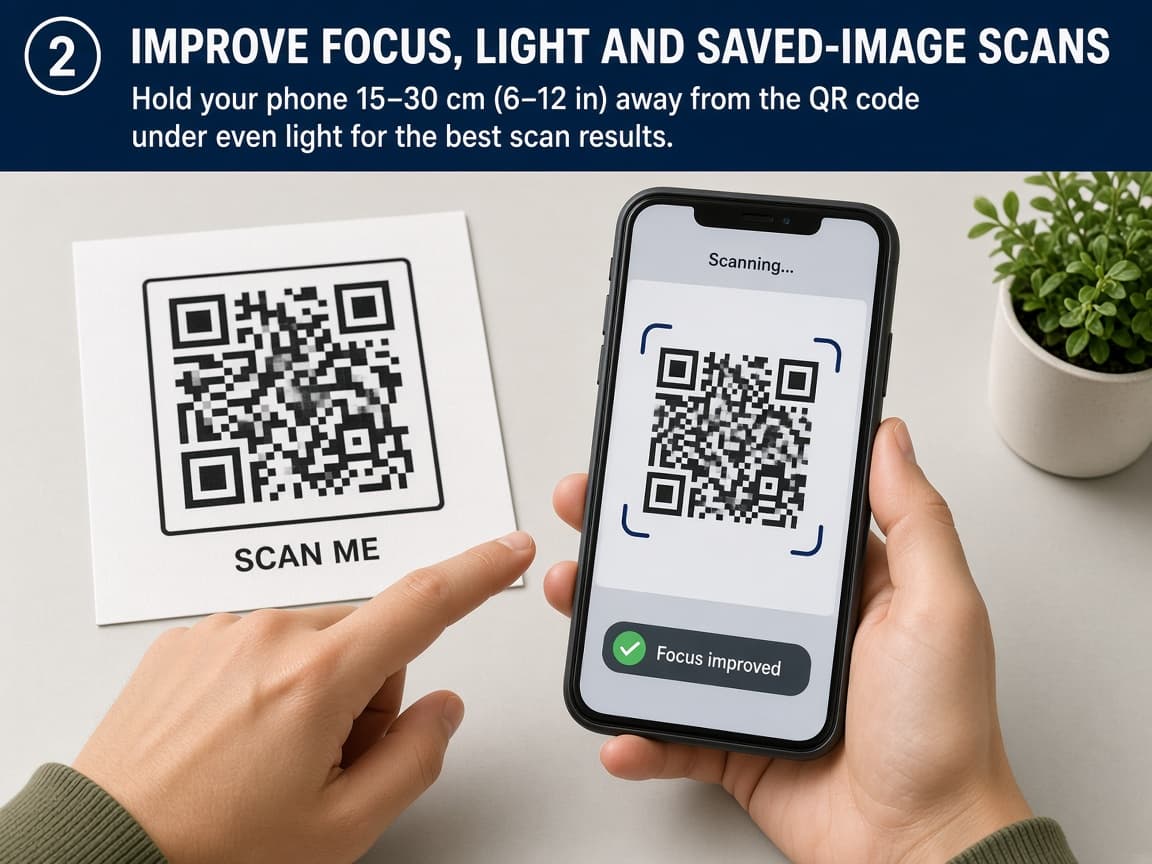
Move closer or farther until the pattern looks crisp. Do this step in order
3a
Reduce glare and tap to focus
Tilt the phone to avoid reflections on glossy paper or screens. Tap the code in the viewfinder so autofocus locks. Wait a second before deciding it failed.
3b
Scan a code that is already on another screen
If the QR is on your computer display, lower brightness glare and hold the phone steady. Do not try to scan a QR that is on the same phone screen you are using to scan.
3c
Open a saved photo of a code when needed
On iPhone, open the photo and use Live Text / text selection tools to open the code. On Android, open the image in Google Photos and use Lens. Useful for event tickets you photographed earlier.
Step 04
Scan from a Windows PC when you must
A laptop webcam works for physical codes on many Windows 11 setups. A phone is still faster when you have one.
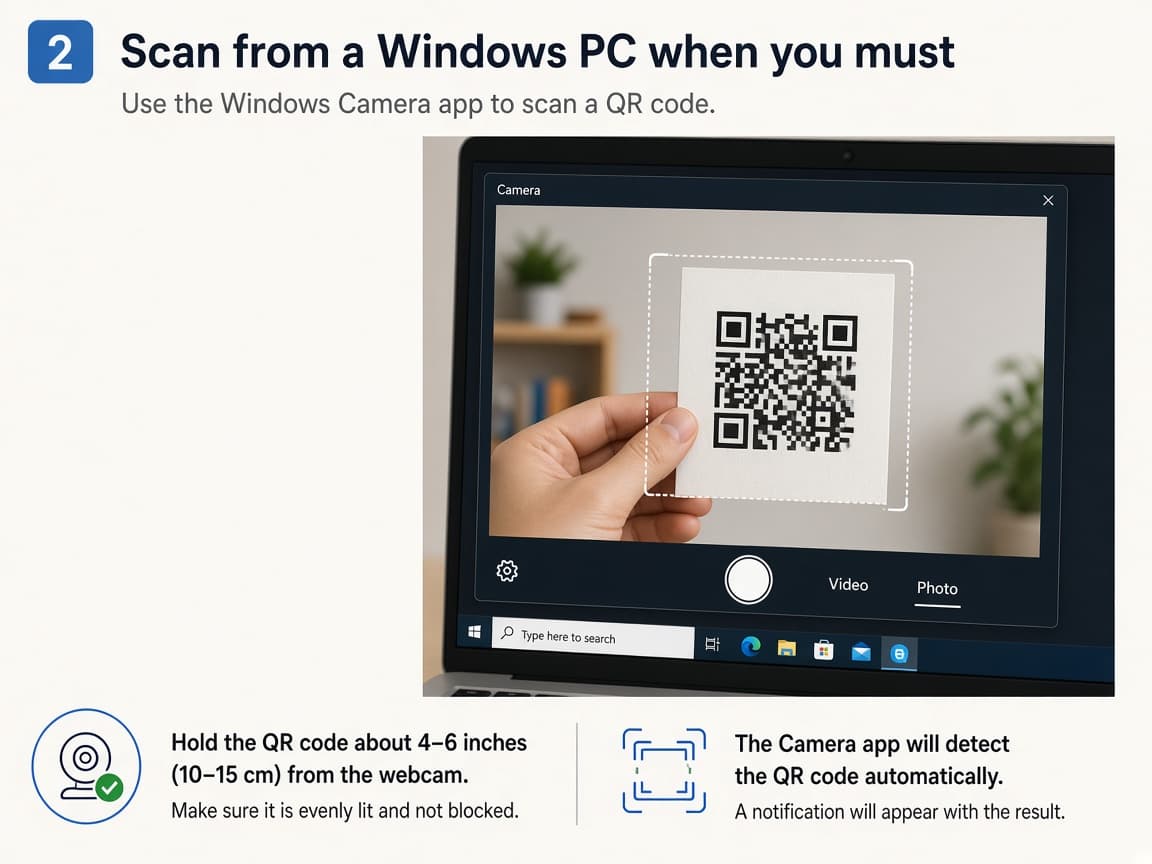
Windows Camera can read some QR codes when a webcam is available. Do this step in order
4a
Open the Camera app and face the webcam
Search Start for Camera. Allow camera permission if prompted. Hold the printed code steady in front of the webcam until the app recognizes it.
4b
Enable barcode or experimental features if your build asks
Some Windows Camera builds put barcode scanning behind a settings toggle (gear icon). Turn on the option labeled for barcodes or experimental features, then try again.
4c
Fall back to your phone if the PC path is awkward
If the webcam struggles, scan with your phone and send yourself the link. That is normal. PC scanning is a backup, not the best everyday tool.
Done when
- Camera permission allowed
- Code framed sharply in good light
- Banner or link chip reviewed
- Destination opened only if trusted
- Scan QR Codes enabled on iPhone if needed
Eagle Frame’s takeaway: open the built-in Camera, point until a banner appears, read the link, then tap. Turn Scan QR Codes back on if iPhone stopped detecting codes, use Lens when Android Camera fails and never enter passwords from a code you do not trust.