
How to convert PDF to Word
Convert PDF to Word with Microsoft Word, Adobe Acrobat export or Google Docs for simple files. Scanned PDFs need OCR. Watch privacy on random upload sites.
PDF preserves where text, pictures and lines sit on a page. A Word document stores editable structures such as paragraphs, headings and tables. Conversion software has to infer those structures, so it creates a new document rather than unlocking the original PDF.
First test whether the source contains real text. If you can select individual words, Microsoft Word or Adobe Acrobat can usually rebuild a useful draft. If the whole page selects as one picture, the file is a scan and needs optical character recognition, known as OCR.
Microsoft's official desktop method is File, Open, select the PDF and approve the conversion notice. Word leaves the original PDF unchanged and creates an editable copy. Microsoft says this works best for documents that are mostly text. Tables with cell spacing, long footnotes, comments and multimedia may not convert well.
Adobe Acrobat offers Convert or Export a PDF, then Microsoft Word and DOCX. Acrobat can also run text recognition on a scanned file before export. Use the correct document language, review the recognition result and save the DOCX under a new name so the source remains available.
Cloud conversion can be suitable for an ordinary low-risk document, but uploading is a data-handling decision. Contracts, tax forms, health records, identity documents and confidential work files should stay in an approved local or organizational tool. A free converter's convenience does not establish its retention, security or privacy practices.
Review the result page by page. Compare headings, numbered lists, columns, tables, footnotes, page breaks, names, dates and decimal values with the PDF. OCR commonly confuses similar characters such as O and 0. Rebuild a damaged table instead of trusting a visually plausible but incorrect result.
Step-by-step guide
Time: 5 to 30 minutes depending on length and layout complexity
What you need
- Computer with Microsoft Word or Google account
- Optional: Adobe Acrobat or another trusted PDF editor with export
- Original PDF file and a folder for the converted DOCX
- OCR software or scanner app for image-only PDFs
- Notebook for proofreading names, dates and amounts
Before you start
- Do not upload confidential PDFs to unknown free converter sites.
- Conversion is rarely pixel-perfect. Budget time to fix tables and footers.
- Macros in converted files should be treated as untrusted until you review them.
- Password-protected PDFs must be unlocked with permission before conversion.
Step 01
Identify text PDF vs scan and protect the source
The file type decides whether you need OCR or a simple export.
Do this step in order
1a
Try to select a sentence in the PDF
Open the file in a reader and drag to highlight text. If highlighting works, you likely have a native text PDF.
1b
Zoom in on letters at low quality
Fuzzy letters that look like a photocopy usually mean a scan. OCR will be required before editing.
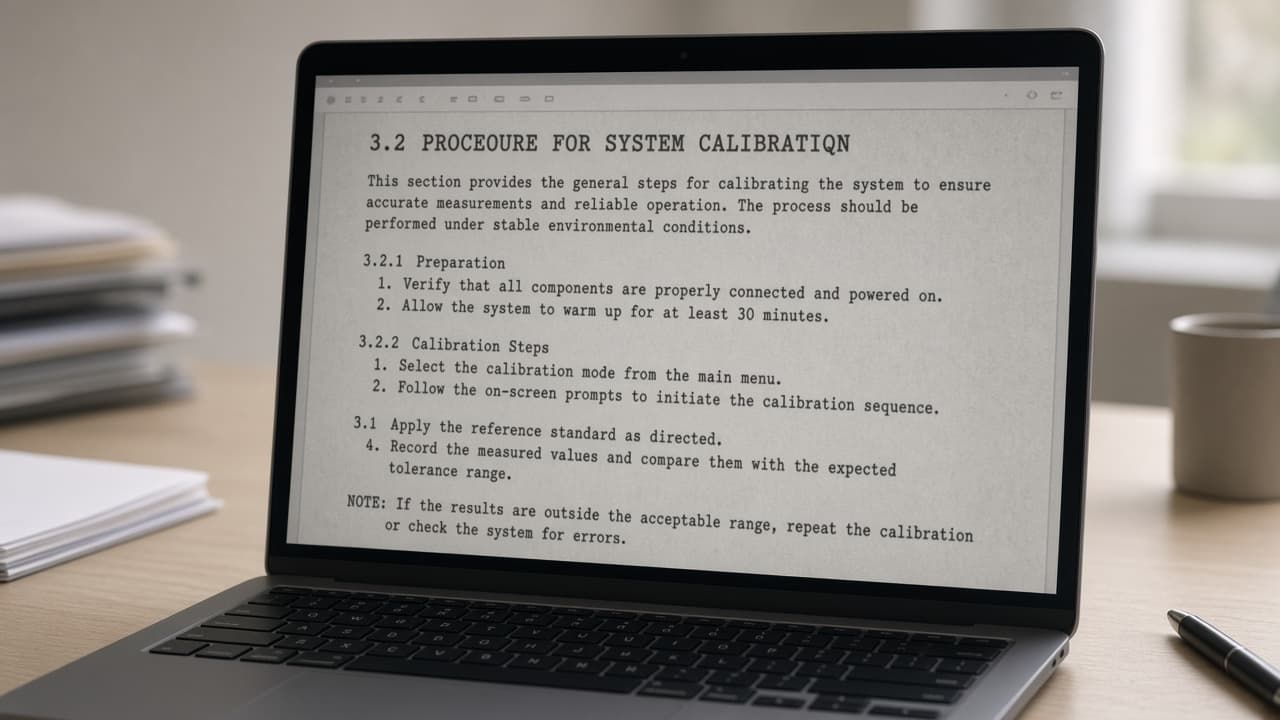
Fuzzy full-page images usually need OCR first. 1c
Note tables, forms and multi-column layout
Complex layouts may need manual rebuild even after a good automatic conversion.
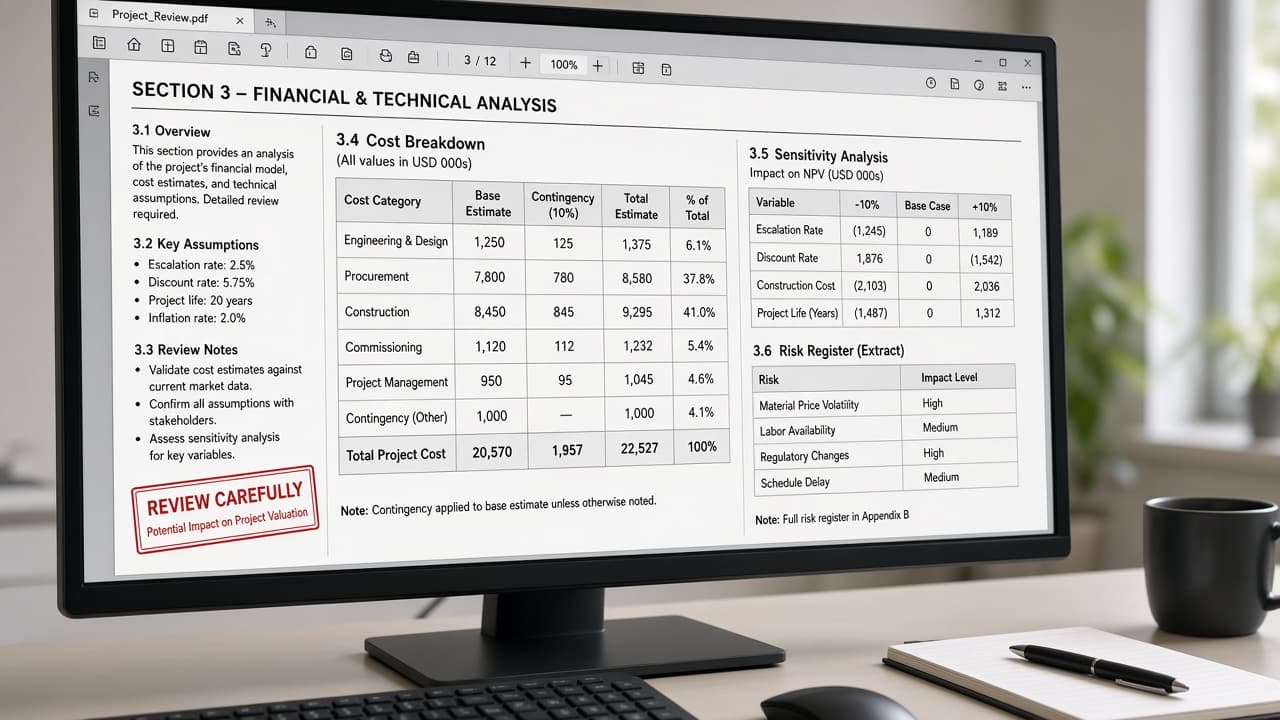
Flag hard pages before you trust the first conversion. 1d
Make a protected copy of the source
Common mistake: converting in place and overwriting the only PDF. Duplicate the file or set it read-only first.
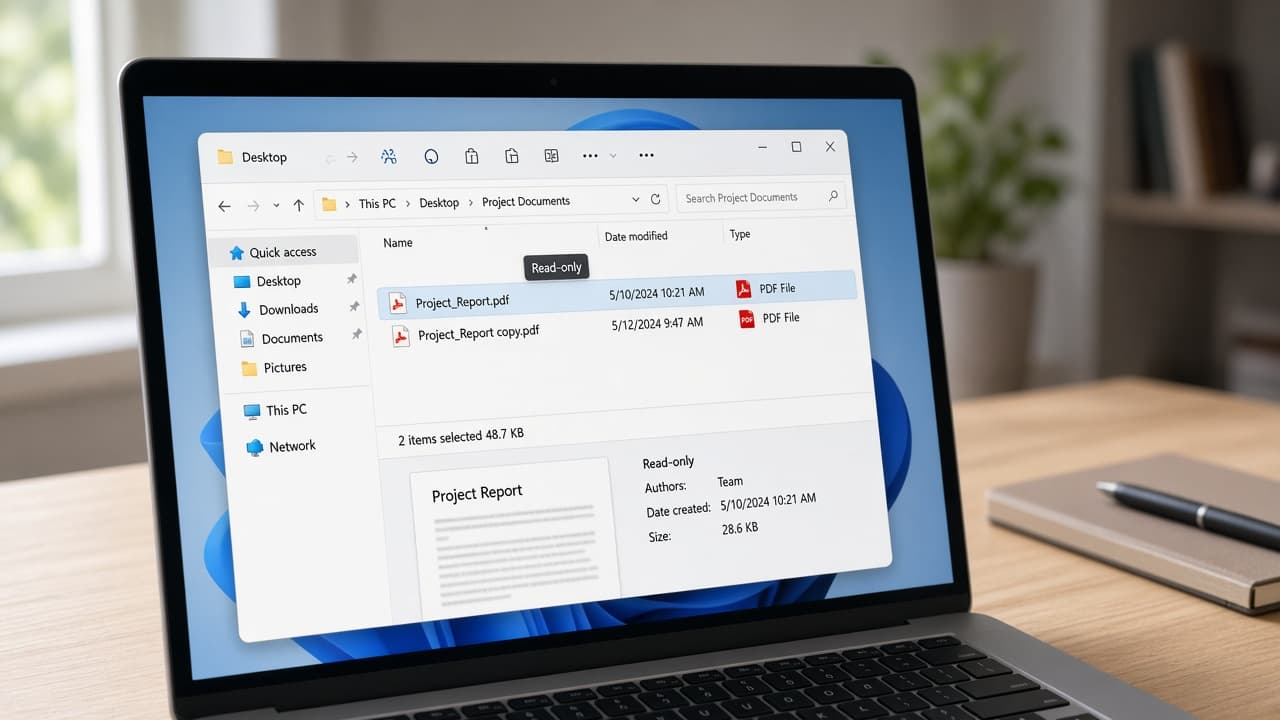
Keep the original untouched before any conversion.
Step 02
Choose a trusted tool with privacy in mind
Desktop tools give the most control for files you should not upload online.
Do this step in order
2a
Decide whether the file may leave your machine
Contracts, tax forms, health records and identity documents should stay in approved local or organizational tools.
2b
Prefer Word or Acrobat for sensitive files
Local conversion keeps the PDF off unknown servers. Use cloud paths only for low-risk everyday documents.
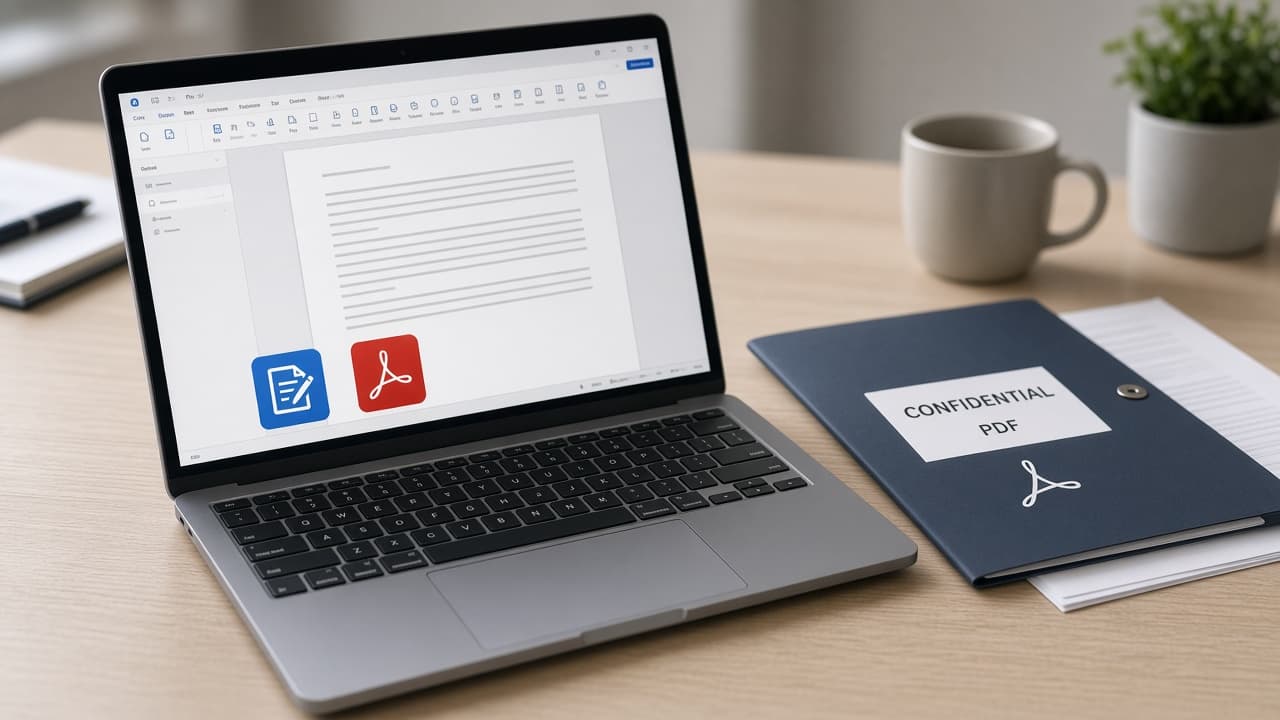
Sensitive PDFs belong in local trusted apps. 2c
Unlock password-protected files only with permission
If the PDF is locked, use credentials you are allowed to have. Do not bypass protections on someone else's file.
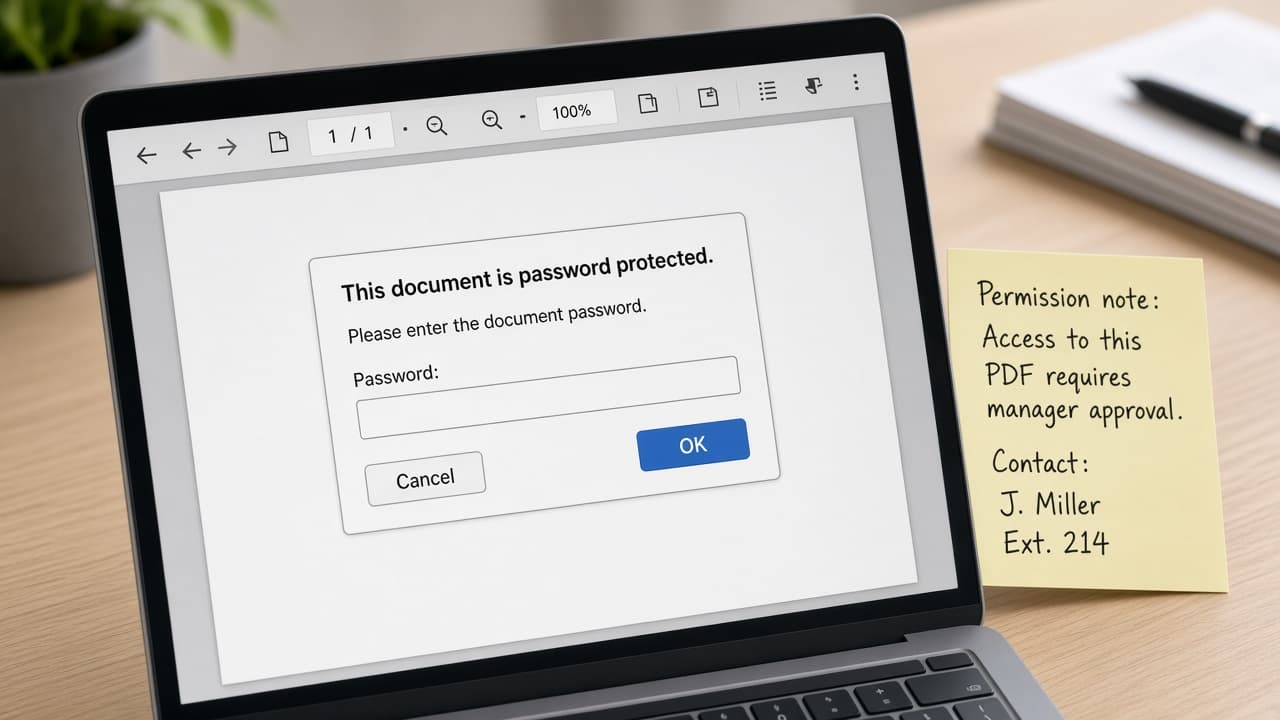
Unlock only when you have permission to do so. 2d
Reject random free upload converters for confidential work
Common mistake: choosing the first Google result that converts in one click. Convenience is not a security review.
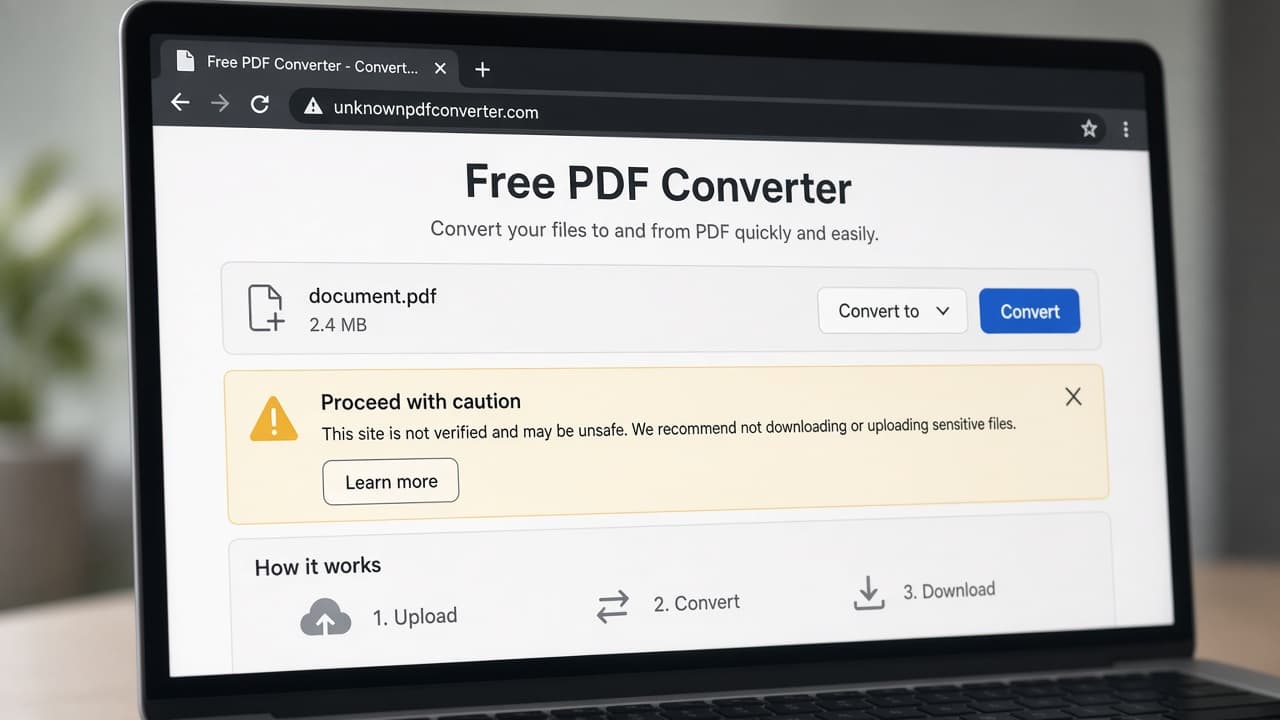
Skip unknown upload converters for private documents.
Step 03
Convert with Microsoft Word
Word can open many PDFs directly and save an editable DOCX.
Do this step in order
3a
Open the PDF from File then Open
In Word choose File then Open, select the PDF and accept the conversion prompt. Word builds a new editable document.
3b
Wait for conversion to finish before editing
Large files can take a minute. Let Word finish so you are not fixing a half-built layout.
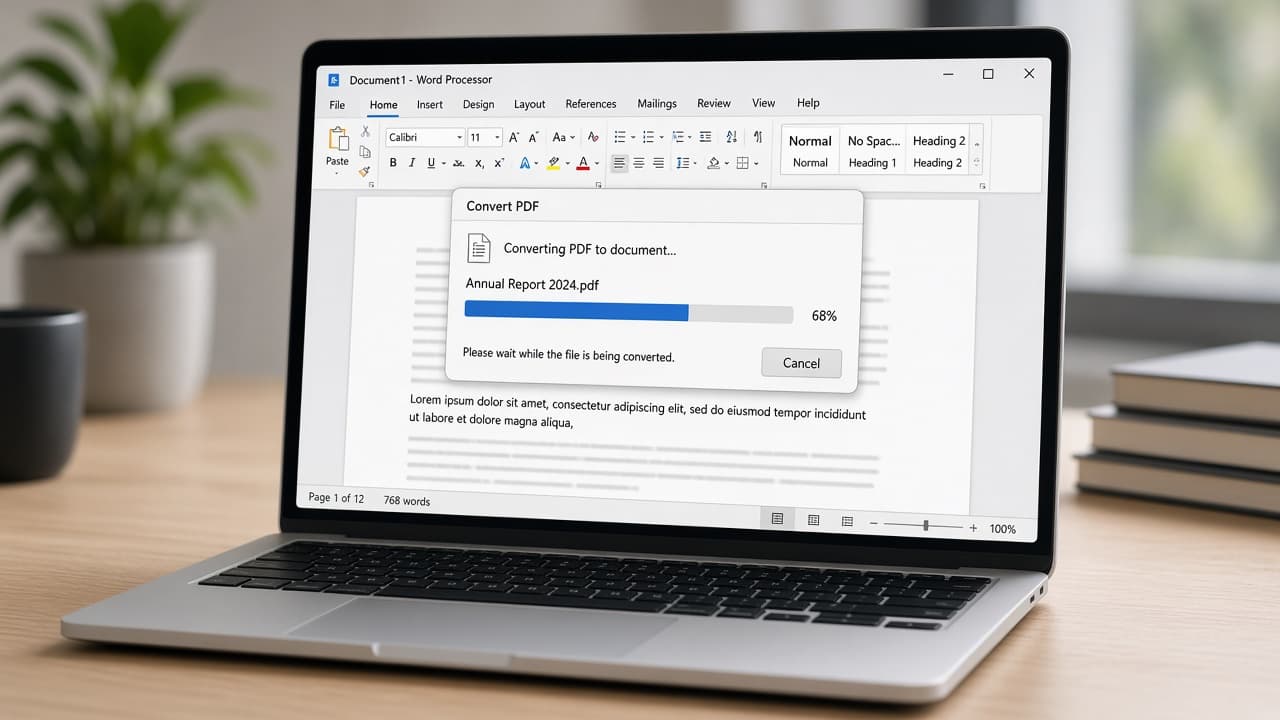
Let the conversion finish before you start cleanup. 3c
Save as DOCX with a new filename
Do not overwrite the original PDF. Use a clear name such as contract-draft-editable.docx.
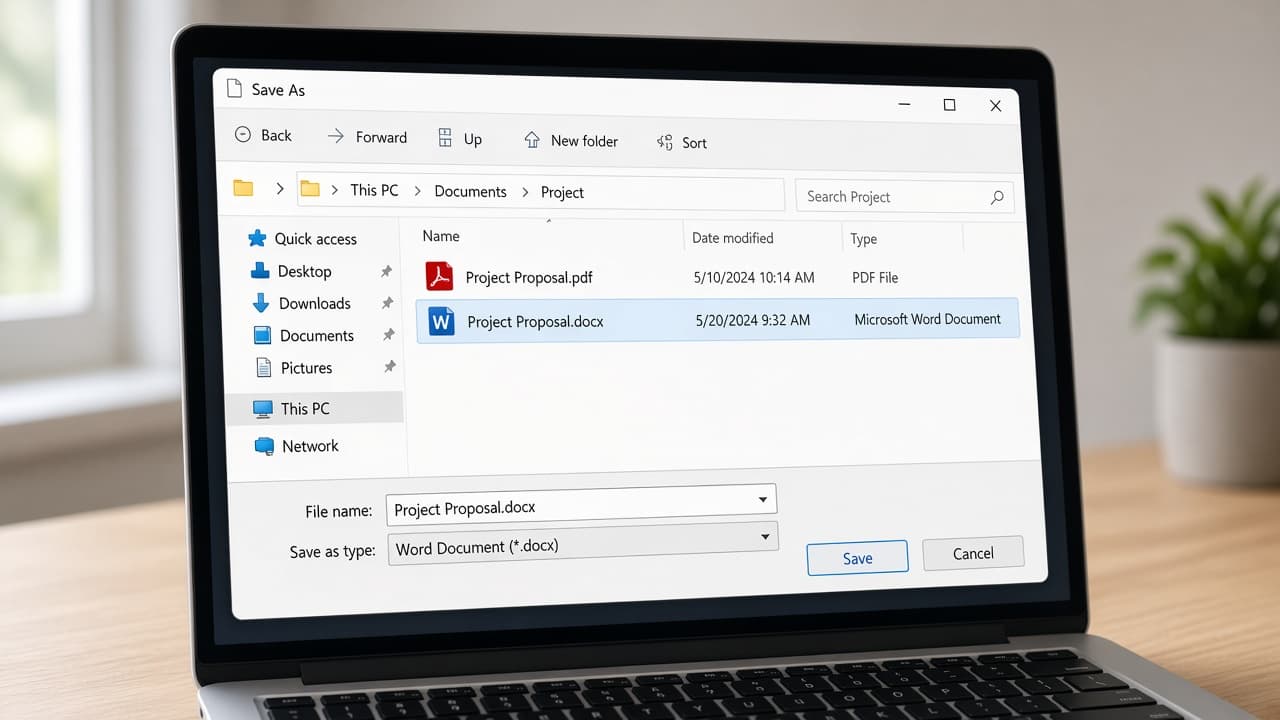
New name for the DOCX. Original PDF stays intact. 3d
Compare a difficult page immediately
Common mistake: editing the whole document before checking a table or footnote page. Switch tools early if structure is broken.
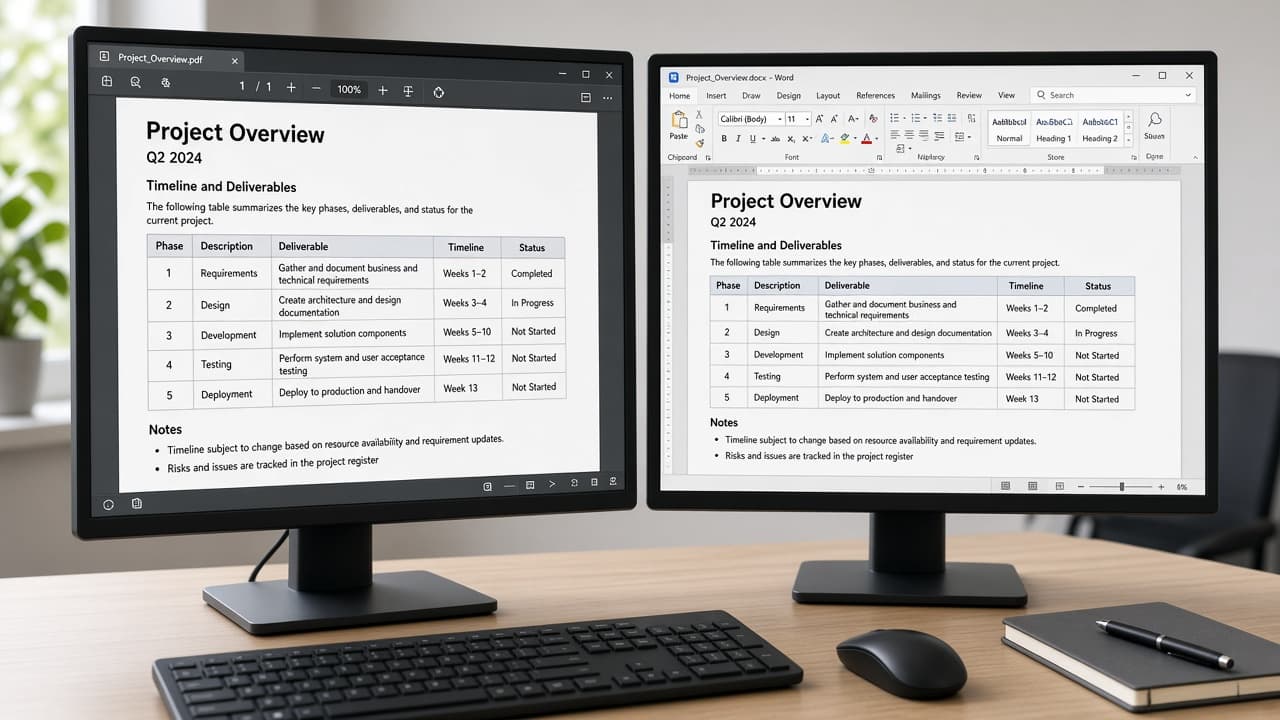
Stress-test one hard page before a full rewrite.
Step 04
Or export with Adobe Acrobat
Acrobat usually handles messy footers and columns better when you already have it.
Do this step in order
4a
Choose Export PDF or Convert to Word
In Acrobat open Convert or Export, pick Microsoft Word and DOCX, then save under a new name.
4b
Set the document language when asked
Wrong language settings hurt recognition and export quality on mixed or non-English files.
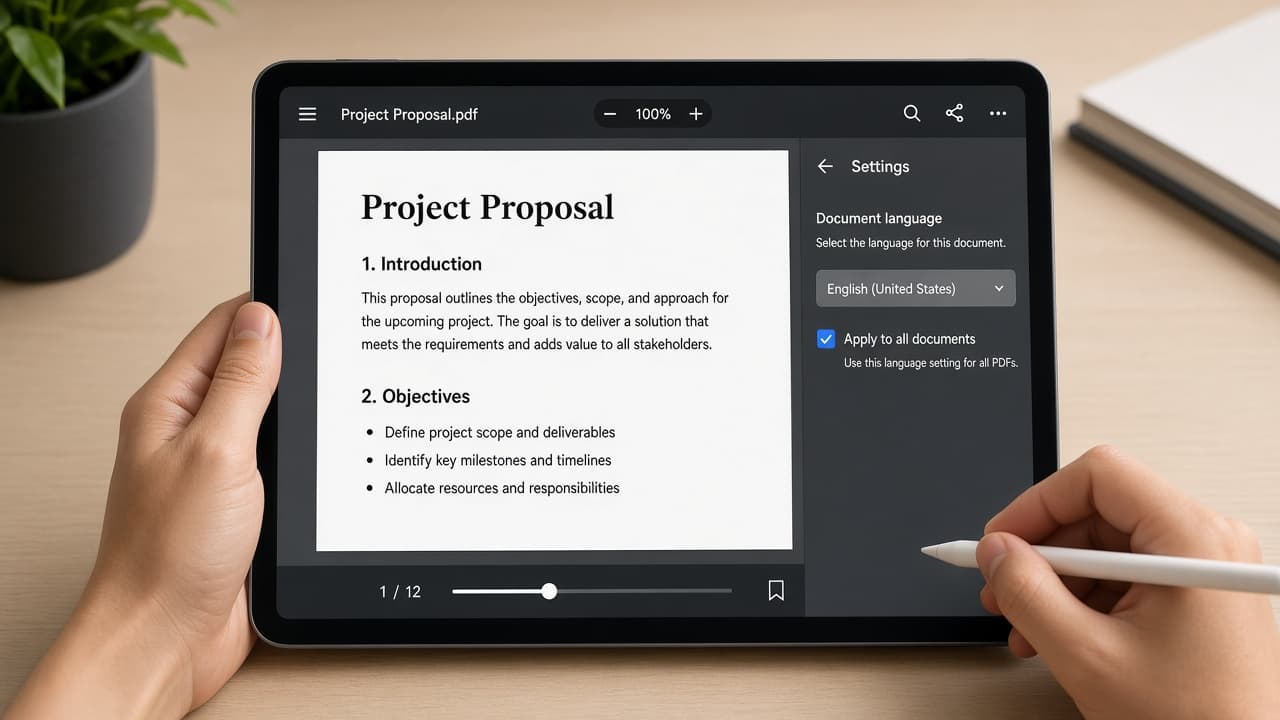
Match the document language before you export. 4c
Review the first pages before closing Acrobat
Skim headings and footers while the PDF is still open beside the DOCX. Catch layout failures early.
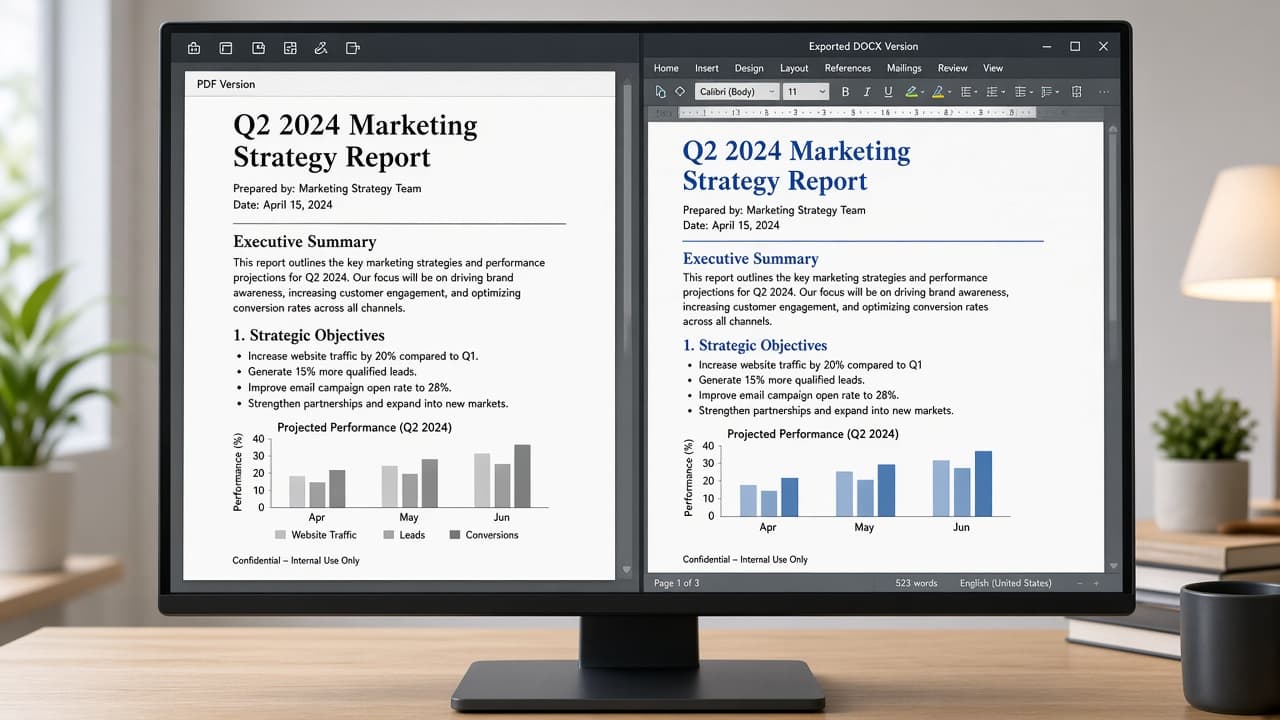
Compare while both files are still open. 4d
Do not assume Acrobat means no proofreading
Common mistake: treating a paid export as final. Names, dates and table cells still need human checks.
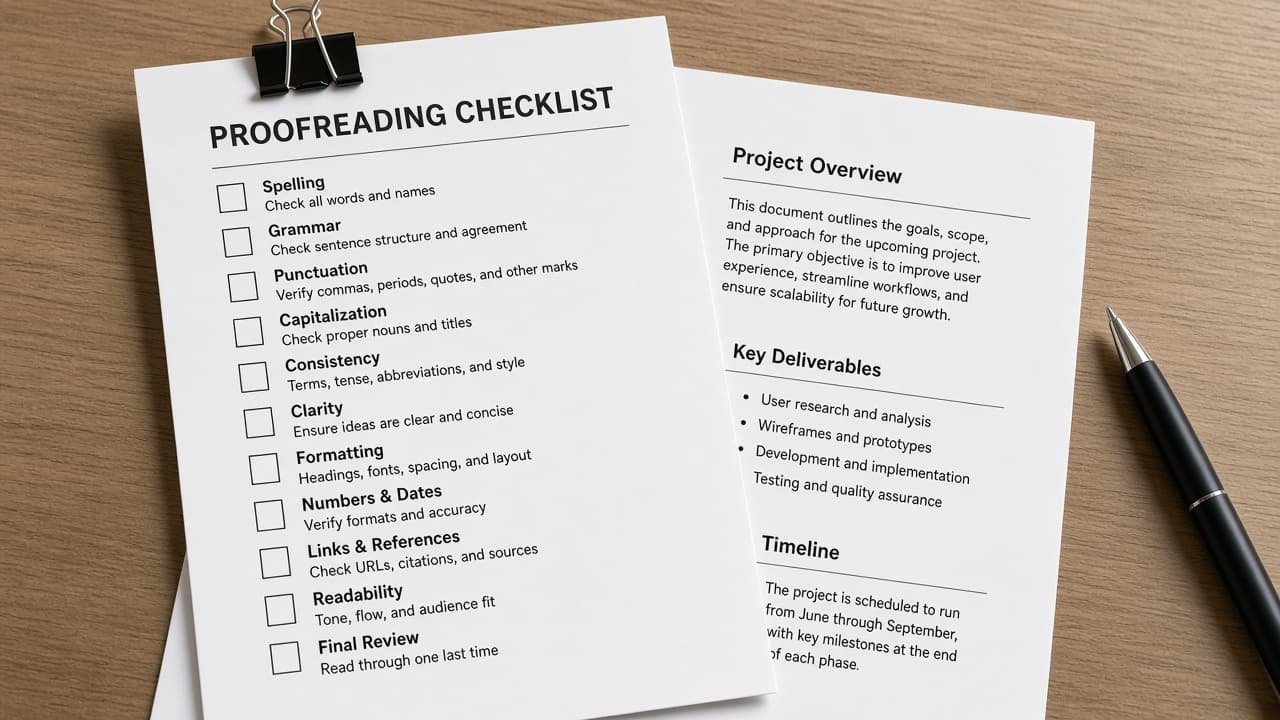
Paid export still needs a human proof pass.
Step 05
Use Google Docs only for low-risk files
Drive upload works for straightforward text documents when privacy allows.
Do this step in order
5a
Upload the PDF to a private Drive folder
Sign in to an account you control. Upload the file to a private folder, not a shared link dump.
5b
Open with Google Docs
Right-click the PDF, choose Open with then Google Docs. Drive converts to an editable doc.
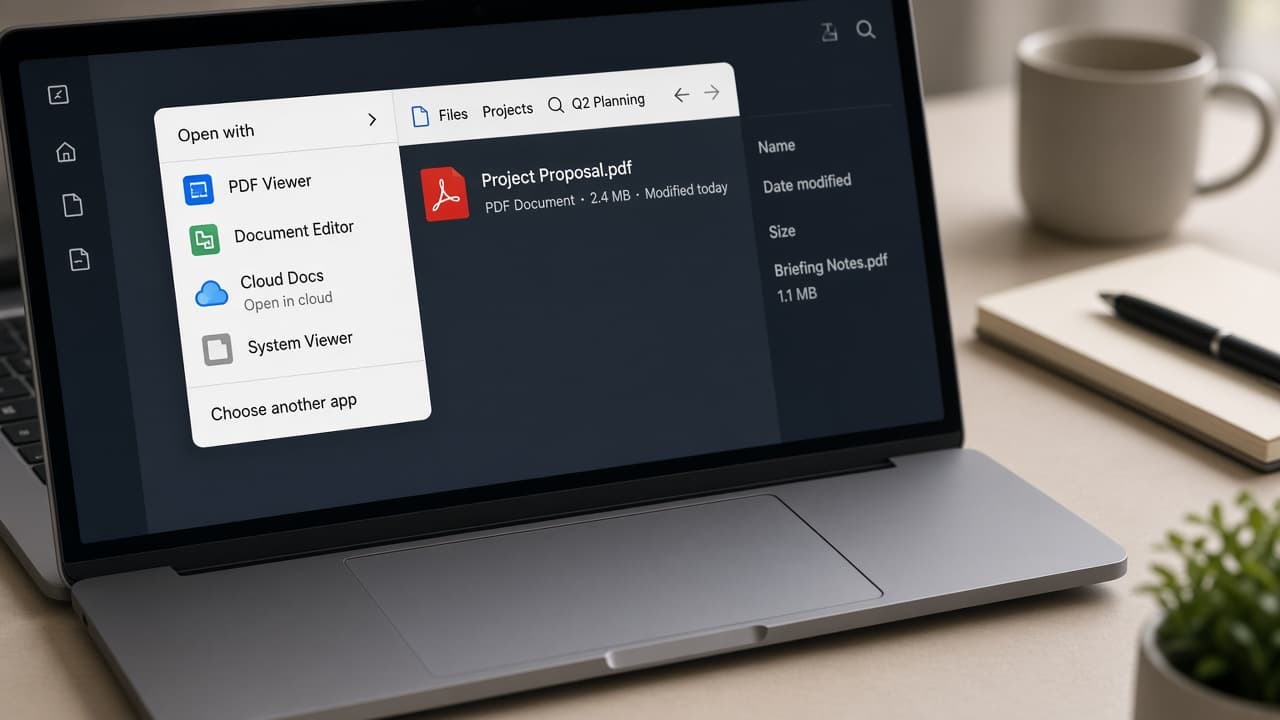
Open with Docs to create the editable copy. 5c
Download as Microsoft Word if needed
Inside Docs use File then Download then Microsoft Word (.docx) to continue editing in Word.
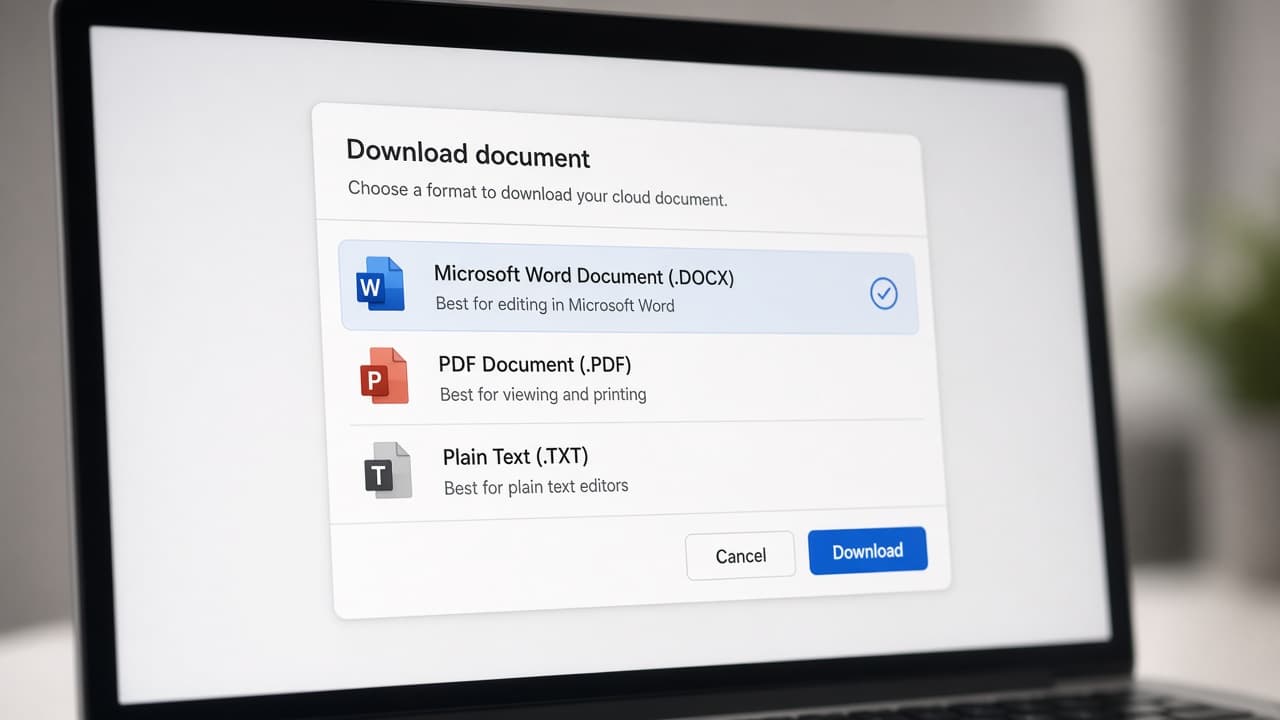
Download DOCX when you need Word formatting tools. 5d
Skip this path for sensitive documents
Common mistake: uploading contracts or medical PDFs because Docs feels convenient. Keep those offline unless your organization approves cloud processing.
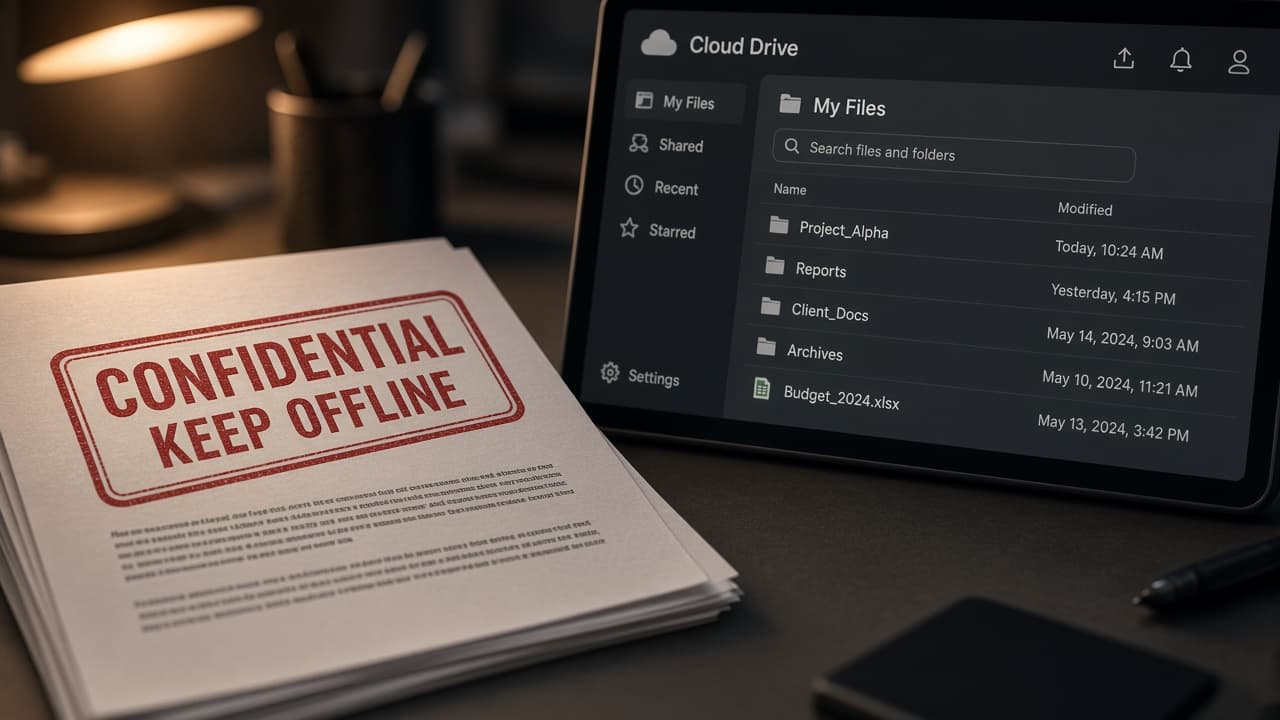
Sensitive files stay out of casual cloud converters.
Step 06
Run OCR on scanned pages
Image PDFs need text recognition, then human proofreading.
Do this step in order
6a
Run OCR in Acrobat or another trusted tool
Acrobat's Scan and OCR feature, Microsoft OneNote or dedicated OCR apps can extract text from scans. Language setting should match the document.
6b
Check recognition on a sample page first
If the sample is garbage, improve scan quality or try another OCR engine before converting a hundred pages.
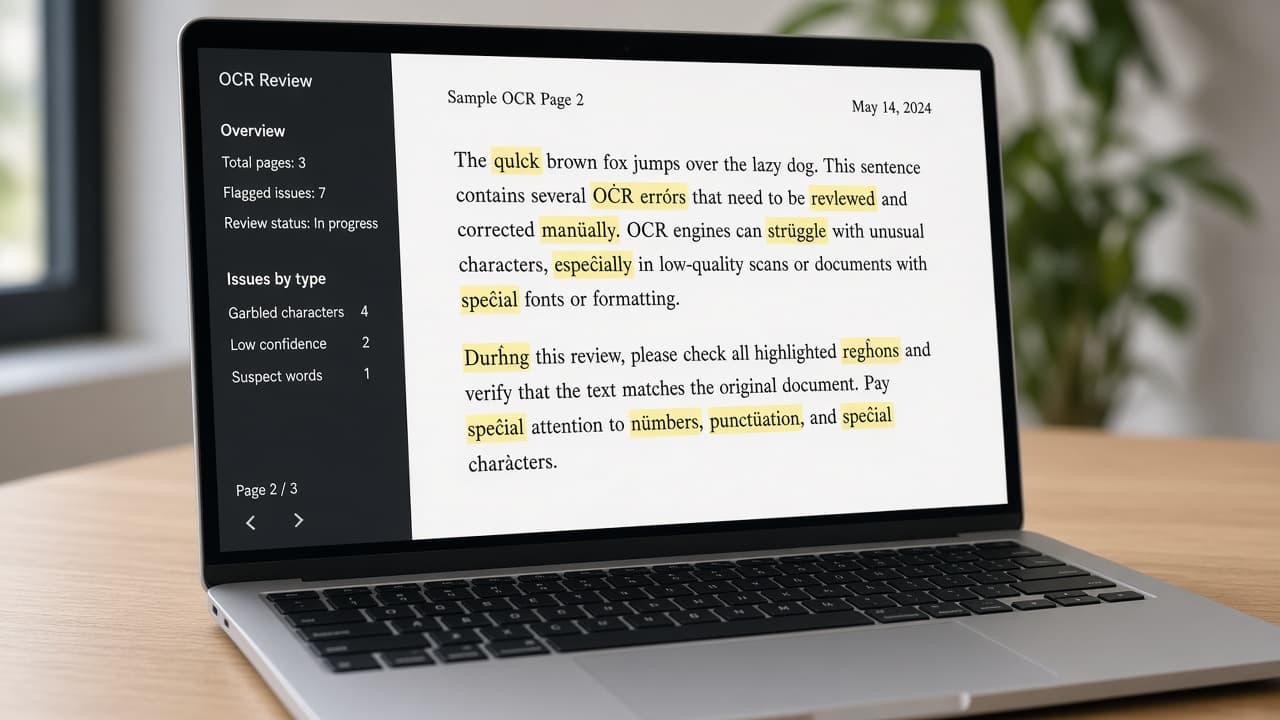
Validate OCR on one page before a full-batch export. 6c
Export to Word only after text looks selectable
Confirm you can highlight real words. Then export or copy into Word for cleanup.
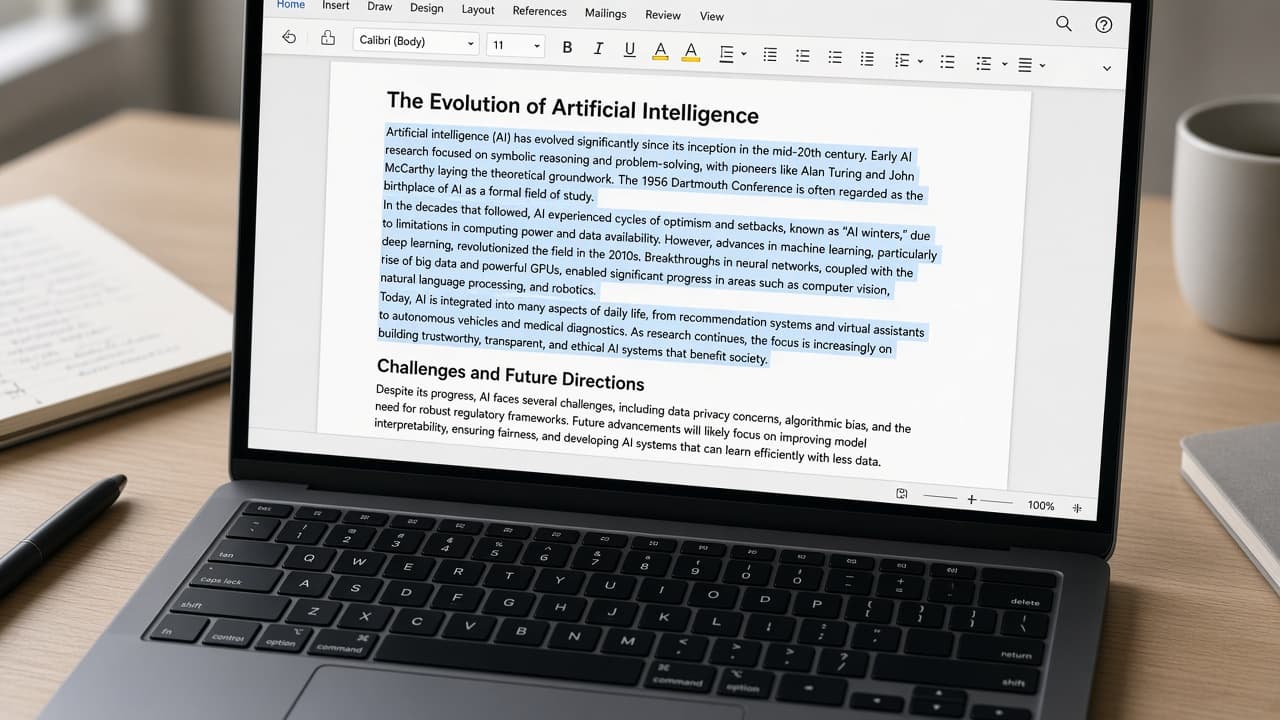
Selectable text means OCR produced a usable layer. 6d
Avoid shady free OCR upload sites
Common mistake: sending identity scans to an unknown OCR website. Redact account numbers first if you must use a web tool, or pay for a reputable local app once.
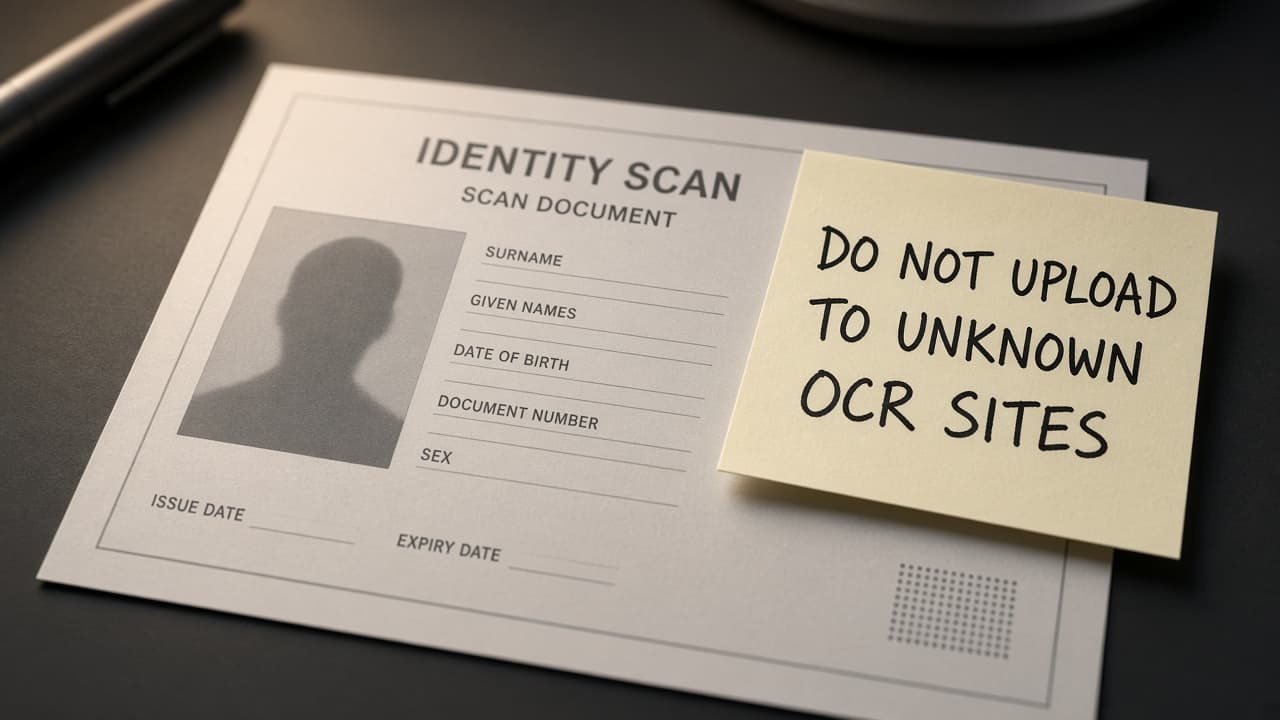
Keep identity scans off random OCR websites.
Step 07
Proofread, fix layout and save the DOCX
Human review is the real last step of conversion.
Do this step in order
7a
Fix tables, headers and page breaks
Merged cells and running headers often break. Rebuild serious tables instead of fighting auto layout.
7b
Proofread numbers, names and legal terms
OCR confuses 0 and O, 1 and l. Read every dollar amount and date twice before you sign or send.
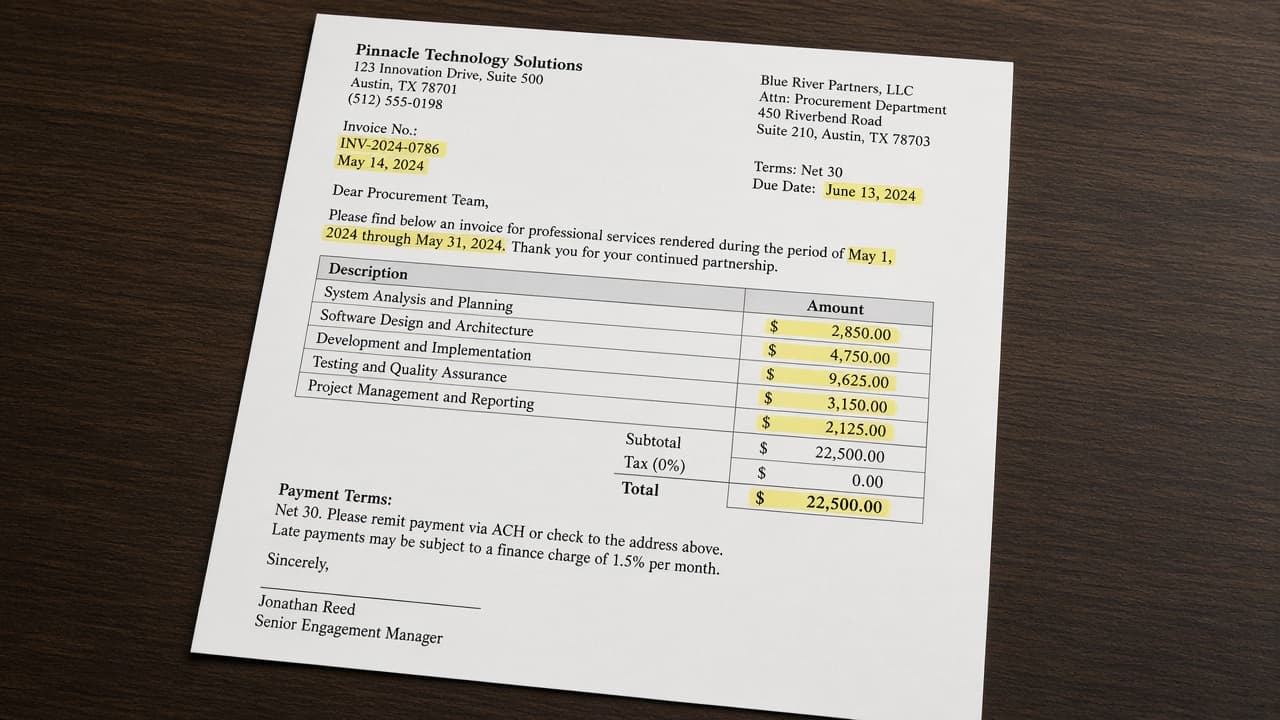
Read every amount and date against the PDF twice. 7c
Save a clean final DOCX and keep the PDF
Store both files together. The PDF remains the visual source of truth if formatting arguments appear later.
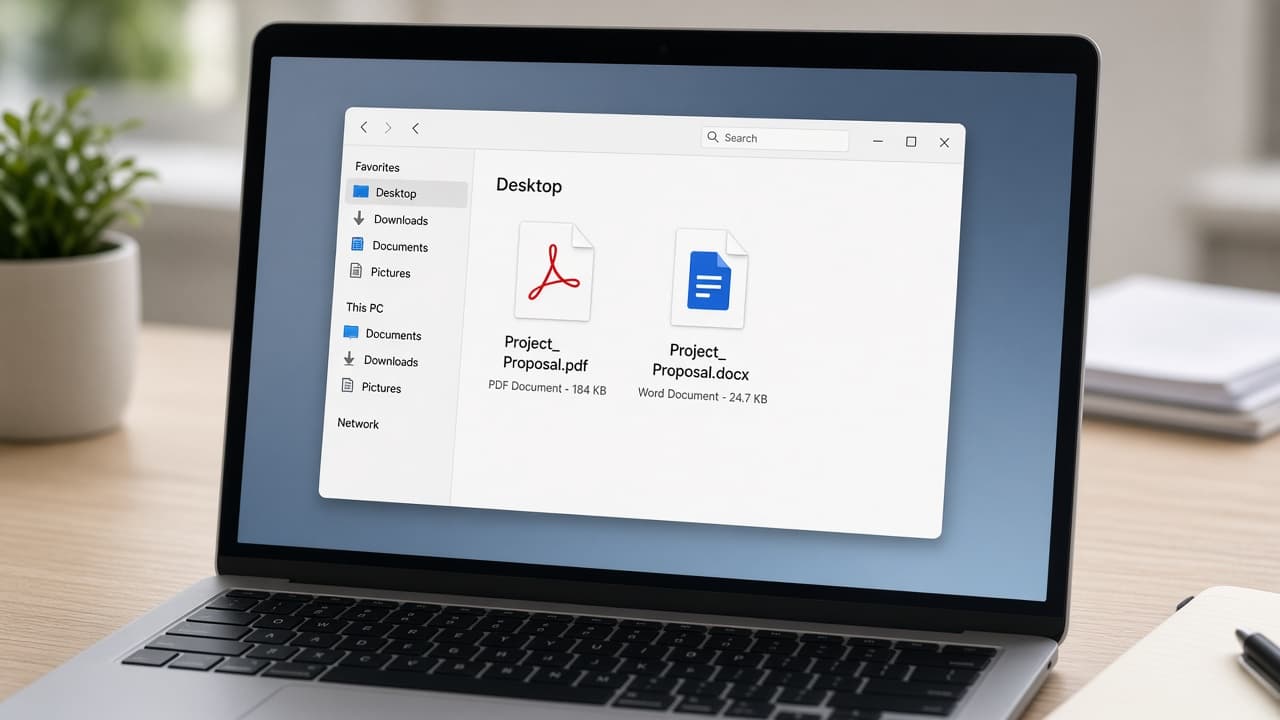
Keep source and editable copy as a pair. 7d
Do not send the first conversion without a proof pass
Common mistake: emailing the DOCX the moment conversion finishes. One wrong decimal can matter more than a perfect font match.
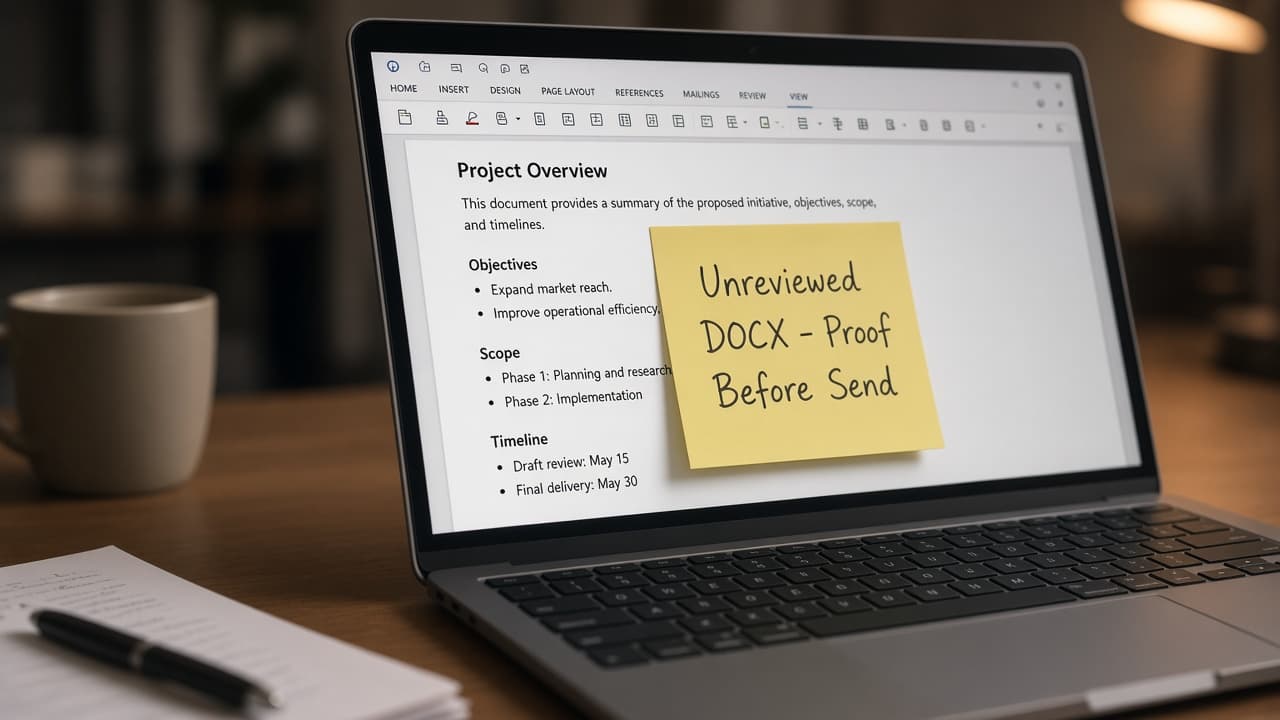
Proof first. Send second.
Done when
- PDF type identified (text vs scan)
- Trusted tool chosen
- Source PDF preserved under its original name
- Conversion run and DOCX saved
- Headers, tables and page breaks reviewed
- Sensitive uploads avoided on random websites
Eagle Frame's takeaway: use Word's Open command for a text-heavy PDF or Acrobat's official Word export and OCR tools for more control. Preserve the source, keep sensitive files out of unknown services and proofread the converted DOCX against the PDF before relying on it.