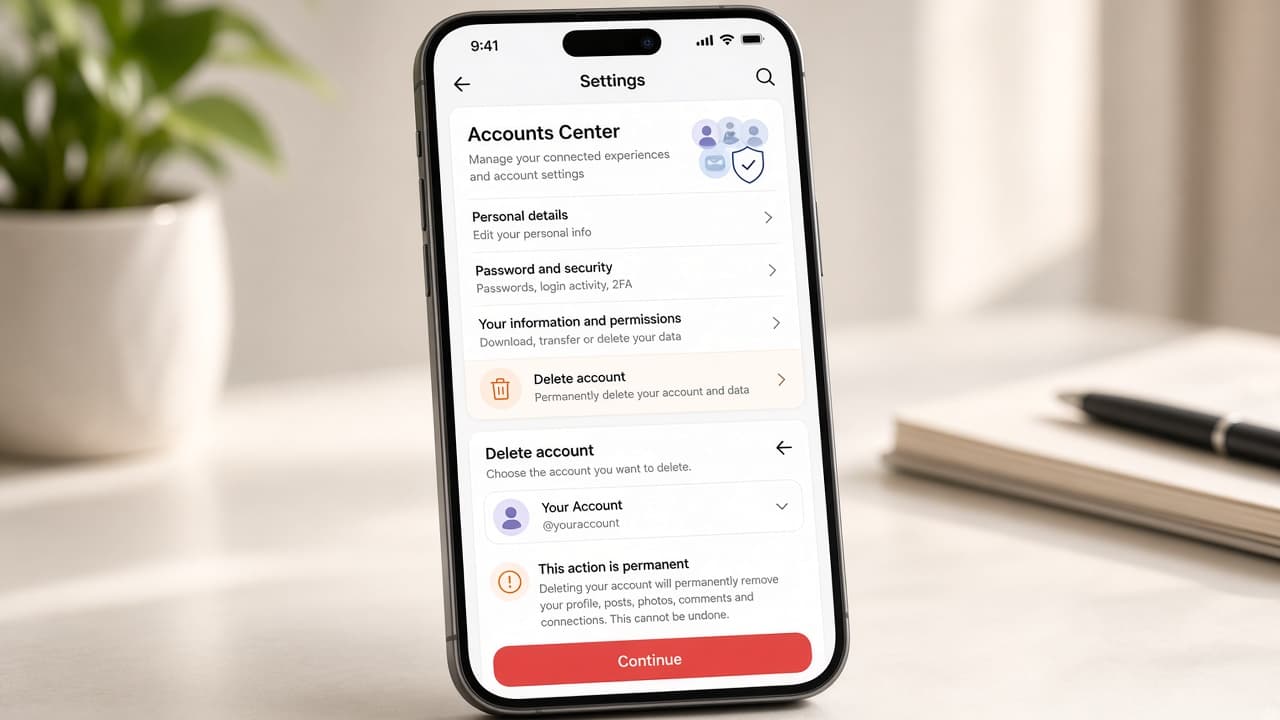
How to delete an Instagram account
Permanently delete Instagram through Meta Accounts Center: export your data first, choose Delete (not Deactivate), confirm and wait out the cancellation window.
Deleting Instagram is permanent once the waiting period ends. Meta routes the request through Accounts Center (you may also see Meta Account wording as the company rolls out updates). Labels move after app updates, so follow the same idea even if a menu name looks slightly different on your phone.
Deactivate and Delete sit next to each other. Deactivate hides your profile and lets you return by logging in. Delete starts a cancellation window (commonly about 30 days in many regions). If you log back in during that window, Meta usually cancels the deletion. After the window, removal can continue on the backend for up to about 90 days.
Export your photos, messages and other information before you tap Delete. Once deletion is underway you may lose easy access to the export tools. Use Accounts Center export (Your information and permissions) or Instagram Help Center guidance for Review and export a copy of your information.
You must be able to log in. Instagram support will not delete an account for you if you cannot authenticate. Shared business logins, linked Facebook pages and Meta logins for other apps can break when the Instagram profile goes away, so untangle those first.
Step-by-step guide
Time: 20 to 40 minutes including export; deletion request itself is a few minutes
What you need
- Instagram app or Instagram.com on a browser
- Working login (username or email plus password or saved session)
- Phone or computer with storage space for an export archive
- Optional: charger and stable Wi-Fi for large downloads
Before you start
- Delete is not the same as Deactivate. Choose carefully.
- Export before you confirm deletion. Do not invent third-party download sites.
- Logging in during the cancellation window can cancel deletion.
- Menu labels can move after Instagram or Meta Account updates.
Step 01
Decide delete vs deactivate and list what you need to keep
Be clear about permanence before you touch Accounts Center. Gather the photos, captions and contacts you care about.
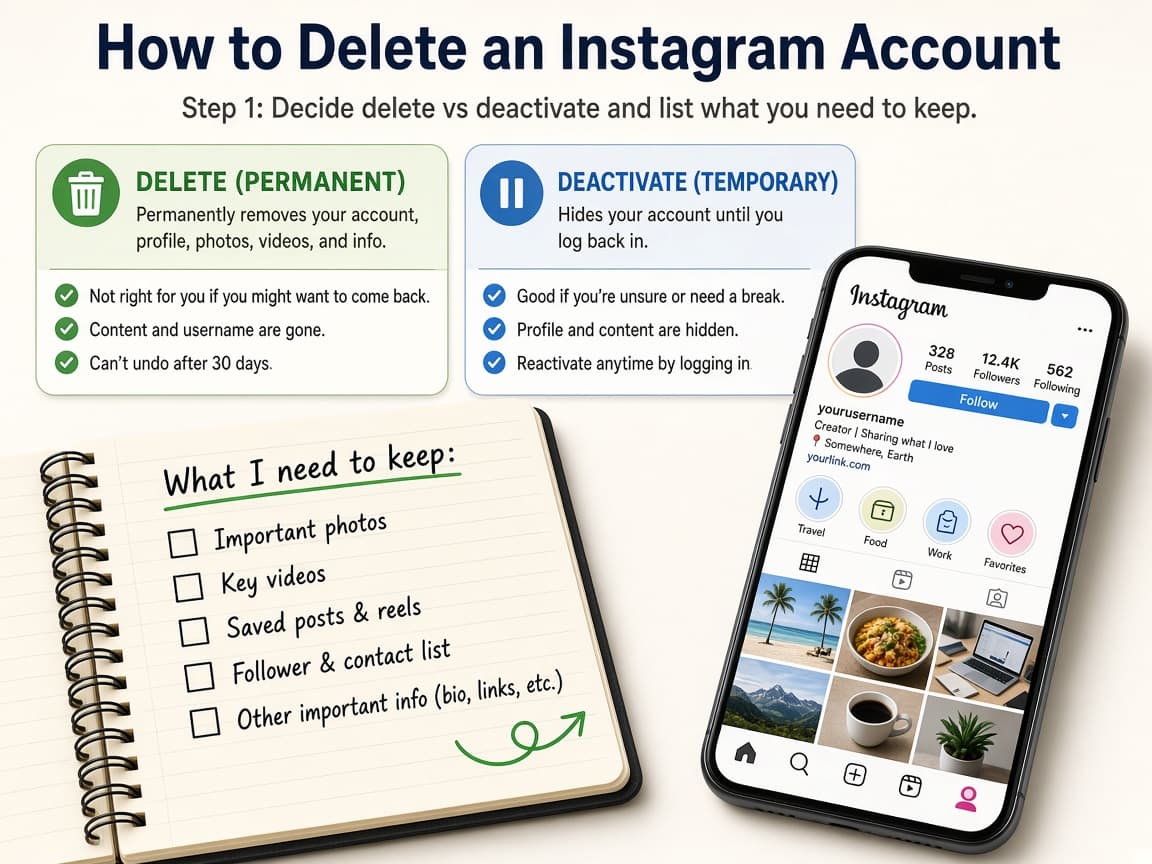
Write down what you must export before any deletion request. Do this step in order
1a
Choose permanent deletion on purpose
If you only need a break, stop and use Deactivate instead. Delete means the profile and content are scheduled for permanent removal after the waiting period.
1b
List photos, DMs and business links to save
Note albums, message threads, shopping catalogs or creator tools you might need later. Screenshot important settings if that helps your records.
1c
Confirm you can still log in
Try opening Instagram and unlocking the account. If you are locked out, recover access first. Support cannot delete an account you cannot authenticate.
Step 02
Export a copy of your Instagram information
Create an official export from Accounts Center before you request deletion. Wait for the download to finish and store it somewhere safe.

Official export tools live in Accounts Center under Your information and permissions. Do this step in order
2a
Open Accounts Center information tools
In the Instagram app go to your profile, open the menu, then Settings and privacy (wording may vary). Open Accounts Center. Look for Your information and permissions or a similar export section.
2b
Create an export for this Instagram profile
Choose Export your information, create a new export, select the Instagram profile and pick a device download or an allowed destination. Prefer a complete archive if you are unsure.
2c
Download and verify the archive
When Meta says the export is ready, download it within the stated availability window. Open the zip or folder and spot-check photos and JSON or HTML files before you continue.
2d
Store the archive offline
Copy the export to a drive or folder that will still exist after Instagram is gone. Do not leave the only copy inside a Meta-linked Drive you also plan to abandon.
Step 03
Open Account ownership and control and choose Delete
Walk the Accounts Center path to Deactivation or deletion, then select Delete account for the Instagram profile you want gone.
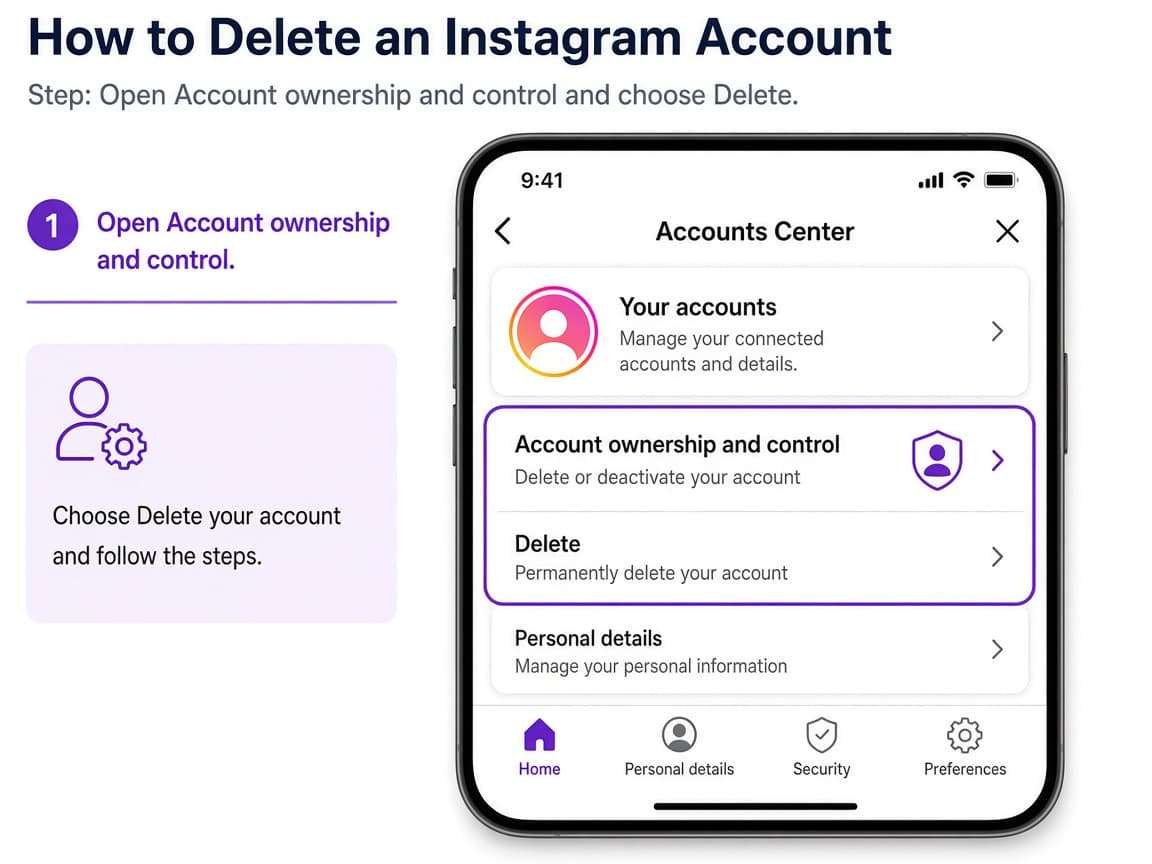
Deletion lives under Personal details and Account ownership and control. Do this step in order
3a
Return to Accounts Center personal details
From Settings open Accounts Center again. Open Personal details (or Profiles and personal details / Manage accounts if that is what you see).
3b
Open Account ownership and control
Tap or click Account ownership and control, then Deactivation or deletion. Select the Instagram account or profile you intend to remove.
3c
Select Delete account, not Deactivate
Choose Delete account, then Continue. Read the on-screen warnings about what you will lose. Enter your password or complete any extra verification Meta requests.
3d
Finish the confirmation prompts
Follow every confirm screen until Instagram states that deletion is requested or scheduled. Do not force-close the app mid-confirmation.
Step 04
Wait out the cancellation window and clean up leftovers
Stay logged out if you want deletion to finish. Update apps that used Instagram login and tell people how else to reach you.
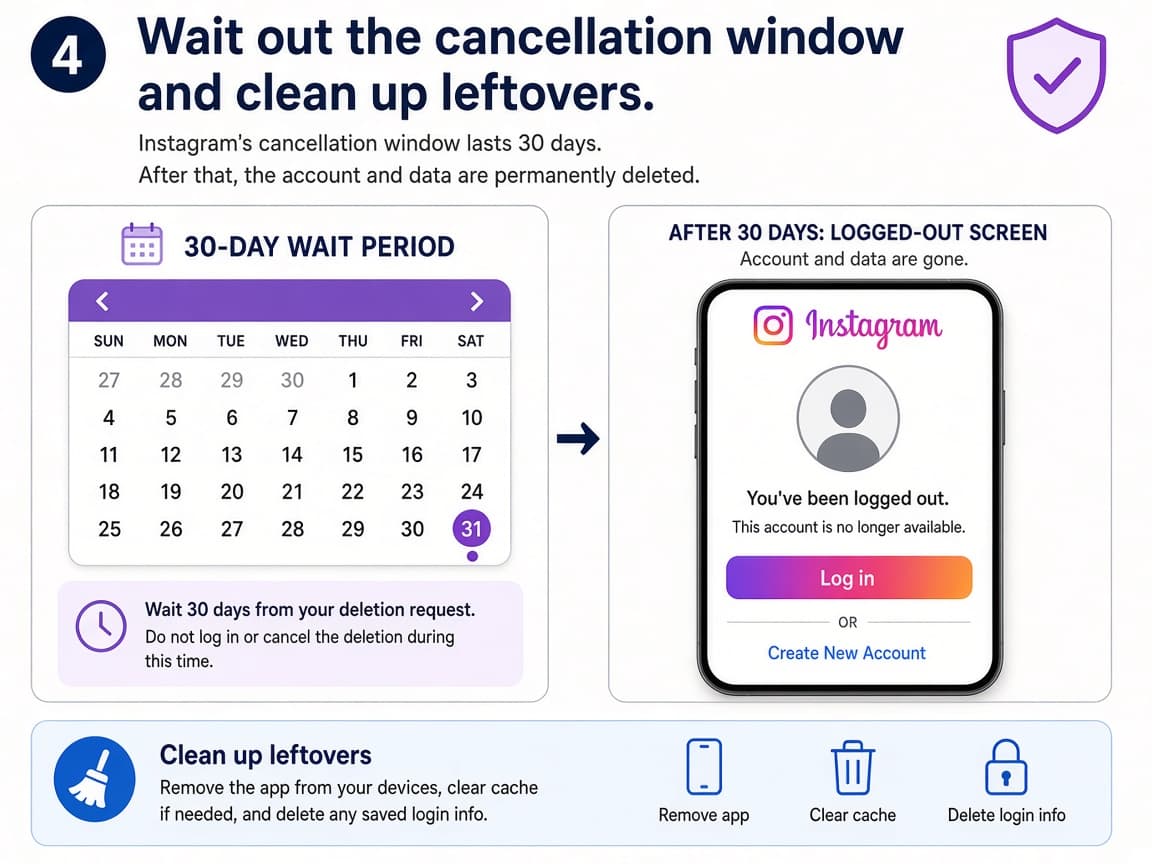
Logging in during the wait can cancel deletion. Do this step in order
4a
Do not log in during the cancellation window
In many regions you have about 30 days to cancel by signing in again. If you truly want deletion, stay out. Exact timing can vary by region.
4b
Expect backend cleanup after the window
After the cancellation period ends, Meta may take additional time (commonly described as up to about 90 days) to finish removing data from systems.
4c
Disconnect Instagram logins elsewhere
Check websites and apps that used Login with Instagram or Meta. Switch those accounts to email before you lose that sign-in method.
Done when
- Decide you want permanent deletion, not a break
- Export Instagram information and save the archive offline
- Note linked Facebook pages, ads accounts or Meta logins
- Reach Deactivation or deletion in Accounts Center
- Select Delete account and complete confirmation
- Stay logged out through the cancellation window
Eagle Frame's takeaway: export first, open Settings then Accounts Center, open Personal details and Account ownership and control, choose Deactivation or deletion, pick Delete account (not Deactivate) and confirm. Stay logged out through the cancellation window if you truly want the profile gone.