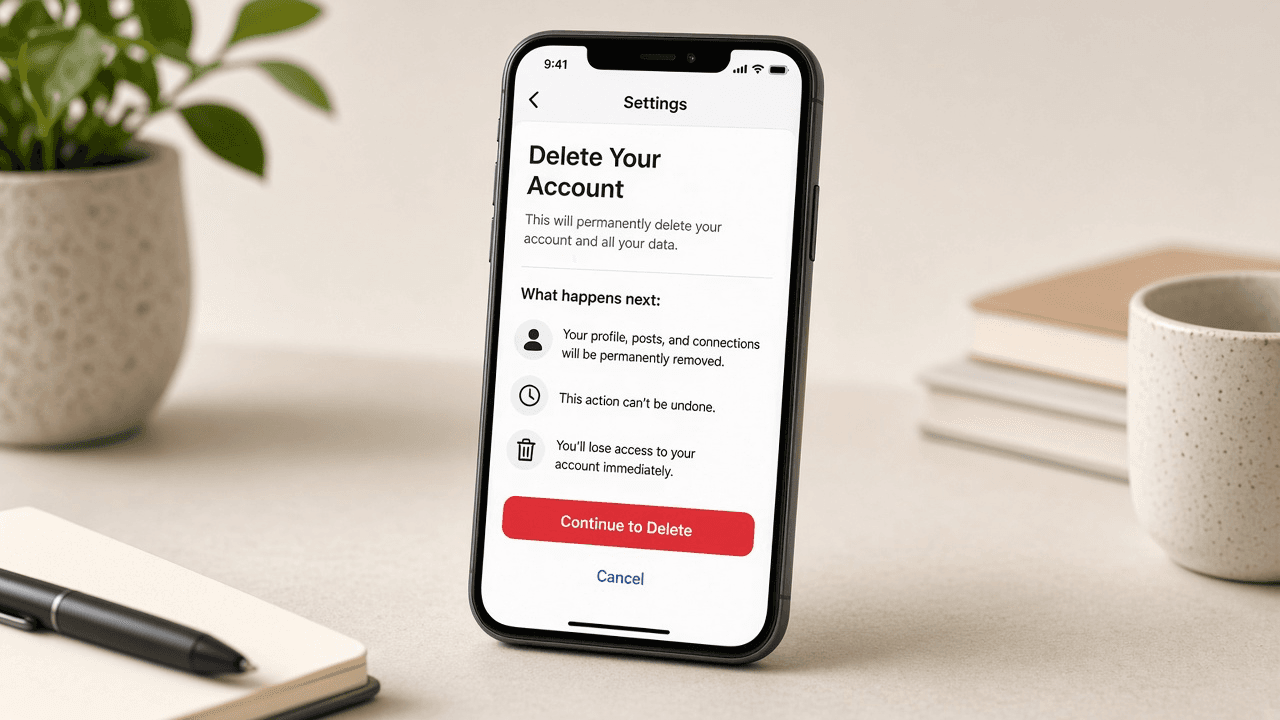
How to delete a TikTok account
Permanently delete TikTok after you download your data, choose Delete account (not Deactivate) in Settings and stay logged out through the deactivation window.
TikTok gives you two different exits. Deactivation hides your profile and content while TikTok keeps the account available for reactivation. Deletion starts the process of permanently removing the account. Both choices sit under the same Deactivate or delete account menu, so the final label matters.
Save anything you may need before opening that menu. Download videos that exist only on TikTok, record creator or shop information and request the official account-data archive. TikTok says preparing an archive can take a few days, so do not start deletion while that request is still pending.
Check accounts connected to TikTok sign-in too. A shopping app, editing service or website may become harder to access after the TikTok identity disappears. Add another login method to each service, then remove its TikTok connection if the service offers that control.
The official app path is Profile, Menu, Settings and privacy, Account, then Deactivate or delete account. Select Delete account and complete the prompts. TikTok may ask why you are leaving and require verification through a password, email, phone number, Apple or Google.
TikTok commonly keeps a deleted account in a 30-day deactivated state before permanent deletion. Signing in during that period can reactivate it and stop the process. Delete saved passwords from your browser or password manager if an accidental login is a concern.
Deletion does not pull back every trace immediately. Direct messages already sent to other people may remain visible to them. Duets or Stitches associated with your videos may still appear. Copies other people made outside TikTok are also beyond the account deletion control.
Step-by-step guide
Time: 20 to 45 minutes including a data download, plus a multi-day wait
What you need
- TikTok app or TikTok.com in a browser
- Working login (password, passcode or linked Apple or Google account)
- Phone or computer storage for a data archive
- Notebook or notes app for linked services and confirmation screenshots
- Optional: charger and stable Wi-Fi for large downloads
Before you start
- Delete is not the same as Deactivate. Choose carefully.
- Logging in during the deactivation window can cancel deletion.
- Only use TikTok's official data download tools, not random third-party sites.
- Menu names can shift after app updates. Follow the same path by meaning.
Step 01
Decide delete vs deactivate and list what to keep
Be clear about permanence before you open account settings. Gather videos and contacts you care about.
Do this step in order
1a
Choose permanent deletion on purpose
If you only need a break, stop and use Deactivate instead. Delete schedules permanent removal after TikTok's deactivation window. Write that choice down so you do not tap the wrong label later.
1b
List videos, drafts and business links to save
Note favorite posts, message threads, shopping links or creator analytics you might need later. Screenshot important settings if that helps your records.

List every video, draft and link you still need offline. 1c
Confirm you can still log in
Open TikTok and unlock the account. If you are locked out, recover access first. Support cannot delete an account you cannot authenticate.
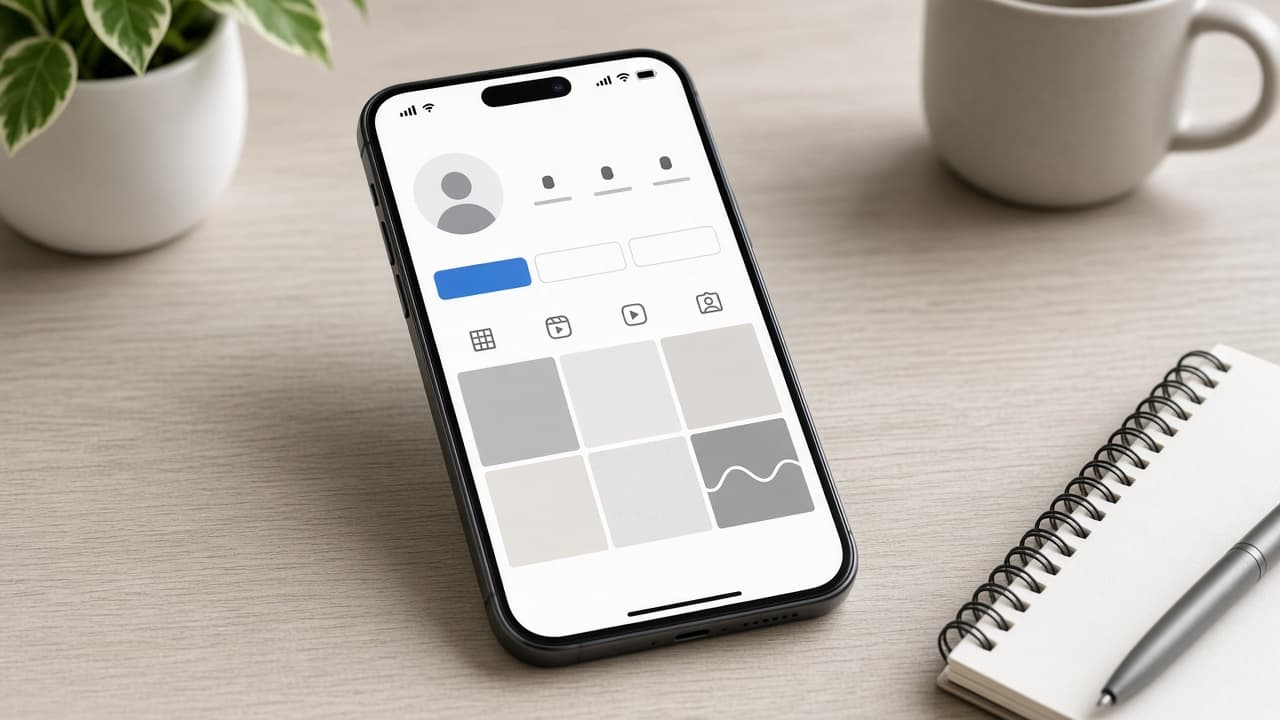
Prove you can authenticate before you start irreversible steps. 1d
Reject a rushed delete while you are locked out
Common mistake: starting deletion from a half-remembered device while recovery is unfinished. Fix login first. A failed verification mid-flow wastes the archive window and leaves the account in limbo.
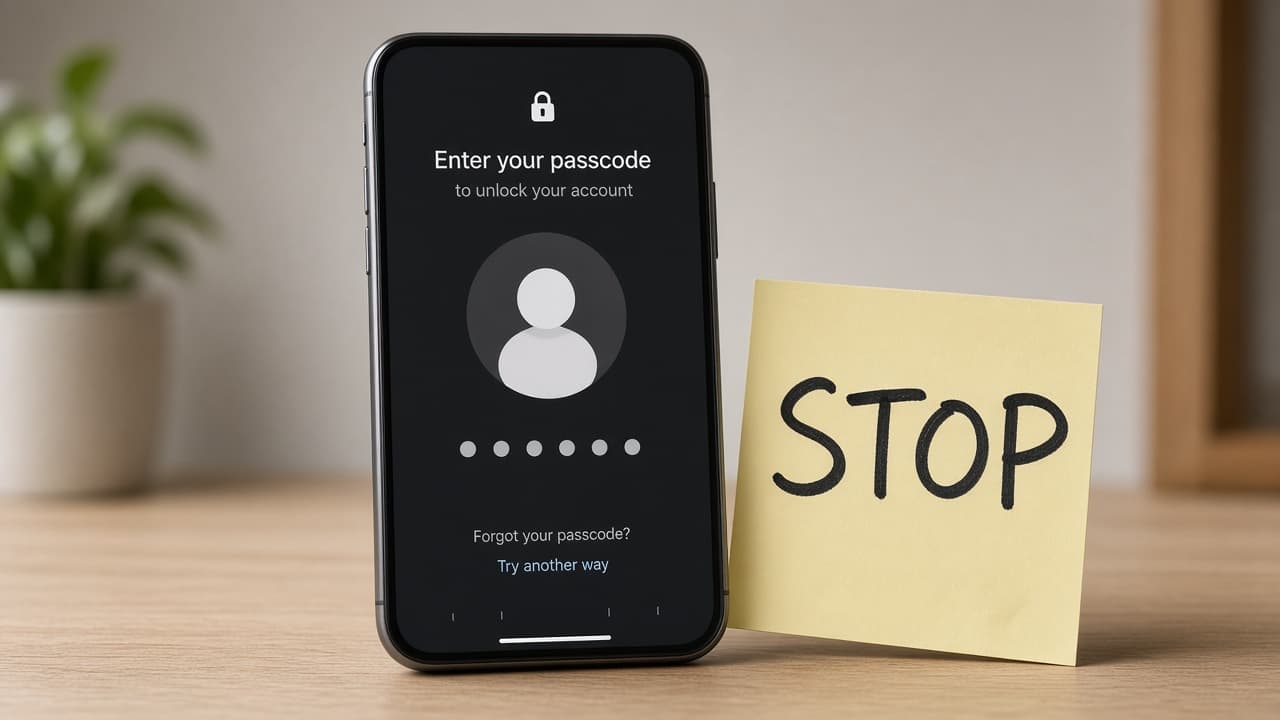
Do not begin deletion until you can finish every verification screen.
Step 02
Download your TikTok data archive
Create an official export from Settings and privacy before you request deletion.
Do this step in order
2a
Open Settings and privacy
Tap your profile, open the menu, then Settings and privacy. Wording may vary slightly by region or app version, but the privacy section is where the archive lives.
2b
Request your data or download archive
Look for Download your data, Request your data or a similar privacy section. Choose a JSON or readable format if offered and submit the request.
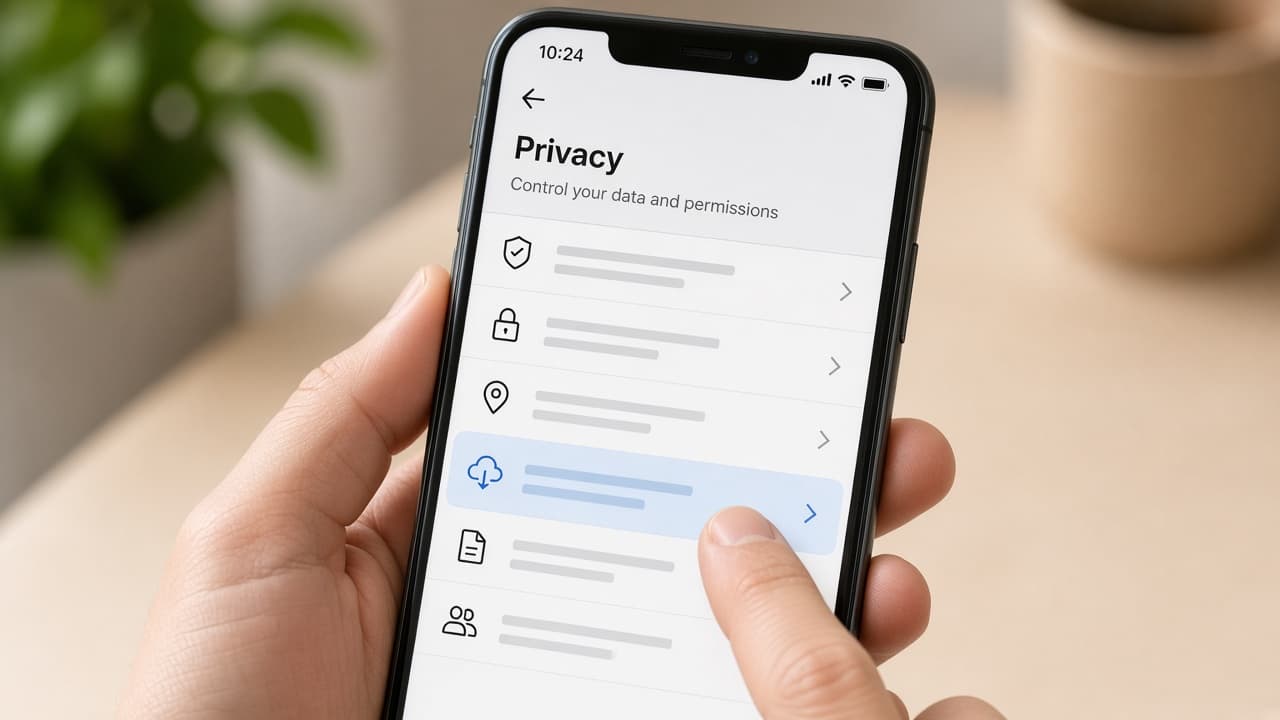
Submit the official archive request while the account is still active. 2c
Download and verify the archive
When TikTok says the file is ready, download it within the stated window. Open the folder and spot-check videos or account files before you continue.
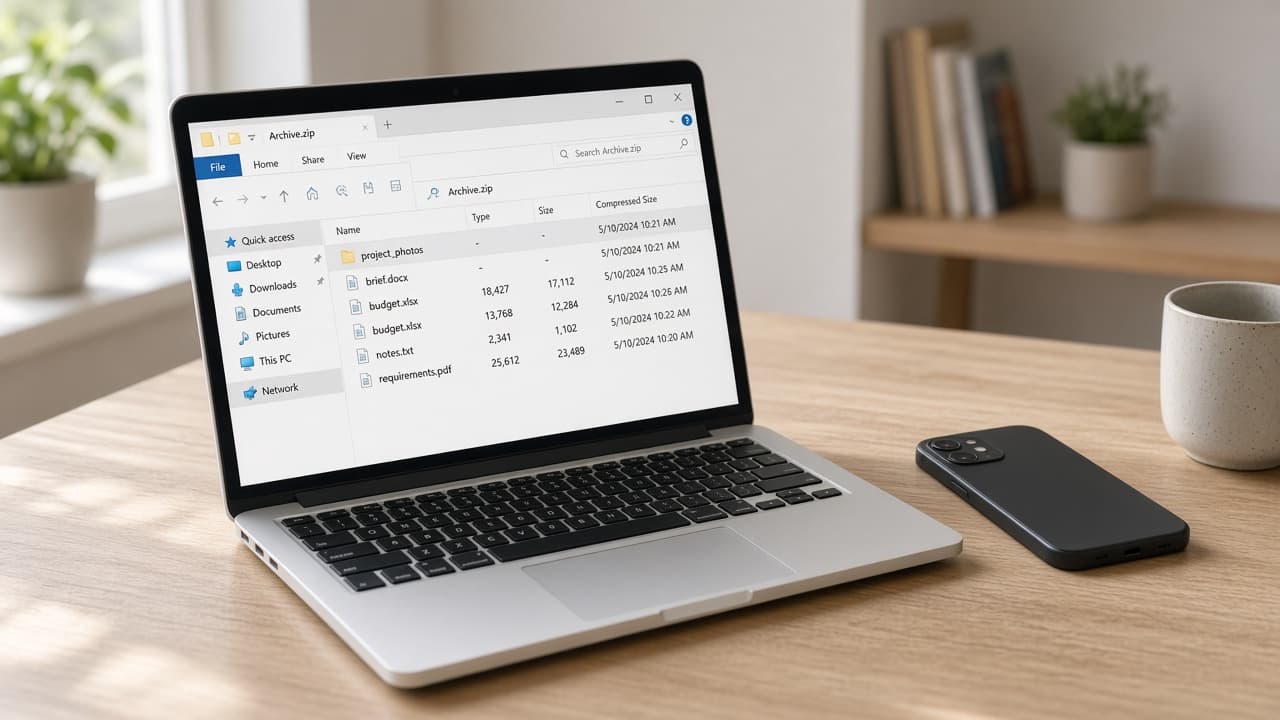
Open the archive and confirm the files you expected are inside. 2d
Store the archive offline before you delete
Common mistake: leaving the only copy inside cloud storage you also plan to abandon, or starting deletion while the request is still preparing. Copy the export to a drive that will still exist after TikTok is gone.
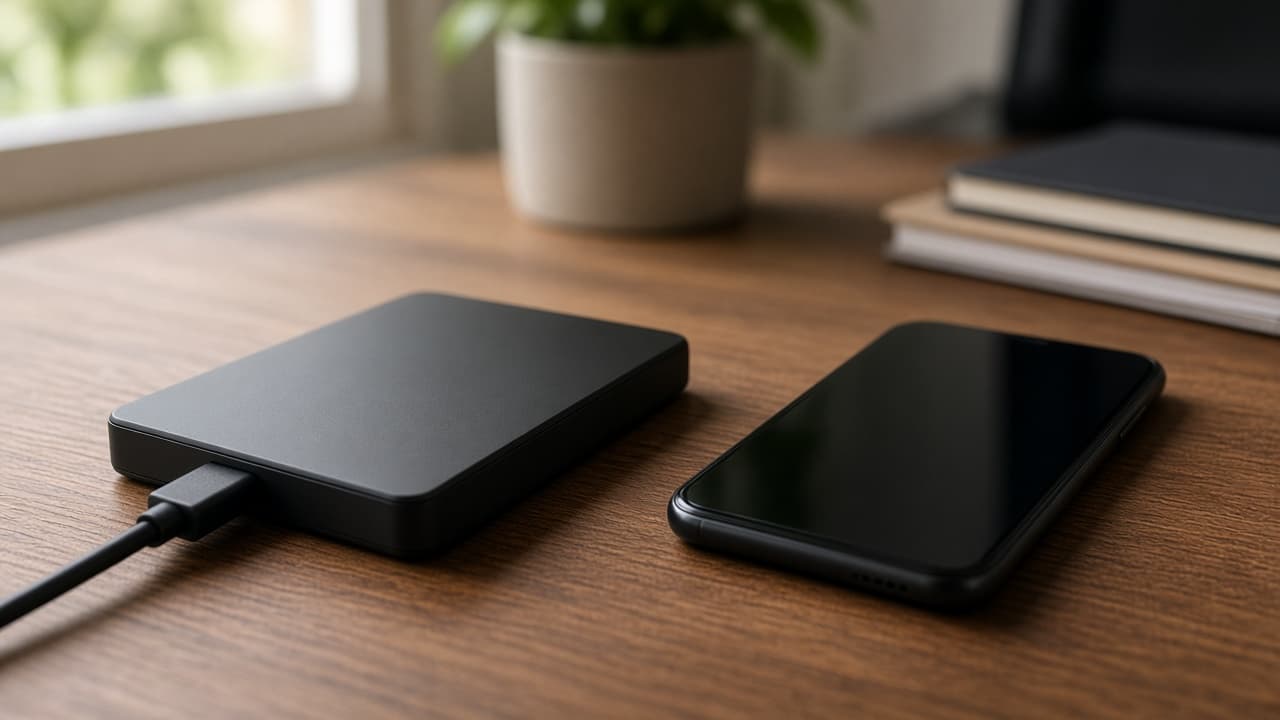
Keep a durable offline copy before any deletion request.
Step 03
Replace TikTok logins and close paid ties
Other apps may rely on Login with TikTok. Fix those doors before you remove the key.
Do this step in order
3a
List every service that used Login with TikTok
Check shopping apps, editing tools, games and websites you opened with TikTok. Write each one down so none is forgotten after the profile is gone.
3b
Add email or another login to each service
Create a password or link Apple, Google or email on every account that still depends on TikTok. Confirm you can sign in with the new method before you remove TikTok.
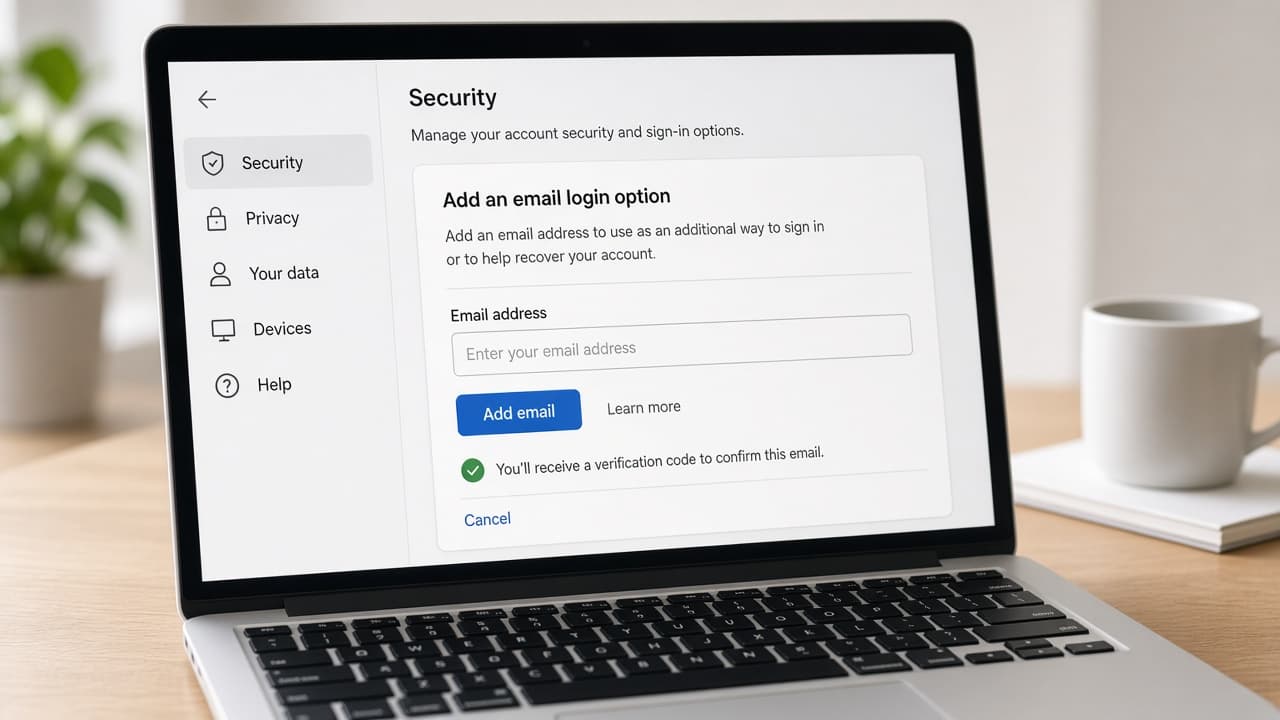
Add a backup login and test it before you disconnect TikTok. 3c
Cancel subscriptions and document balances
Use or document any legitimate creator balance, cancel TikTok-related subscriptions and keep screenshots of confirmation pages for your records.
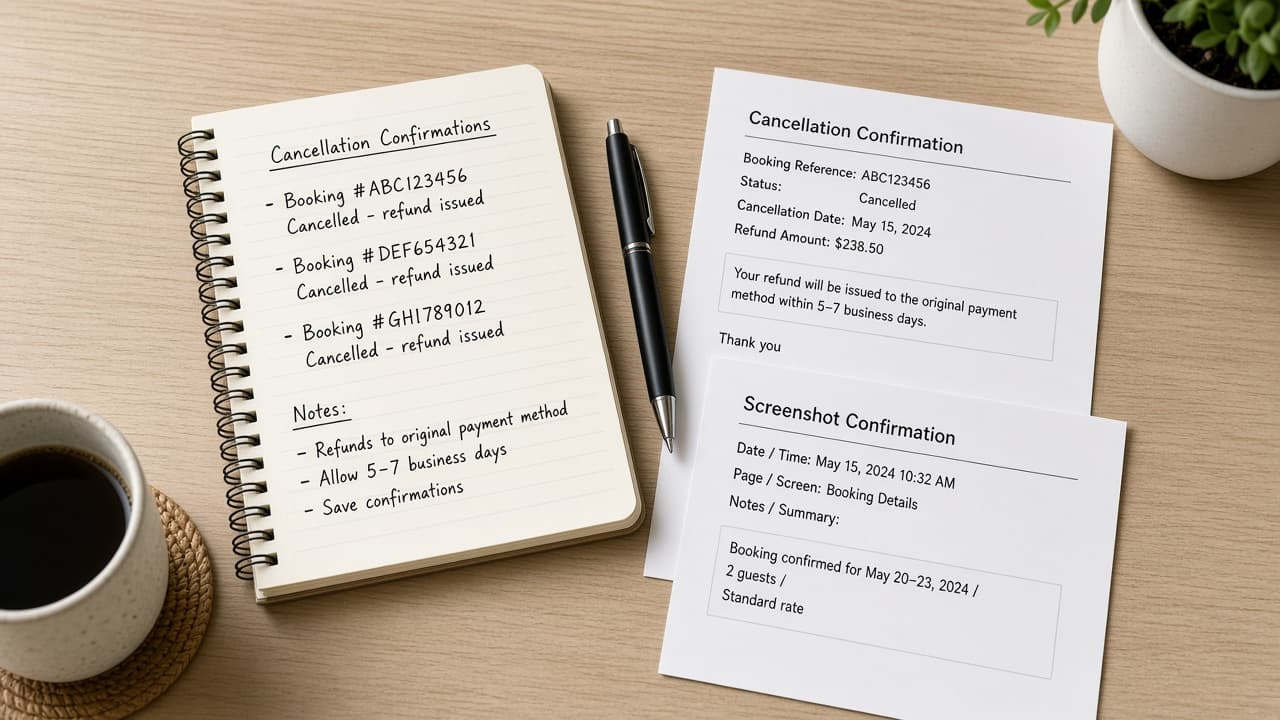
Record balances and cancellations so money trails are not lost. 3d
Do not delete while a shop or payout is unfinished
Common mistake: wiping the account while a refund, payout or shop dispute is open. Finish money issues first or you may lose the only channel TikTok uses to contact you.
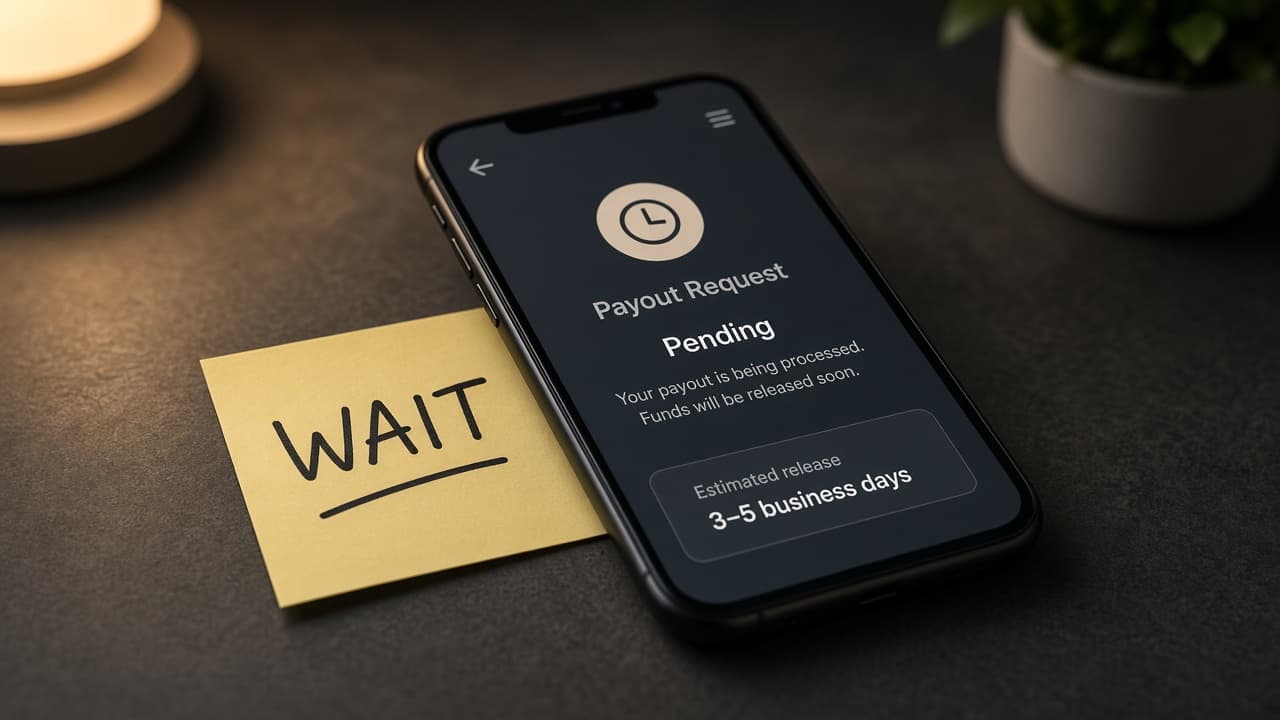
Resolve open money issues before you remove the account.
Step 04
Open Account settings and choose Delete
Walk the Settings path to Deactivate or delete account, then select Delete account for the profile you want gone.
Do this step in order
4a
Go to Account in Settings and privacy
From Settings open Account or Manage account. Scroll to Deactivate or delete account. Stay on that screen until you read both options carefully.
4b
Select Delete account, not Deactivate
Choose Delete account, then Continue. Read the on-screen warnings about what you will lose. Deactivate is the temporary hide option and will not finish your goal.
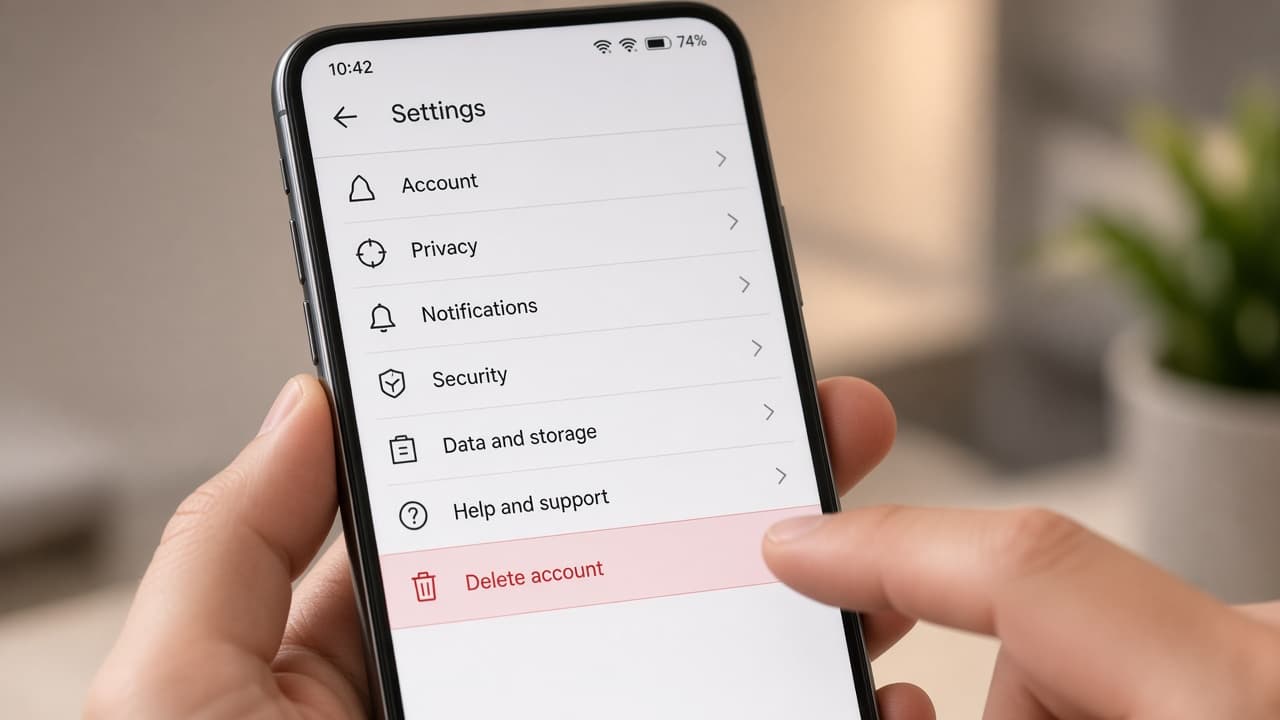
Tap Delete account and read the loss warnings before Continue. 4c
Verify with password or linked login
Enter your password, passcode or complete verification through Apple, Google or email as TikTok requests. Do not skip optional confirmations if they appear.
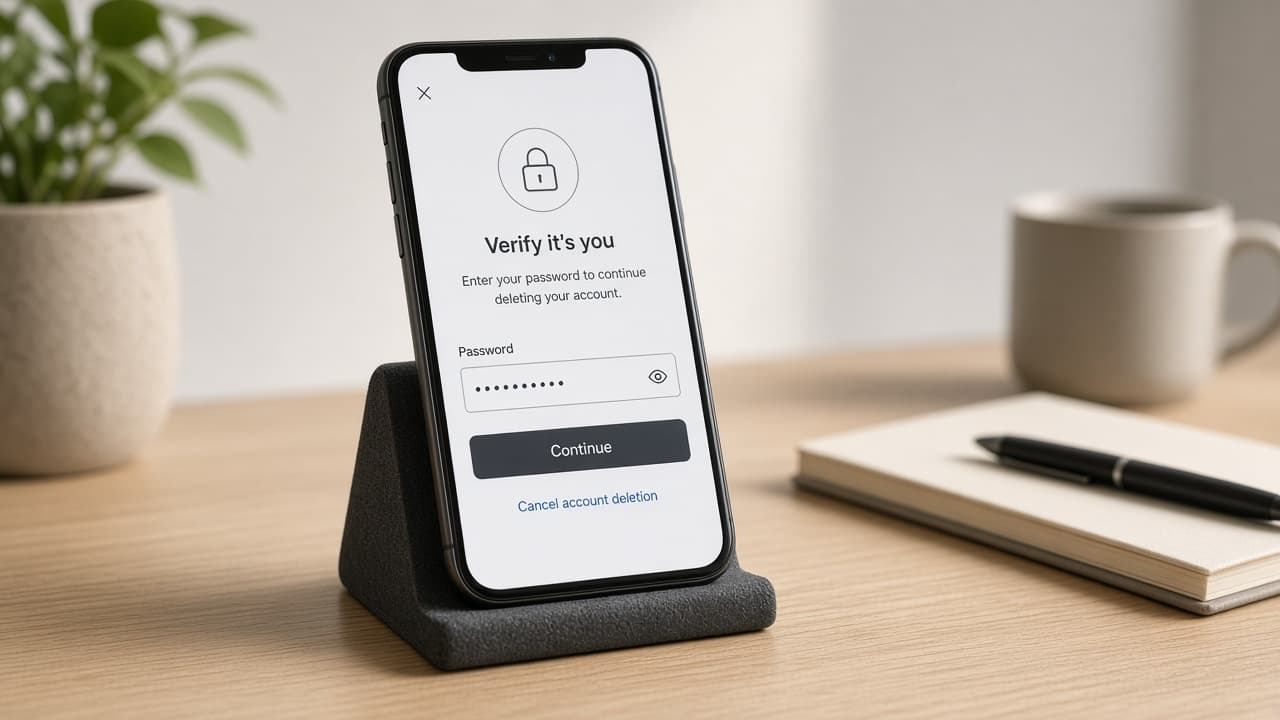
Complete every authentication prompt TikTok shows. 4d
Abort if you tapped Deactivate by habit
Common mistake: choosing Deactivate because it sits first in the menu. If the confirmation text talks about coming back later, go back and select Delete account instead.
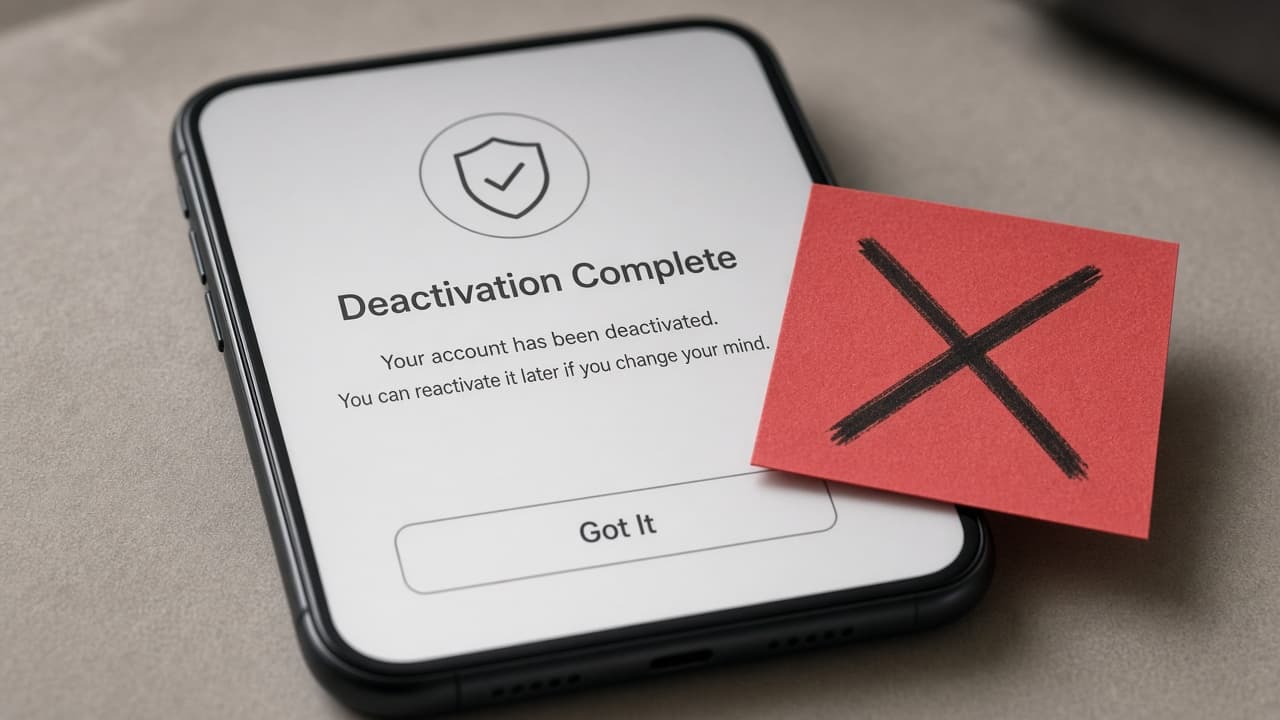
If the screen offers an easy return later, you are still on Deactivate.
Step 05
Finish every confirmation screen
Deletion is not done until TikTok states that the request is accepted or the account enters the wait window.
Do this step in order
5a
Answer optional leaving prompts without rushing
TikTok may ask why you are leaving. Answer or skip only as the screens allow. Do not force-close the app mid-confirmation.
5b
Complete the last Continue or Delete press
Follow prompts until TikTok states that deletion is requested or the account is deactivated pending removal. Capture that screen for your records.
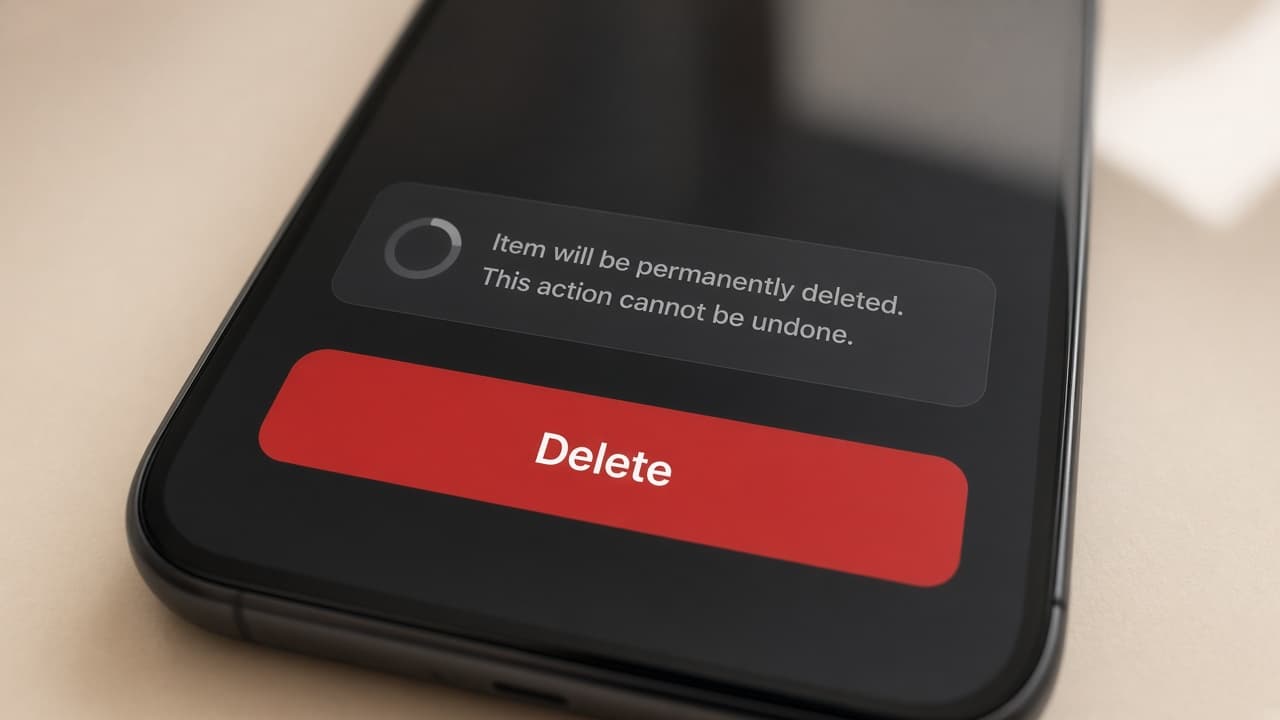
Press through until TikTok shows the request is accepted. 5c
Save the confirmation email or screenshot
Store the final email or screenshot outside TikTok. You will need that record if the profile stays public after the stated period.
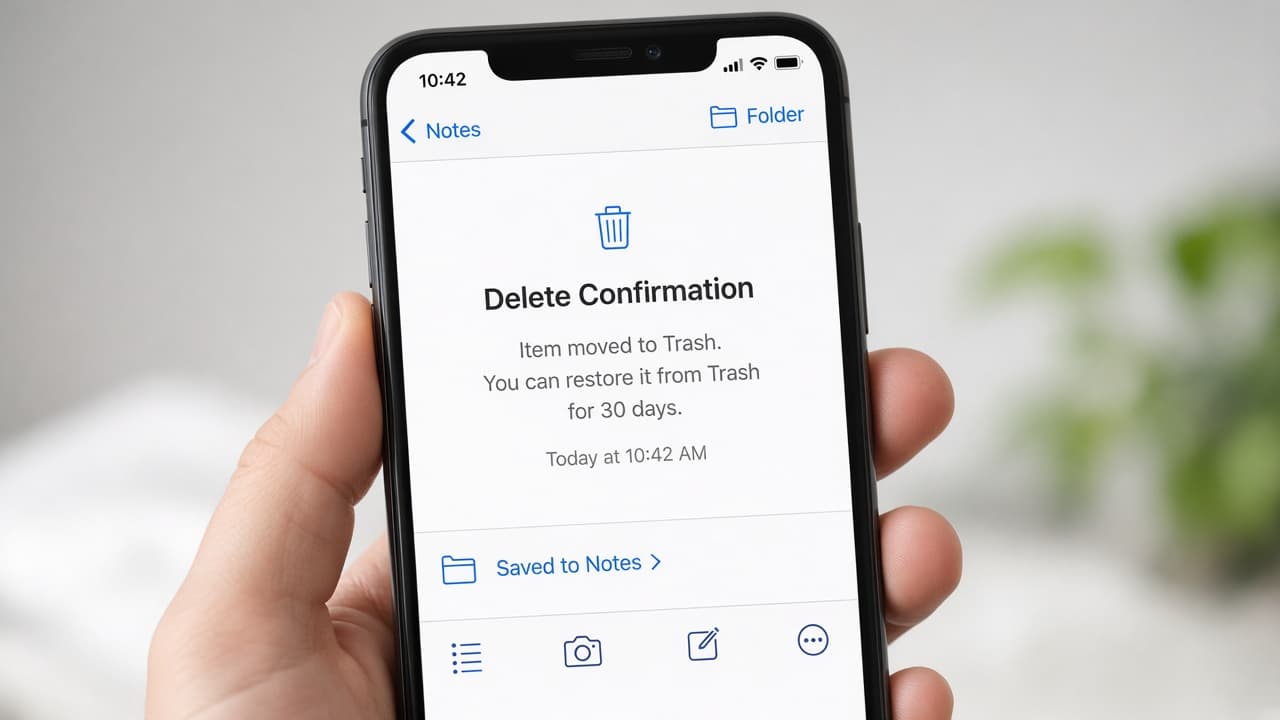
Keep proof outside the app you are closing. 5d
Do not force-close mid-confirmation
Common mistake: killing the app when a spinner feels slow. Restarting can leave you unsure whether the request landed. Wait for a clear status or official email.
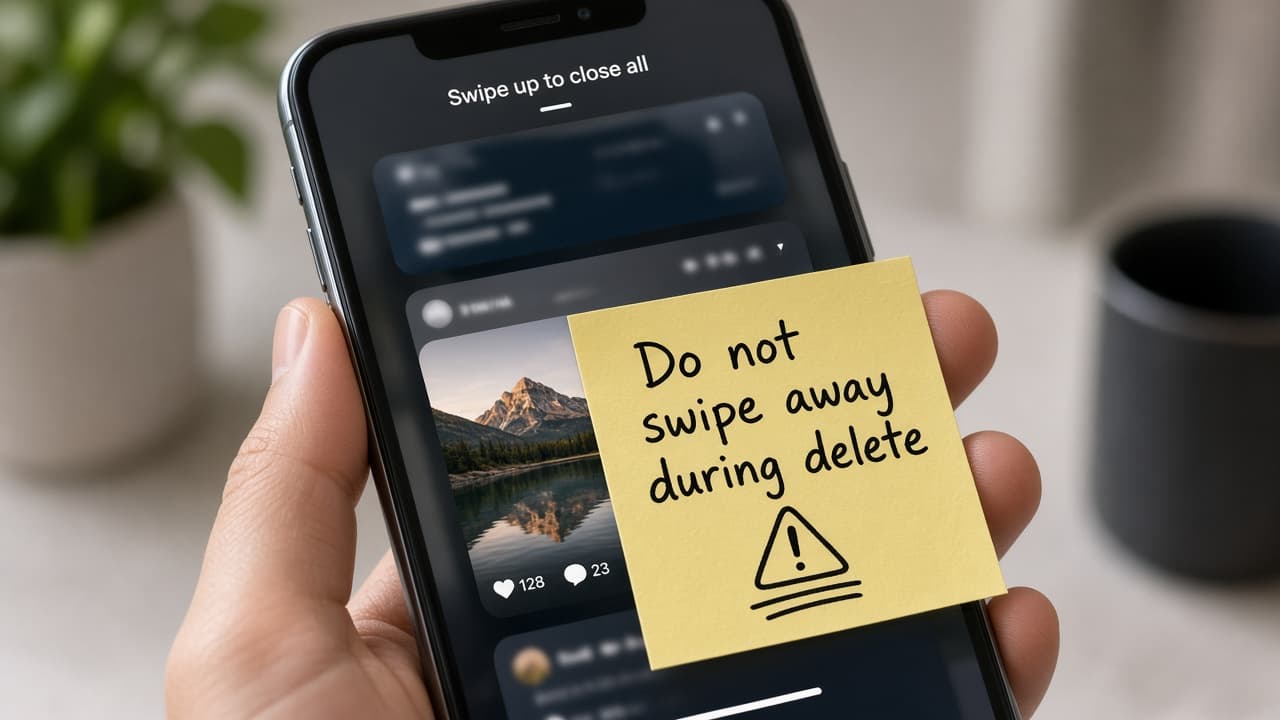
Wait for status text instead of force-closing the confirmation.
Step 06
Stay logged out through the deactivation window
Signing in during the wait can cancel deletion. Treat the window like a quarantine period.
Do this step in order
6a
Note the stated waiting period
TikTok commonly gives about 30 days to cancel by signing in again. Exact timing can vary by region. Write the end date on a calendar.
6b
Remove saved passwords that could auto-login
Delete TikTok entries from your browser or password manager if an accidental tap could reopen the session. Sign out on shared devices too.
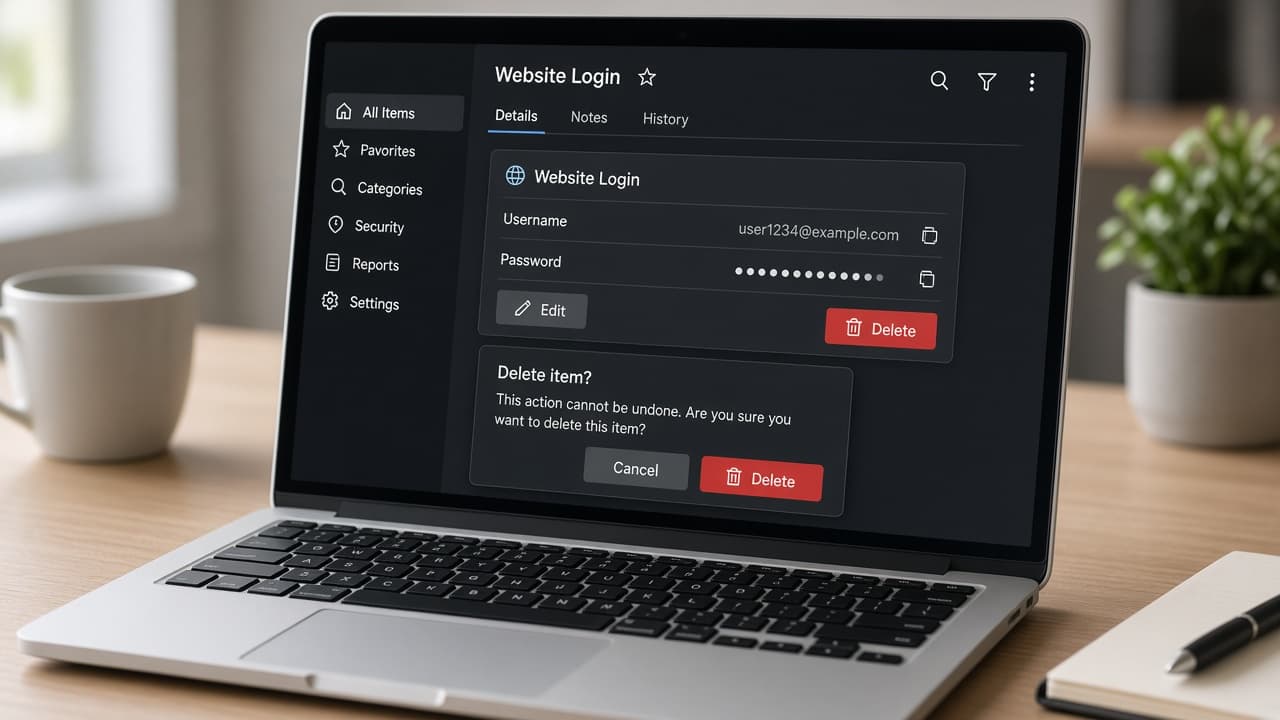
Remove autofill so you do not restart the account by accident. 6c
Ignore reopen prompts on other devices
Old phones, tablets and desktop sessions may still show TikTok icons. Do not open them to check one last video if you want deletion to finish.

Leave every device alone for the full waiting window. 6d
Treat a curiosity login as a restart
Common mistake: signing in just to see if the account is still there. That login can reactivate the profile and stop permanent deletion.
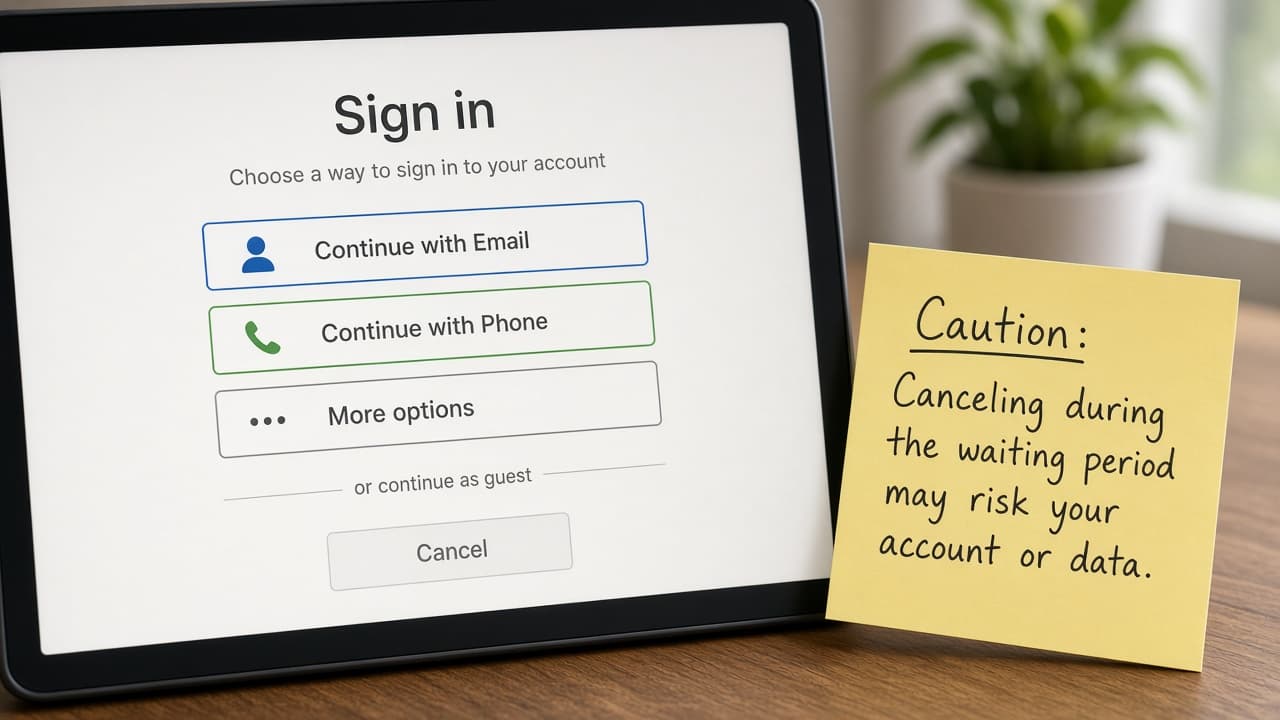
A check-in login can undo the deletion you already requested.
Step 07
Clean up leftovers and verify the account is gone
After the window, confirm the profile is gone and finish any external cleanup.
Do this step in order
7a
Expect backend cleanup after the window
After the deactivation period, TikTok may take additional time to remove data from systems. Permanent deletion is not always instant on day 31.
7b
Search your username from a logged-out browser
Check whether the public profile still appears. If it remains after the stated period, contact official TikTok support with your confirmation record.
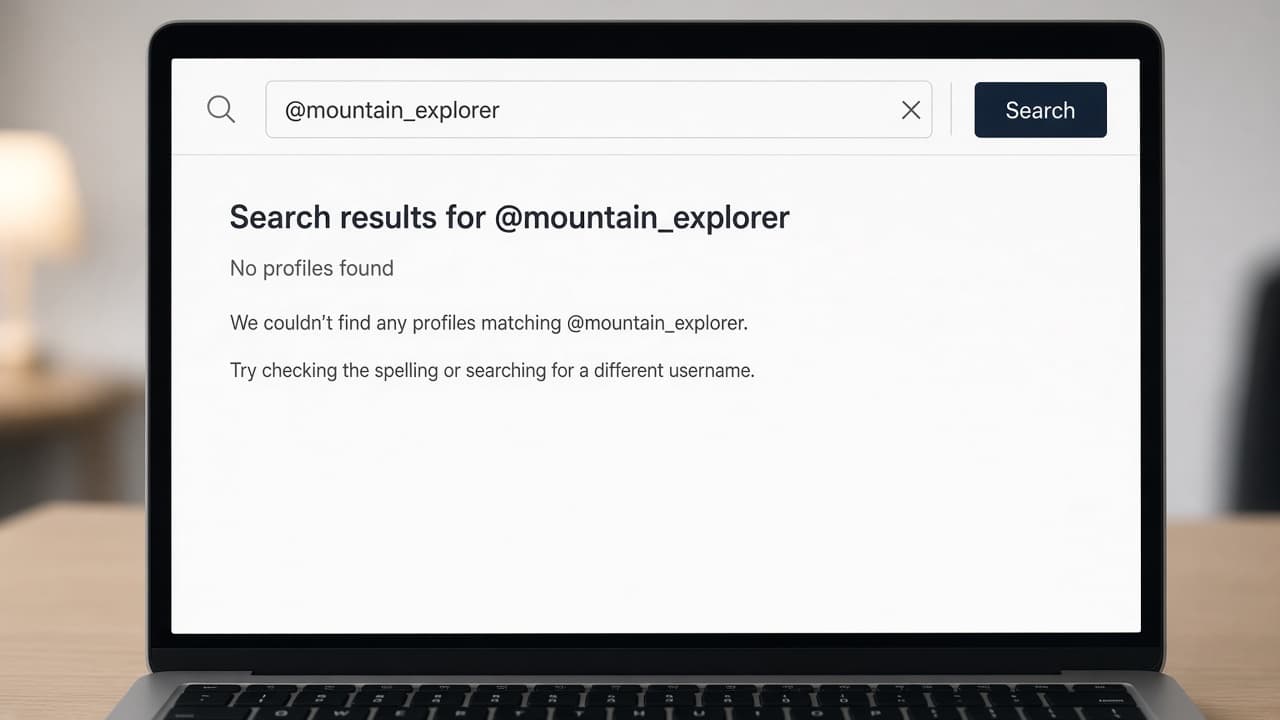
Verify from a logged-out browser that the profile is gone. 7c
Disconnect any remaining TikTok logins elsewhere
Revisit websites and apps that once used Login with TikTok. Confirm they already use your backup method and remove stale TikTok connections.
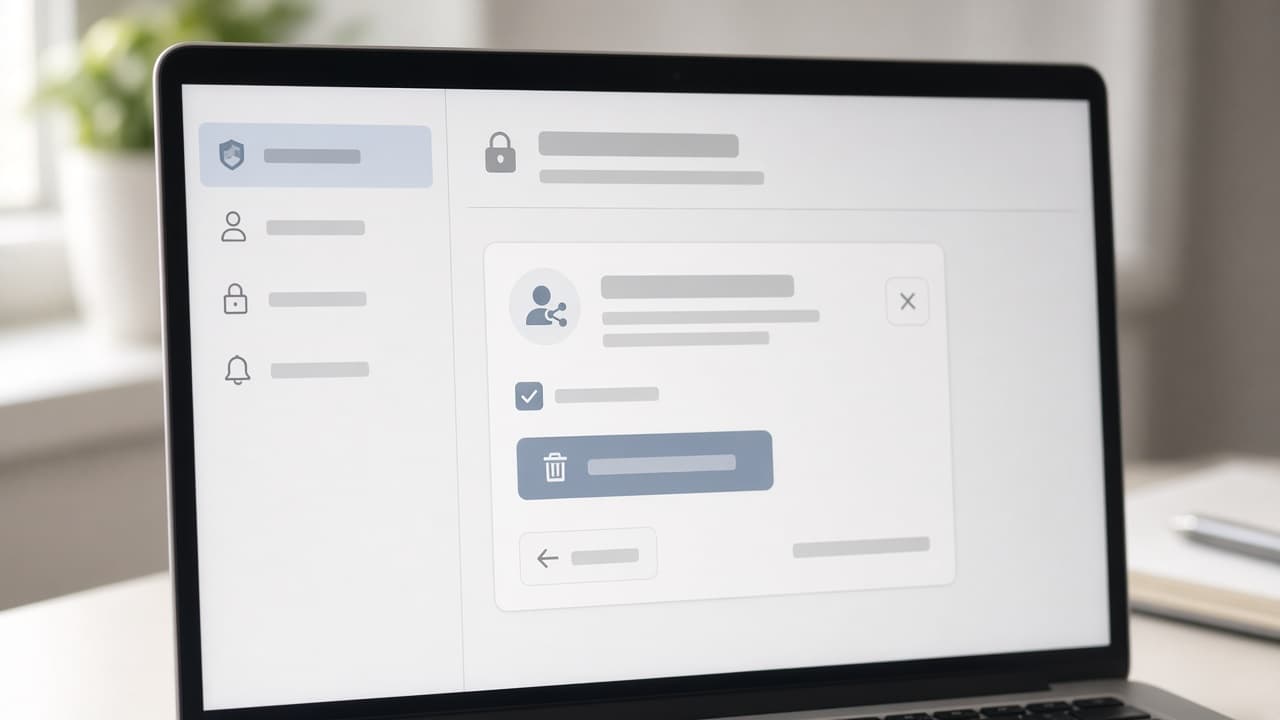
Finish disconnecting TikTok from every third-party account. 7d
Do not trust a third-party delete service
Common mistake: paying a random site that claims it can wipe TikTok faster. Use only official TikTok Help Center channels if something is stuck.
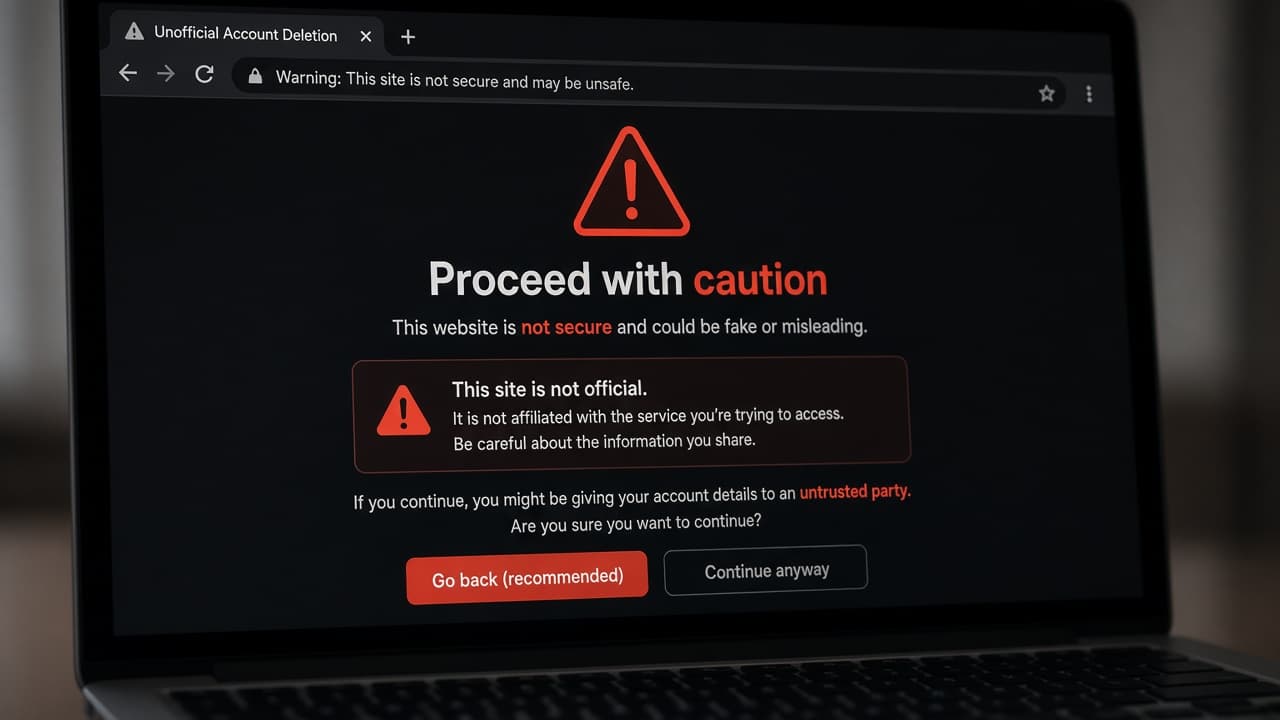
Skip unofficial wipe services and use TikTok support only.
Done when
- Decide you want permanent deletion, not a break
- Request and save a TikTok data download
- Note apps or logins that use TikTok sign-in
- Reach Deactivate or delete account in Settings
- Select Delete account and finish confirmation
- Stay logged out through the deactivation window
- Keep a screenshot or email of the deletion confirmation
Eagle Frame's takeaway: request and verify your archive first, replace TikTok sign-ins on other services, choose Delete account rather than Deactivate and complete every verification screen. Stay logged out for the full waiting period. Use TikTok's current Help Center if the menu wording or regional rules differ.