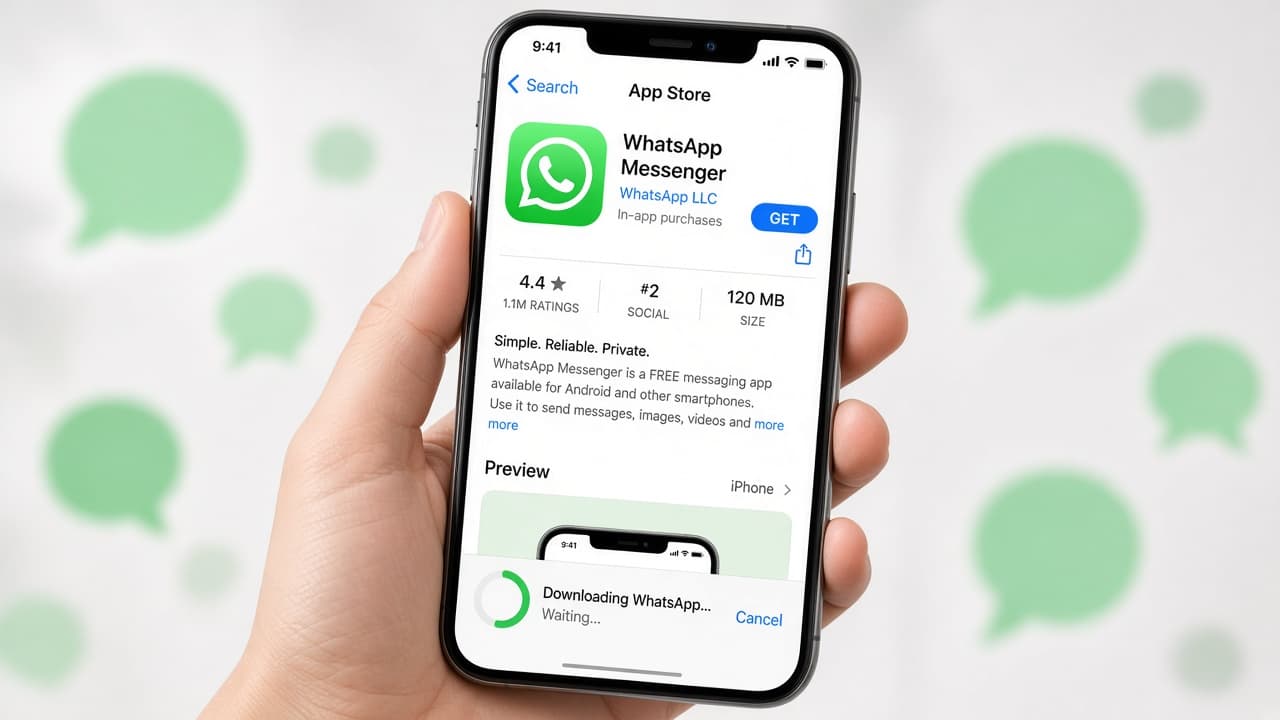
How to download WhatsApp
Install WhatsApp from official App Store, Google Play or WhatsApp.com download pages, verify your phone number by SMS and optionally link desktop or web.
WhatsApp is a free messaging and calling app from Meta. You register with a mobile phone number, not a separate username. The safe way to get it is the official store for your device or the download links on WhatsApp.com.
Never sideload random APK files from search ads or unknown websites. Fake installers are a common malware route. Stick to Apple App Store, Google Play, the Microsoft Store for Windows or the Mac download from WhatsApp's own site.
After install you enter your number and wait for an SMS or call verification code. Keep the SIM in the phone you are registering. If you are restoring chats, have your Google Drive or iCloud backup ready before you finish setup.
Desktop and WhatsApp Web are companion experiences. They still need the primary phone online or recently active depending on current linking rules. You can usually link several companion devices to one phone account.
Step-by-step guide
Time: 10 to 20 minutes including number verification
What you need
- iPhone, Android phone or supported tablet
- Active mobile number that can receive SMS
- App Store, Google Play or WhatsApp.com
- Optional: computer for WhatsApp Desktop or Web
Before you start
- Do not install WhatsApp APKs from random websites.
- Verification codes are secret. Never share them with callers or chat strangers.
- Registering a number moves WhatsApp off any previous phone using that number.
- Store labels and screens change after app updates.
Step 01
Pick the official download for your device
Use App Store, Google Play or WhatsApp.com so you get the real app signed by Meta.
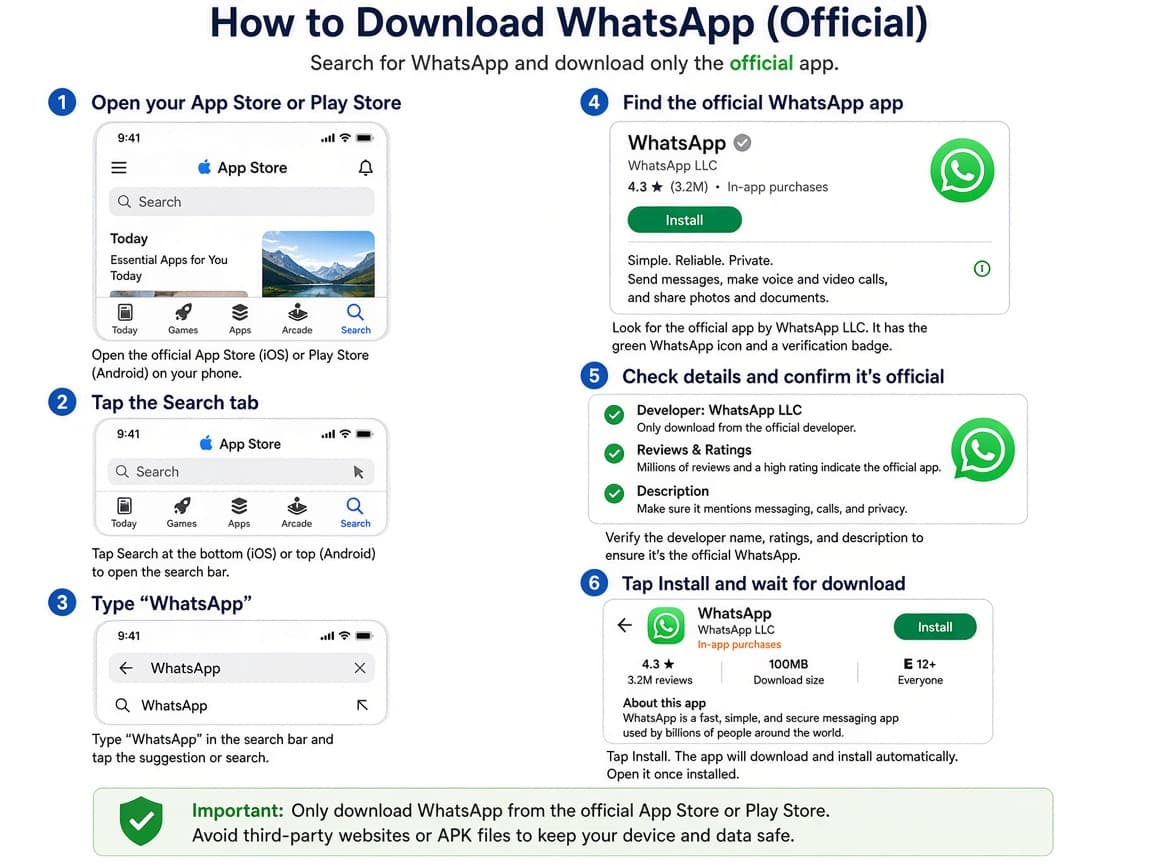
WhatsApp.com/download points to legitimate installs for each platform. Do this step in order
1a
iPhone: open the App Store listing
Search WhatsApp Messenger in the App Store or open the official App Store link from WhatsApp's site. Confirm the publisher is WhatsApp Inc. before you tap Get.
1b
Android: use Google Play
Open Google Play, search WhatsApp Messenger and install the listing from WhatsApp LLC. Avoid unknown sources unless your organization requires a managed build.
1c
Computer: use WhatsApp.com or the Microsoft Store
For Windows, prefer the Microsoft Store WhatsApp app or WhatsApp's Windows download guidance. For Mac, use the Mac app from WhatsApp's download page. WhatsApp Web works in a browser after phone setup.
Step 02
Install and verify your phone number
Open the new app, accept the needed permissions and prove you own the number with the SMS or call code.
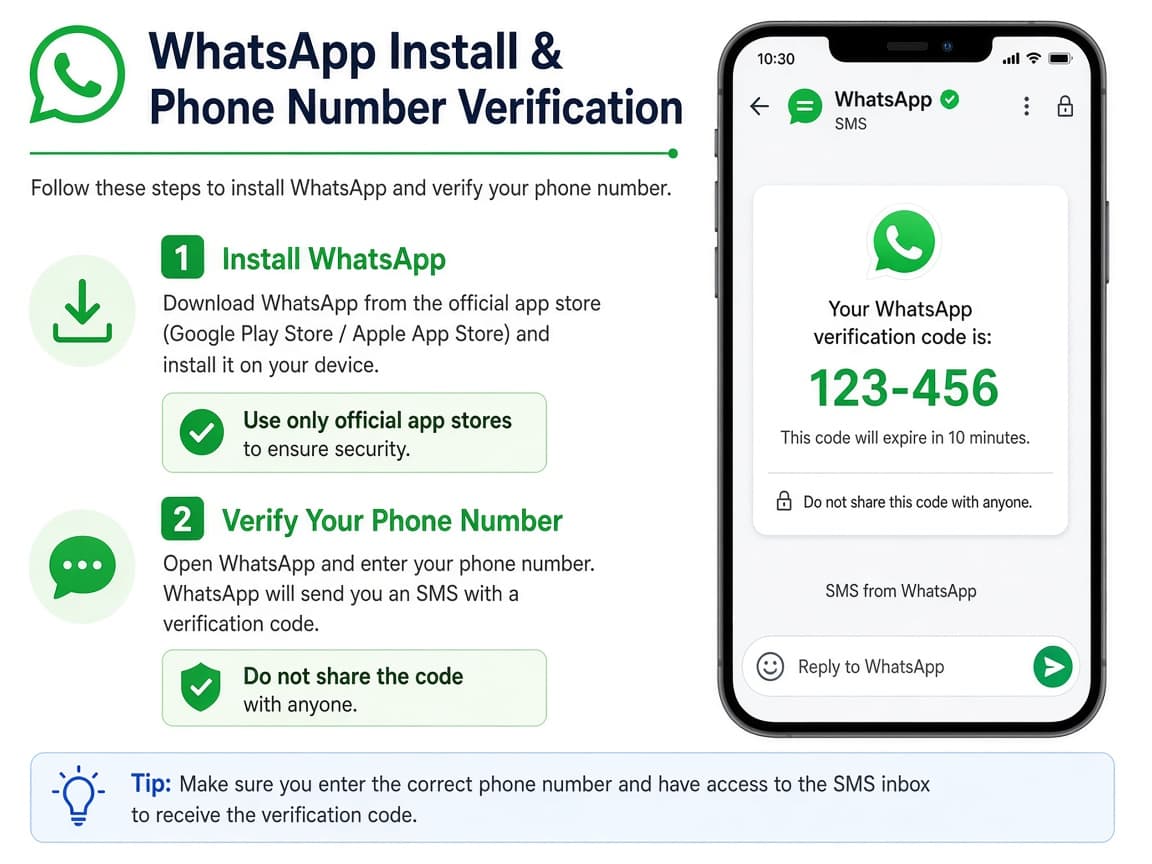
The SMS code proves the number belongs to you. Do this step in order
2a
Allow required permissions carefully
WhatsApp may ask for contacts, microphone, camera and notifications. Grant what you need for calling and messaging. You can adjust later in system Settings.
2b
Enter your number with the correct country code
Type the mobile number exactly as your carrier knows it. A wrong country code is the most common setup failure.
2c
Enter the verification code privately
When the SMS or call arrives, type the code into WhatsApp. Hang up on anyone who asks you to read the code aloud. That is a scam pattern.
2d
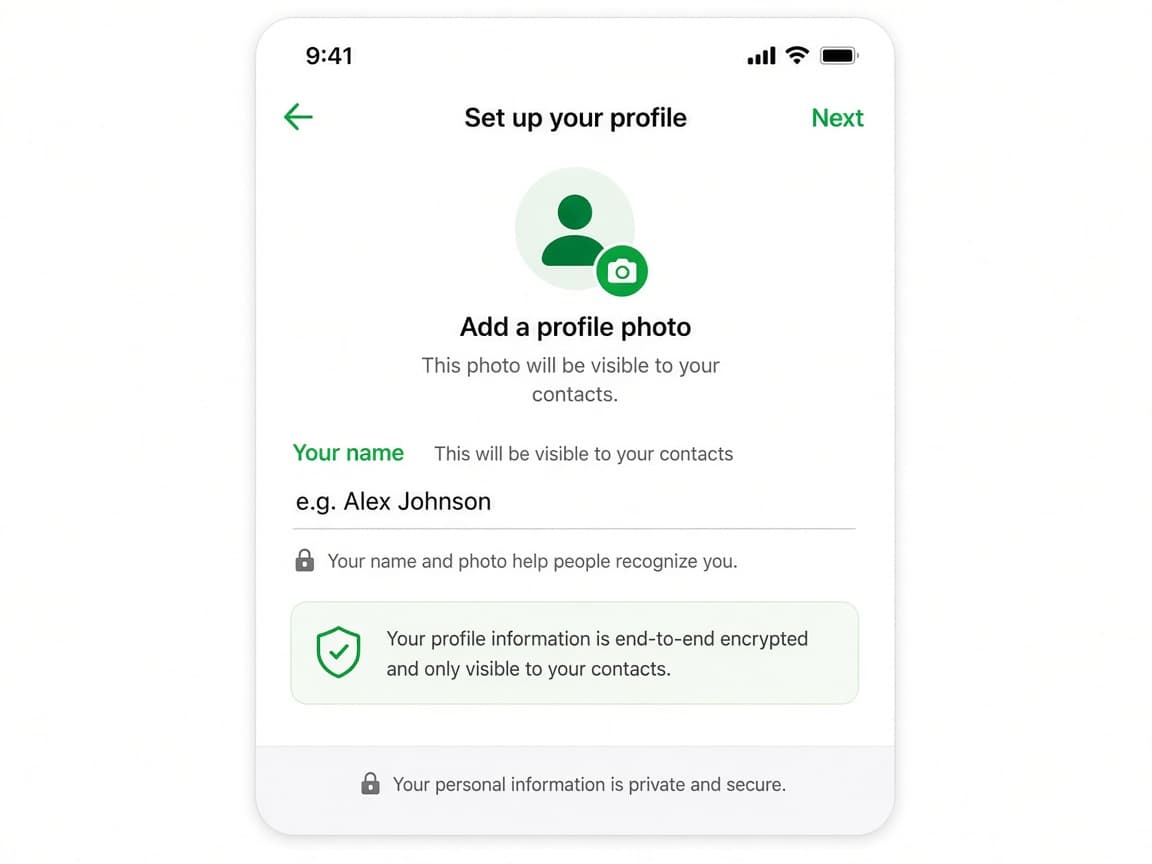
Set name and optional profile photo
Add the display name friends will see. A photo is optional. You can change both later in Settings.
Step 03
Restore chats or start fresh
If WhatsApp finds a cloud backup, restore it before you start heavy new chatting. Otherwise begin with an empty history.
Restore when offered if you need old messages. Do this step in order
3a
Restore from Google Drive or iCloud when prompted
On Android, sign into the same Google account that held the backup. On iPhone, stay on the same iCloud account and follow the restore prompt.
3b
Skip restore only if you want a clean start
If you tap Skip, old messages will not come back from that backup later in the same easy way. Be sure before you continue.
3c
Confirm chats and media look right
Open a few important threads and check media. If restore failed, consult WhatsApp Help for backup troubleshooting before you delete the phone app again.
Step 04
Link desktop or web the safe way
Only after the phone works, open WhatsApp Web or Desktop and scan the QR code from Linked devices.
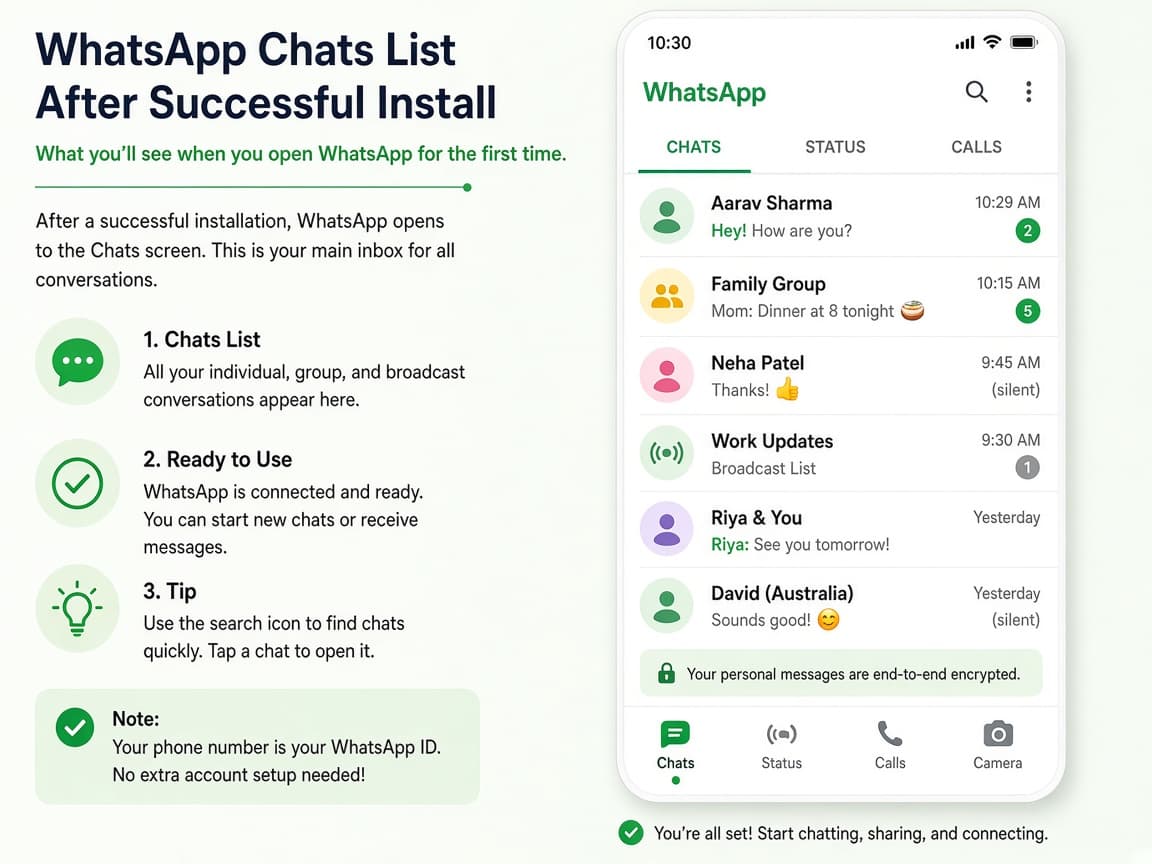
Link companions from the phone's Linked devices menu. Do this step in order
4a
Open Linked devices on the phone
In WhatsApp on your phone go to Settings, then Linked devices (labels can move). Tap Link a device.
4b
Scan the official QR code only
On the computer open https://web.whatsapp.com or the desktop app. Scan the QR shown there. Do not scan QR codes sent by strangers in chat.
4c
Review linked devices later
Periodically open Linked devices and log out anything you do not recognize. That keeps shared computers from staying connected.
Done when
- Open an official download source
- Install WhatsApp Messenger
- Verify your phone number
- Set a profile name and optional photo
- Restore a backup if you have one
- Link desktop or web only after phone setup works
Eagle Frame's takeaway: open the official store or https://www.whatsapp.com/download, install WhatsApp Messenger, verify the phone number you own and only then link web or desktop. Skip unofficial APKs entirely.