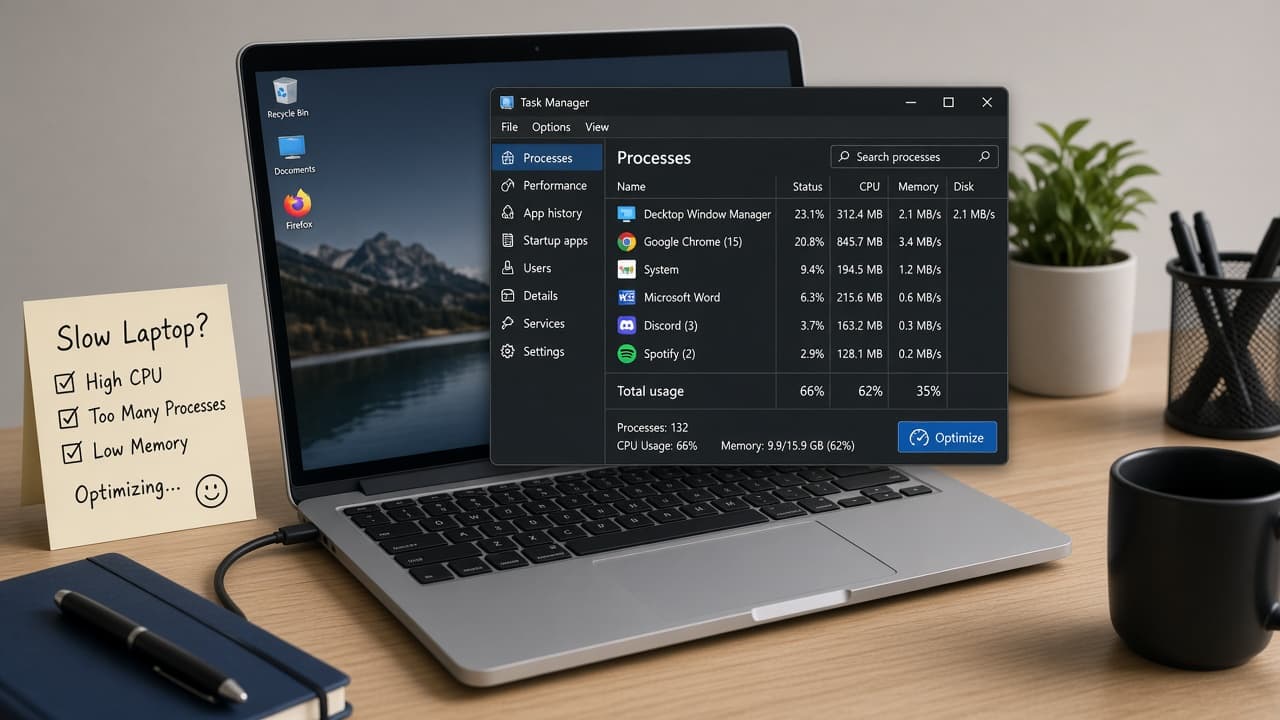
How to speed up a slow computer
Free disk space, cut startup apps, finish updates, trim browser extensions and run a malware scan before you spend money. Know when RAM or an SSD is the real fix.
A slow computer usually has a few ordinary causes: a nearly full drive, too many programs launching at login, outdated software, a browser heavy with extensions or malware. Hardware limits matter too. Eight gigabytes of RAM and a spinning hard drive feel older than the same machine with more memory and a solid-state drive (SSD).
Start with free fixes you can reverse. On Windows, check Storage settings and disk cleanup, then open Task Manager’s Startup apps list and disable what you do not need at boot. On a Mac, review Login Items in System Settings and free space in About This Mac / Storage. Install pending OS and app updates. Restart after big changes so you can tell what helped.
Browsers often feel like the whole PC. Remove extensions you do not recognize, clear cached junk if the browser is sluggish and avoid leaving dozens of heavy tabs asleep for days. Run the built-in Windows Security offline scan or Malwarebytes-style reputable tools when behavior looks wrong. Skip random “optimizer” downloads that promise miracles.
If the drive is full and the machine still crawls after cleanup, hardware upgrades are honest next steps. An SSD replaces a slow hard disk. More RAM helps if Task Manager or Activity Monitor shows memory pressure while you work. No software tip turns a failing drive into a new one. Back up before you open a case or visit a shop.
Step-by-step guide
Time: 30 to 90 minutes for software cleanup; hardware upgrades take longer
What you need
- Windows PC or Mac you control
- Admin permission to change startup items and install updates
- External drive or cloud backup before major cleanup
- Optional: reputable malware scanner
Before you start
- Back up important files before you uninstall apps, reset the OS or open the computer case.
- Do not download random “PC booster” or “cleaner” programs from ads. Many install more junk than they remove.
- Disable only startup apps you recognize. Turning off security software at boot can leave you unprotected.
Step 01
Free disk space without deleting your life
A nearly full drive makes every app feel slower. Create breathing room first.
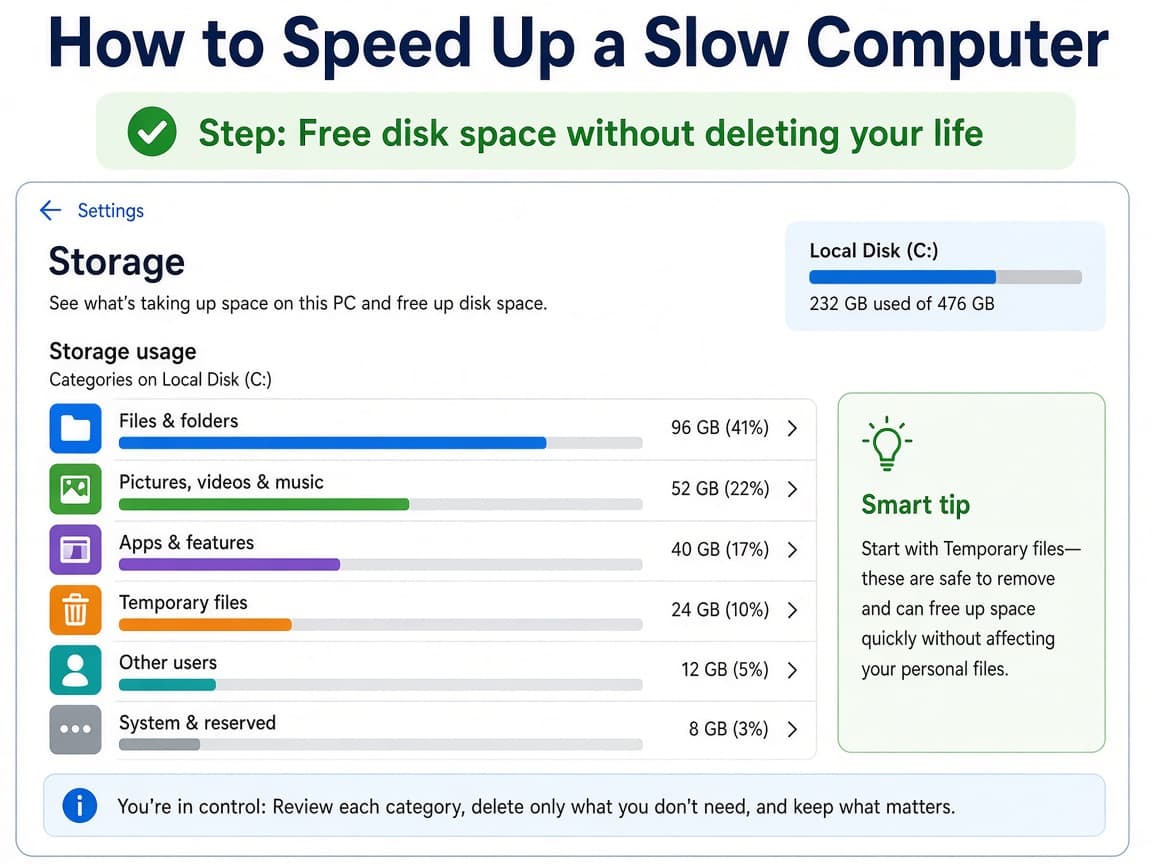
Check which folders eat space before you delete blindly. Do this step in order
1a
Check free space on Windows or Mac
On Windows open Settings > System > Storage. On a Mac open Apple menu > About This Mac / System Settings storage views. Note how many gigabytes are free.
1b
Empty Recycle Bin or Trash and clear obvious downloads
Delete installers, duplicated videos and huge downloads you no longer need. Empty Recycle Bin (Windows) or Trash (Mac). Move keepers to an external drive instead of deleting if you are unsure.
1c
Use built-in cleanup, not mystery optimizers
On Windows run Disk Cleanup or Storage sense recommendations for temporary files. On a Mac, review recommendations in Storage settings. Avoid ads that claim to “speed your PC 10x.”
1d
Uninstall apps you never open
Windows: Settings > Apps. Mac: drag unused apps to Trash or use the vendor’s uninstaller. Restart once and notice whether launch times improved.
Step 02
Cut startup programs and finish updates
Boot should load what you need, not every chat and updater at once.
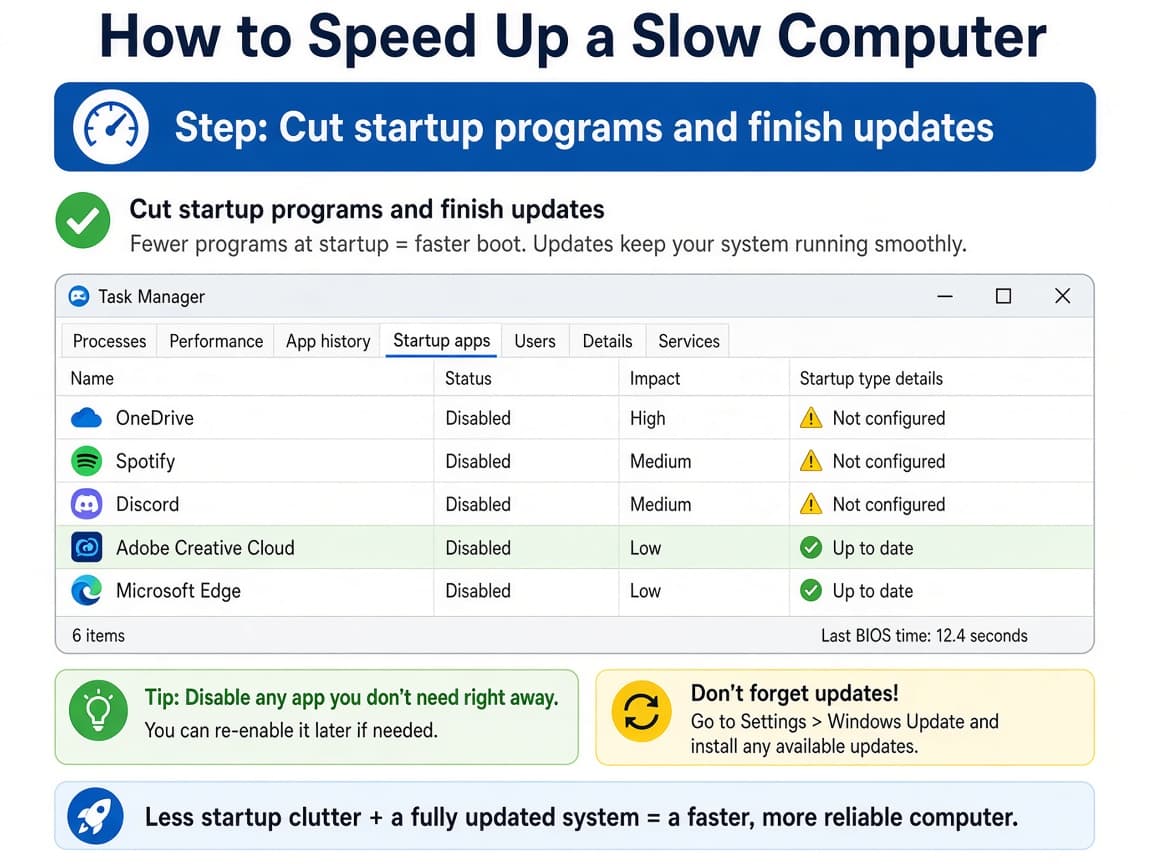
Disabling nonessential startup apps shortens the wait after login. Do this step in order
2a
Review Startup apps on Windows
Press Ctrl + Shift + Esc for Task Manager, open the Startup apps tab and Disable entries you do not need at boot (extra chat apps, trial software, vendor bloat). Leave security tools alone.
2b
Review Login Items on a Mac
Open System Settings > General > Login Items (wording varies slightly by macOS version). Remove apps that do not need to start when you log in. Check Background Items if your version lists them.
2c
Install OS and app updates, then restart
Windows Update and Mac Software Update fix performance bugs as well as security holes. Update your browser too. Restart so updates and startup changes take effect.
Step 03
Lighten the browser and scan for malware
If the machine feels fine until you open Chrome or Edge, fix the browser before you replace hardware.
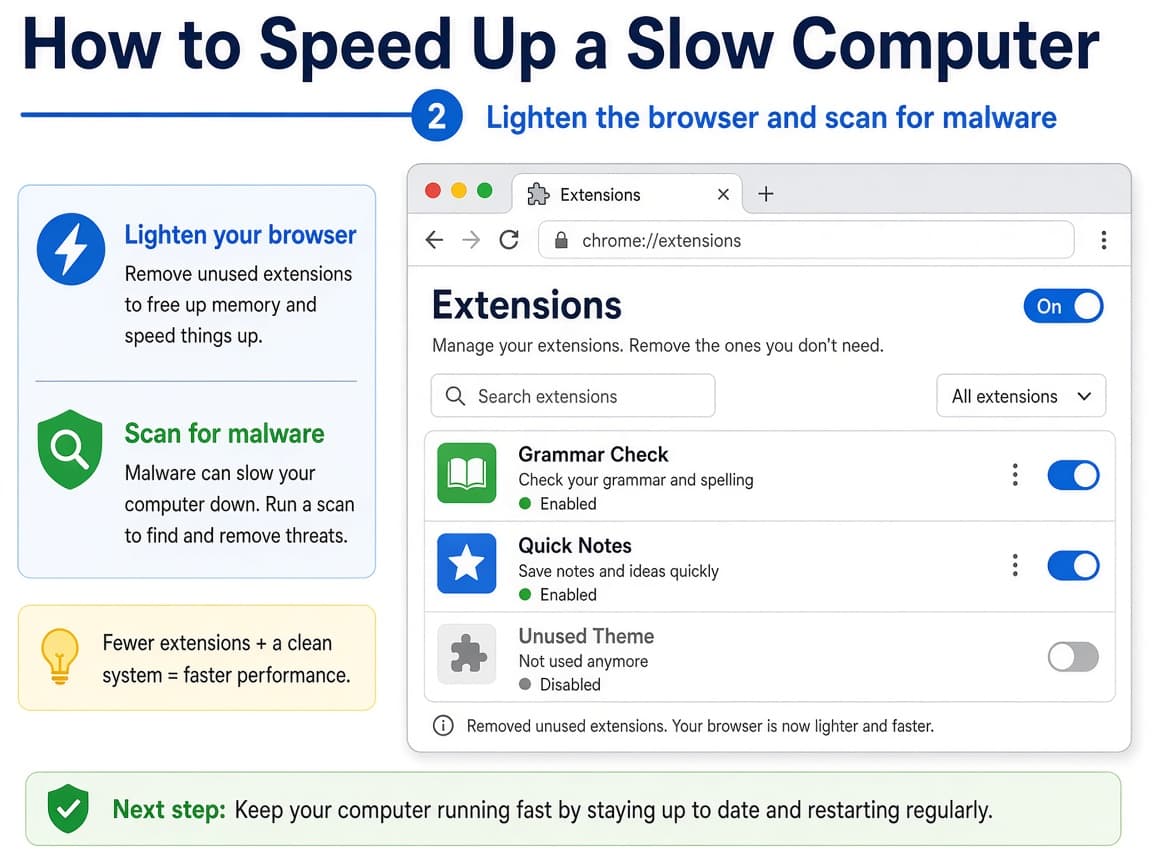
Extensions multiply quietly and slow every tab. Do this step in order
3a
Remove extensions you do not use or recognize
Open your browser’s extensions page and delete unknowns. Keep a short list: password manager, ad blocker you trust, maybe one productivity tool.
3b
Test with fewer tabs and a clean profile if needed
Close heavy tabs. If the browser is still broken, create a fresh profile or clear cached files from the browser’s settings. Bookmark export first if you worry about losing sites.
3c
Run a reputable malware scan when behavior is odd
Unexpected pop-ups, new toolbars or fans screaming while idle deserve a scan. Use Windows Security (try Microsoft Defender Offline if needed) or another well-known tool. Quarantine what it finds, then restart.
Step 04
Decide when hardware is the real answer
Software cleanup has limits. Matching the upgrade to the bottleneck saves money.
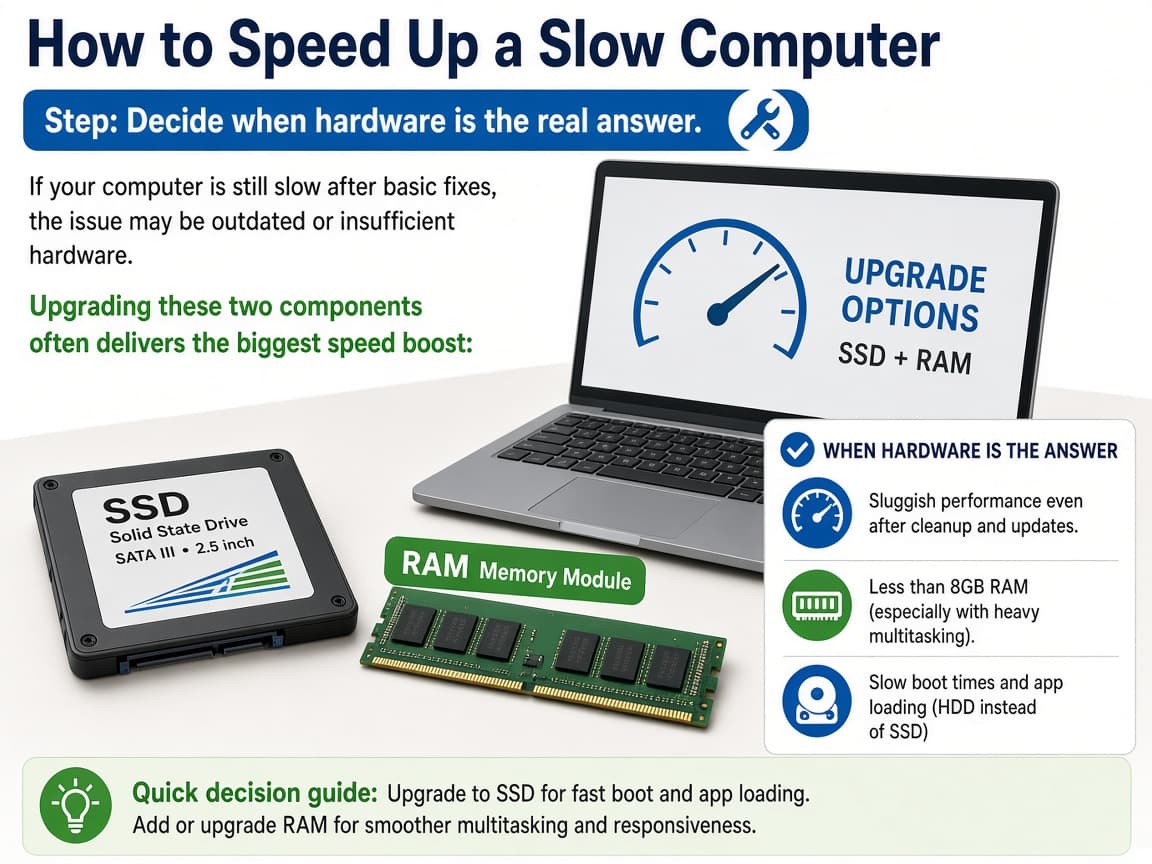
SSD and RAM upgrades fix different kinds of slowness. Do this step in order
4a
Check RAM pressure while you work
On Windows open Task Manager > Performance > Memory. On a Mac open Activity Monitor > Memory. If memory stays pegged and the disk thrashes while you use ordinary apps, more RAM helps.
4b
Prefer an SSD if you still have a spinning hard drive
If the PC takes minutes to boot and open apps even with free space and a clean startup list, a hard disk is often the bottleneck. Cloning to an SSD (or a shop install) is the usual leap. Back up first.
4c
Plan a clean OS reinstall only after a backup
Reset this PC (Windows) or erase-and-reinstall macOS can clear deep software mess. Copy documents, photos and license keys out first. This is a last software step before hardware spend, not a first click.
4d
Accept age limits and shop with a checklist
A decade-old machine may not be worth deep upgrades. If you buy new, prioritize SSD storage, enough RAM for your work and a vendor you can support. Migrate files from the backup you already made.
Done when
- Free storage confirmed (aim for double-digit GB free when possible)
- Startup apps trimmed
- OS and browser updates installed
- Extra browser extensions removed
- Malware scan completed if behavior was suspicious
Eagle Frame’s takeaway: free space, trim startup items, update, lighten the browser and scan for malware before you buy anything. If the PC is still slow with room on the disk and a clean startup list, look at RAM and SSD upgrades rather than another dubious cleaner app.